
Issue:
Quick overview: There are 4 different methods for downloading in your Autodesk account. Install for immediate single-computer setup, Download for flexible timing, Direct download for offline installation, or Custom install for enterprise deployment. Find out the best option for your needs and learn how to download your Autodesk product.
If you’re having issues with downloading or having trouble finding the different options to download your software, this guide walks you through the different methods you can use.
 |
If you are an end user, to see your product on your Autodesk account’s Products and services page, ask your Autodesk admin to assign it to you. If the product is missing, check with your admin and confirm they have assigned the product to the email address you use to sign in. |
Environment:
Autodesk account
Causes:
Why are there multiple different download methods for Autodesk products?
There are multiple download options available from your Autodesk account, which can make it difficult to know which to use. The different methods align with different use cases, as outlined below.
Solution:
How to choose the right download method in your Autodesk account
The best option for downloading Autodesk products will depend on your requirements. Find the right option for your needs below and learn how each method works.
| Method | For multiple computers? | Operating system | Description | Product updates? | Educational usage? |
| Install | No | Windows |
|
|
Students and educators |
| Download | Yes | Windows macOS Linux |
|
|
Students, educators, and institutions |
| Direct download | Yes | Windows macOS Linux |
|
|
Students, educators, and institutions |
| Custom install | Yes | Windows |
|
|
Institutions and student lab installations |
Quick Links:
- Install: How to download Autodesk products for installation on a single computer
- Download: How to download Autodesk products with flexible installation timing
- Direct download: How to download Autodesk products for offline installation
- Custom install: Installation methods for enterprise deployment
- FAQs
1. Install method: How to download Autodesk products for installation on a single computer
Click to view or hide this solution
The Install download method is used for installing Autodesk products on a single computer. It downloads and installs in one operation. By default, this method will also install the latest product updates automatically.
To use this method to download and install Autodesk products on a single computer:
- Sign in to your Autodesk account.
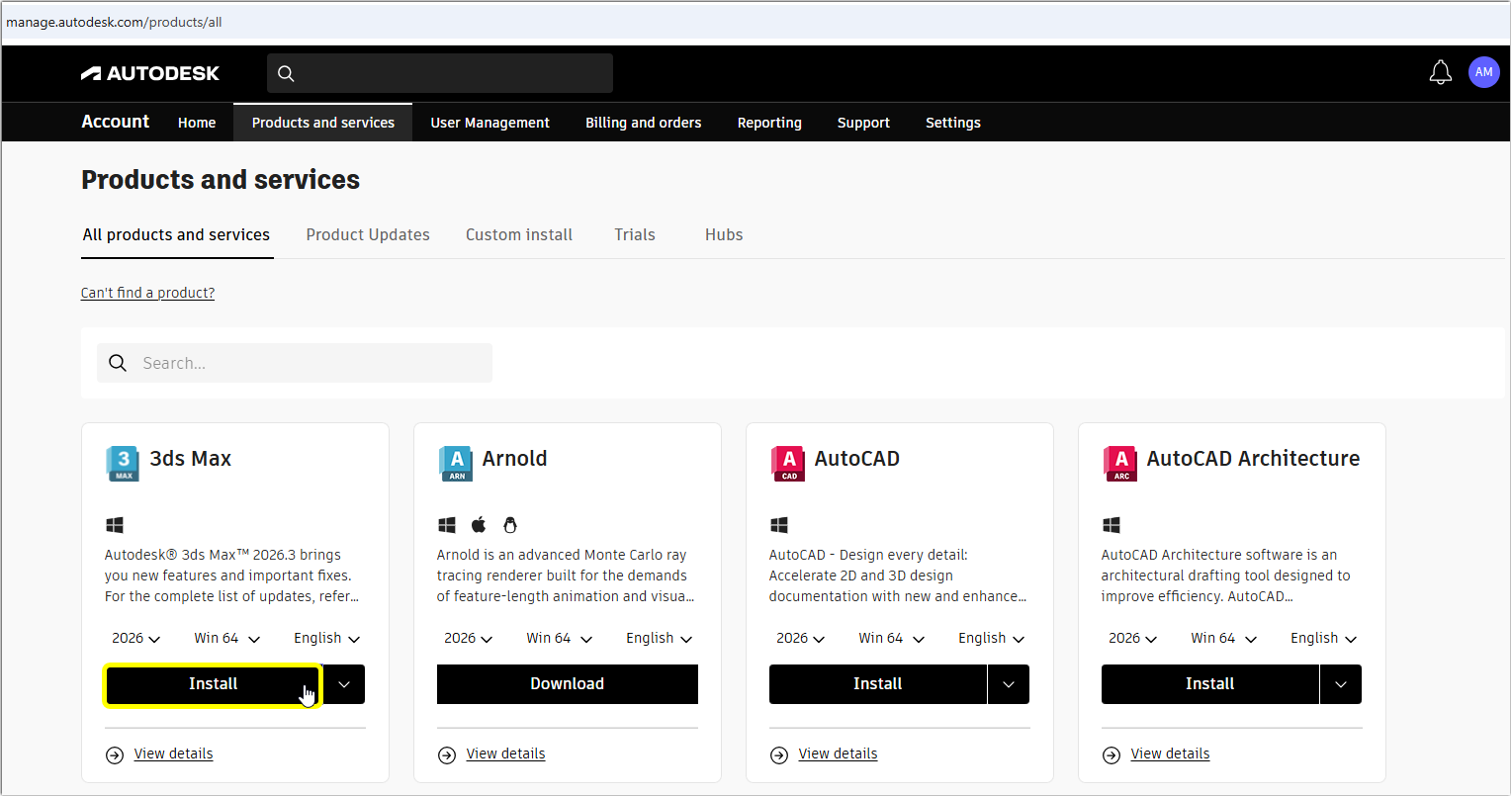
- Navigate to Products and services > All products and services.
- Locate your desired software in the product list.
- Choose the Install button or select Install from the drop-down arrow.
- Complete setup by accepting the license agreements and choosing the right installation location.
If your download doesn't start automatically, disable any pop-up blockers and download again.
2. Download method: How to download Autodesk products with flexible installation timing
Click to view or hide this solution
Use the Download method when you need flexibility or gaps between when you download the product and when you install it.
This method can be used to install any product release on single or multiple computers. It downloads in the first step and then installs in the second, so you can wait between download and installation. As with the Install method, the Download method will also install the latest product updates by default.
To download Autodesk products with flexible installation allowances:
- Access your Autodesk account and navigate to Products and services > All products and services.
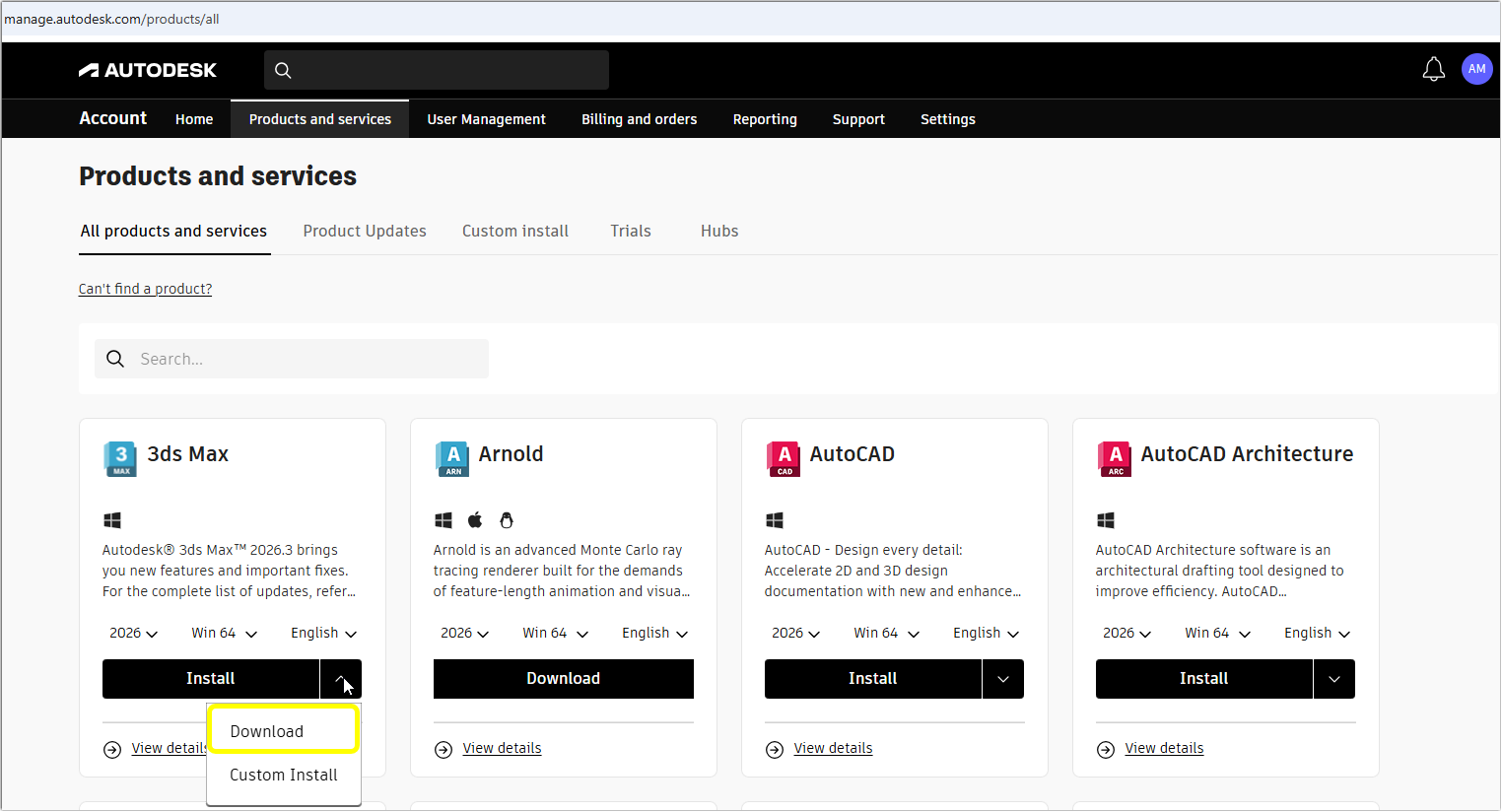
- Select your software.
- Choose Download from the drop-down next to Install.
- Choose the location to save the installer file.
If your download doesn't start automatically, disable any pop-up blockers and download again. - When ready, run the downloaded file as administrator. This will start the Autodesk installer.
- Select Run Installer when you're ready to start with installation.
| Note: Account administrators can assign product licenses with flexible installation dates to users. This allows users to install the software in advance, then begin using it once the license start date arrives. Learn how to assign licenses to users here. |
3. Direct download method: How to download Autodesk products for offline installation
Click to view or hide this solution
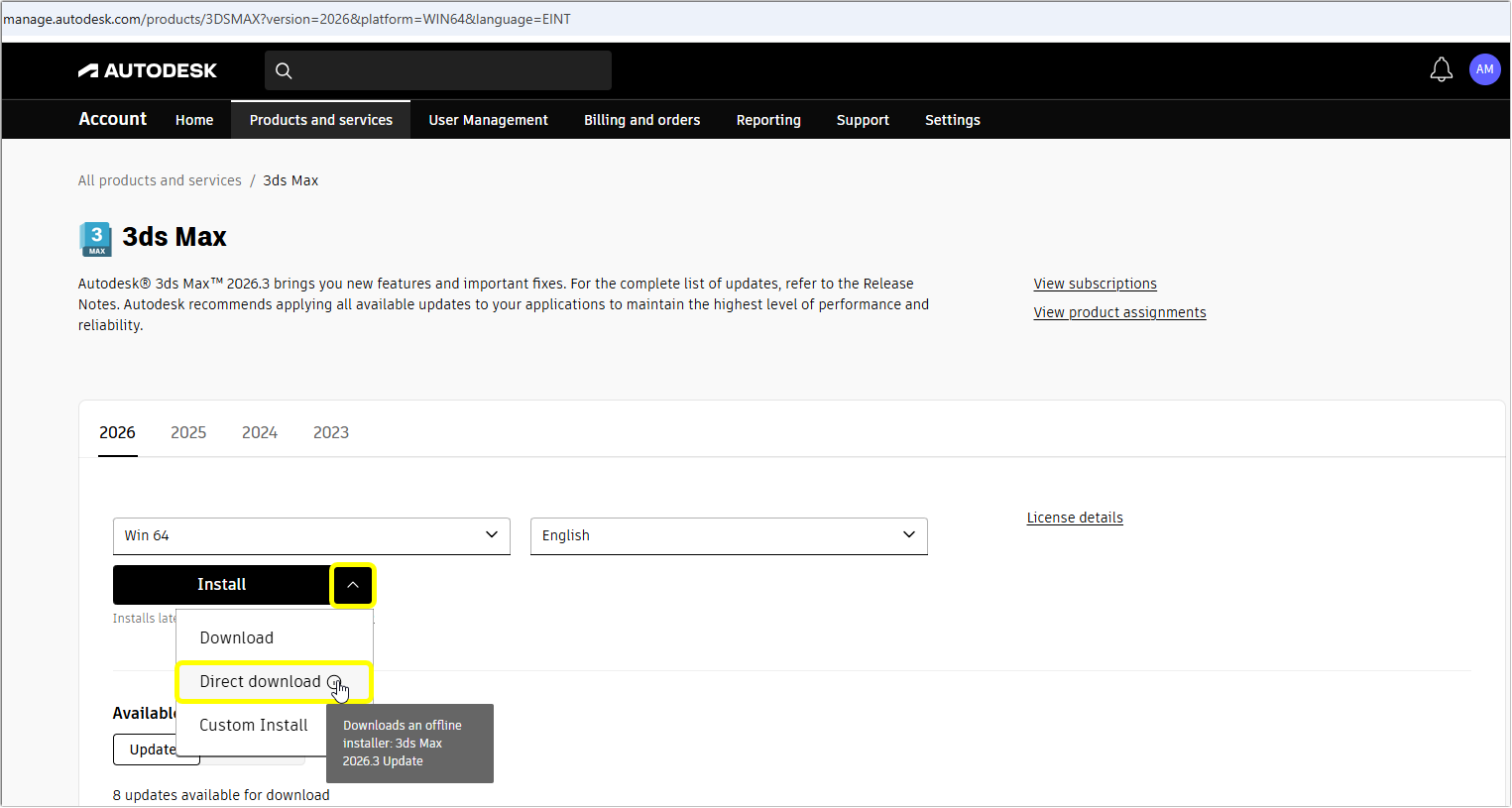
Use this approach when you need offline installation capability. This method provides you with a single self-extracting executable file that contains everything needed for offline installation, so you don’t need internet connectivity during setup. It can also be useful for installing the exact product version you need for your projects, without automatically updating.
To download and install Autodesk products without internet access:
- Navigate to All Products and services in your Autodesk account.
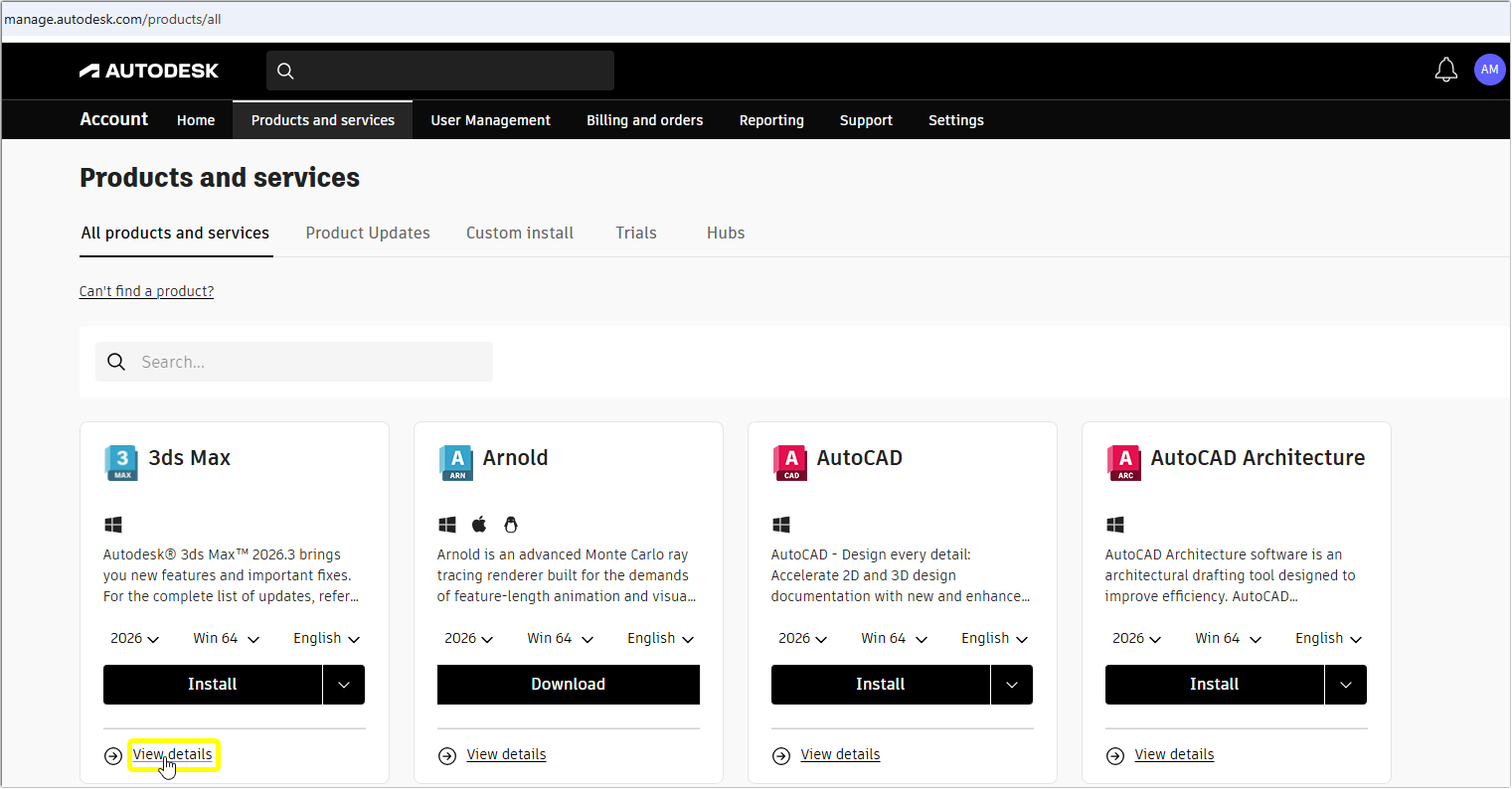
- Select View details for your desired product to expand the information.
- Select Direct download from the dropdown next to Install.
- Transfer the downloaded file to your target computer if you’re planning on installing on a different machine.
- Run the executable with administrative privileges to begin extraction and installation.
4. Custom install: Download and installation methods for enterprise deployment
Click to view or hide this solution
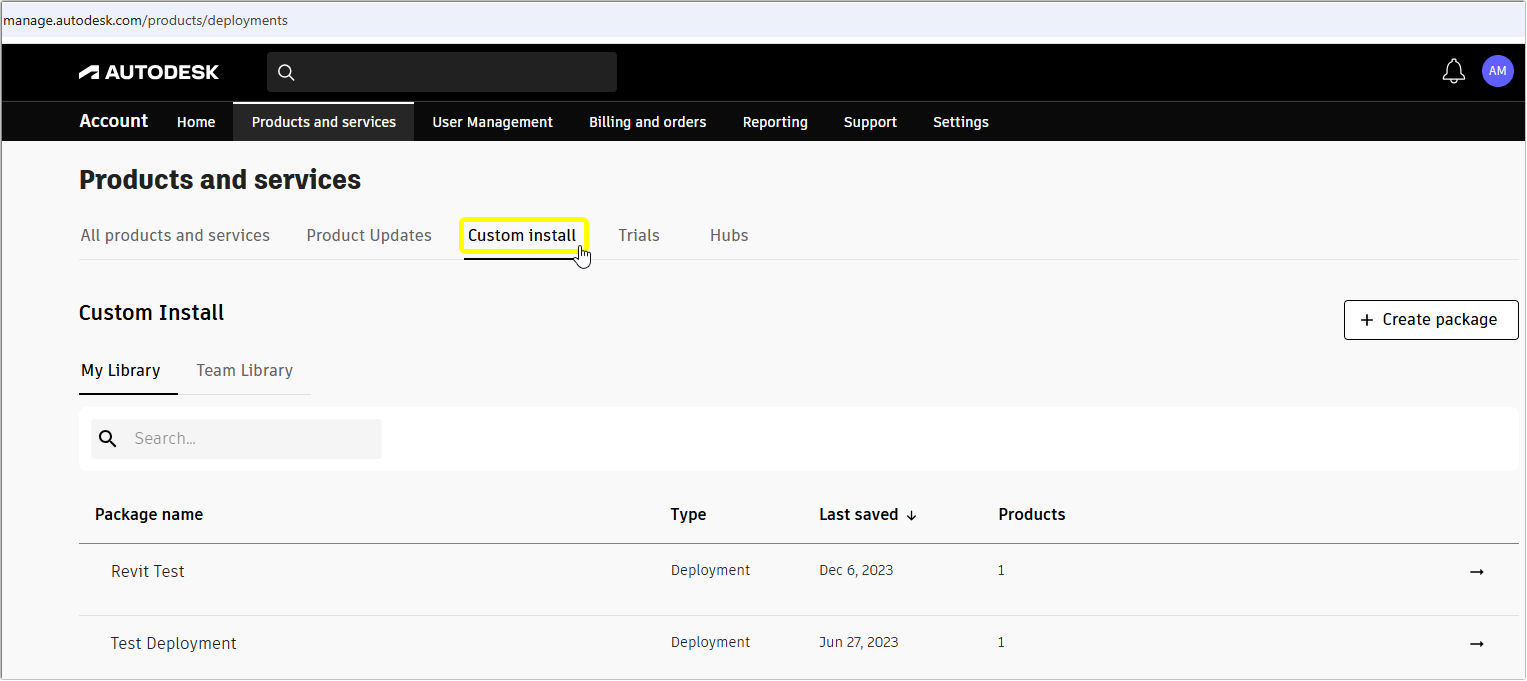
The Custom install method under Products and services in your Autodesk account allows you to install products with custom settings on single computers or create custom deployments to multiple computers. You select products and specify installation settings in your Autodesk account before you download.
To develop and deploy your custom install:
- Navigate to All Products and services in your Autodesk account and select Custom install.
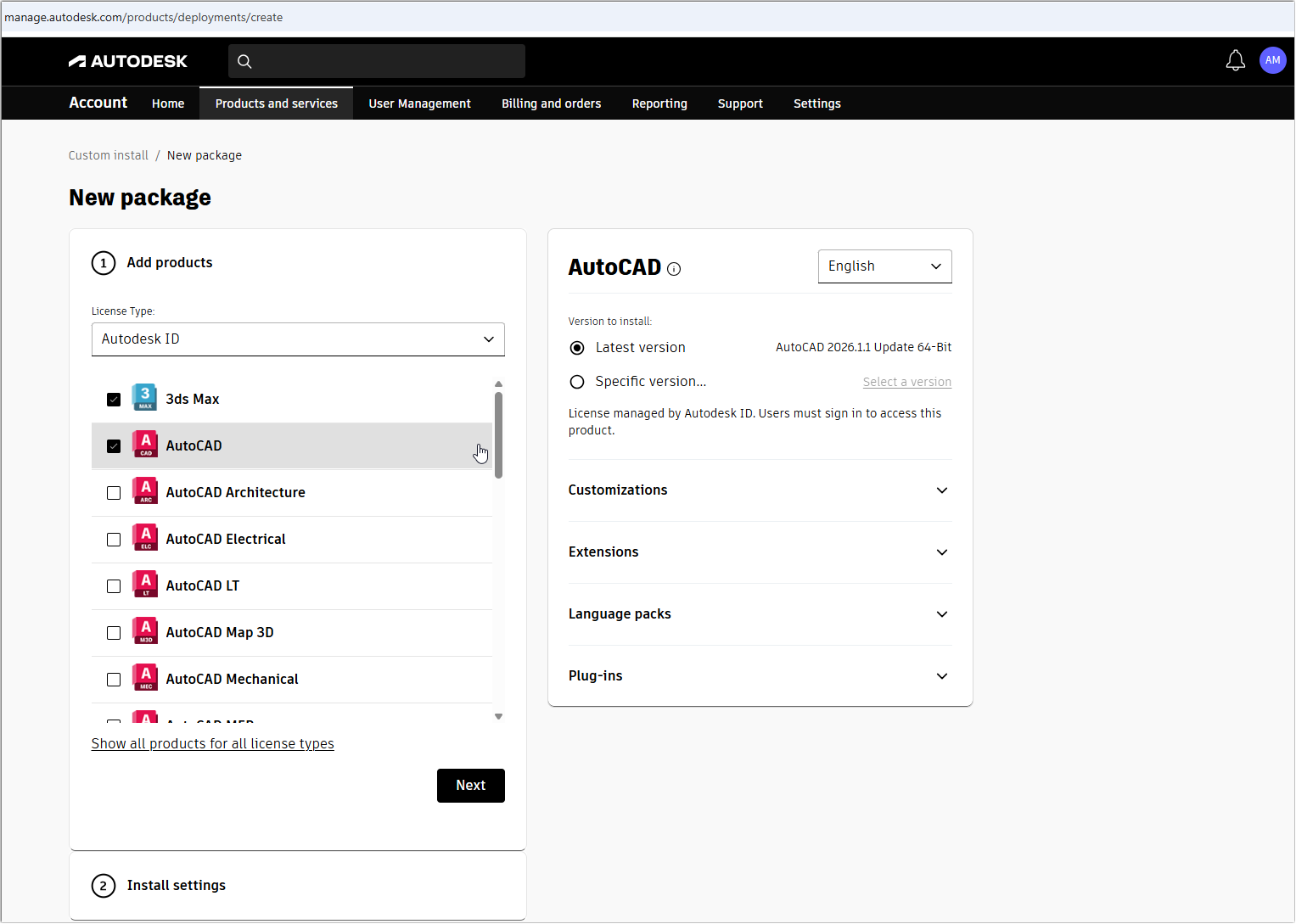
- Select + Create package.
- Choose the license type appropriate for your subscription (Autodesk ID, network, or serial number).
- Tick the box next to the product name to add it.
- Customize each product using the right panel configuration options:
- Choose specific product versions to include.
- Select optional applications and add-ins.
- Specify content storage locations for templates and libraries.
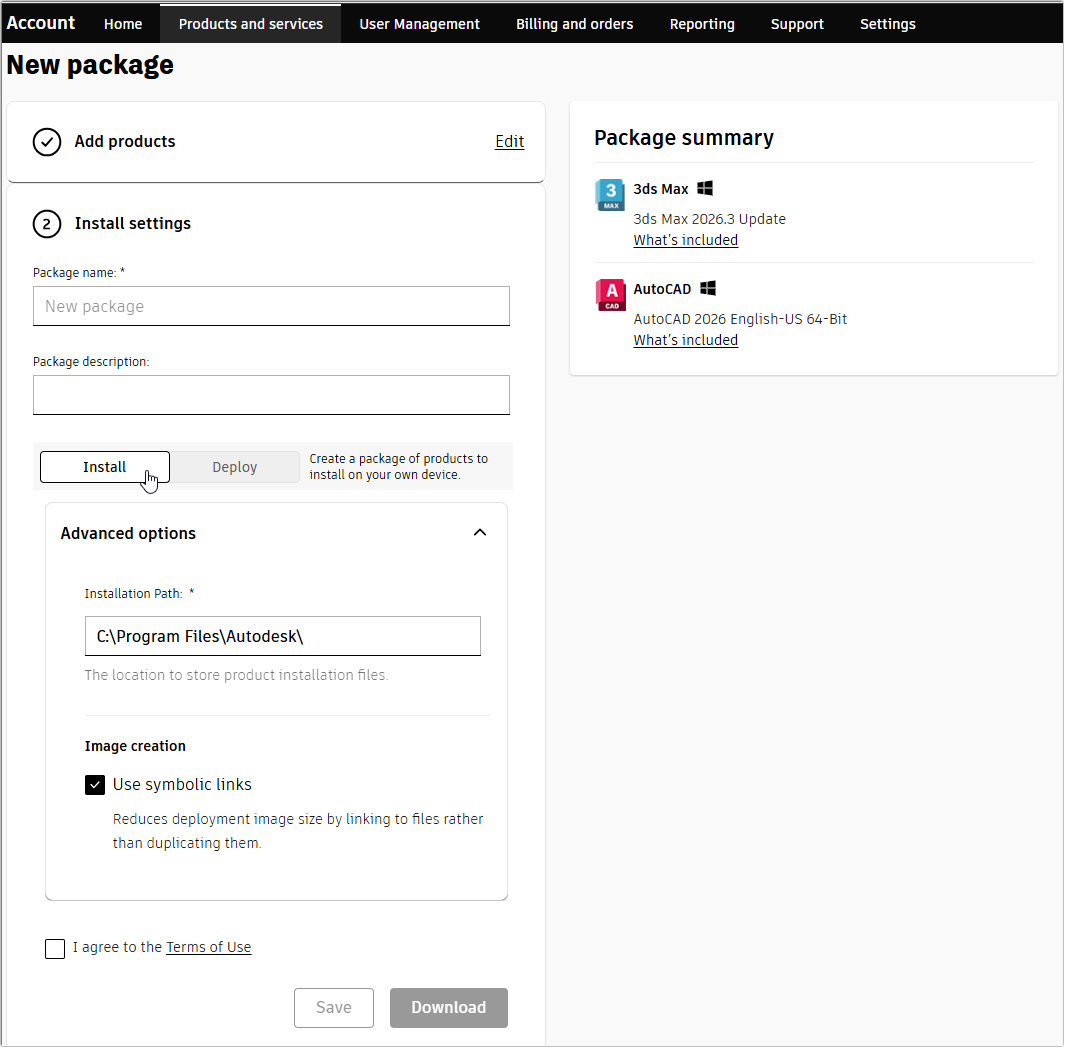
- Configure package details by entering a descriptive package name and an optional package description.
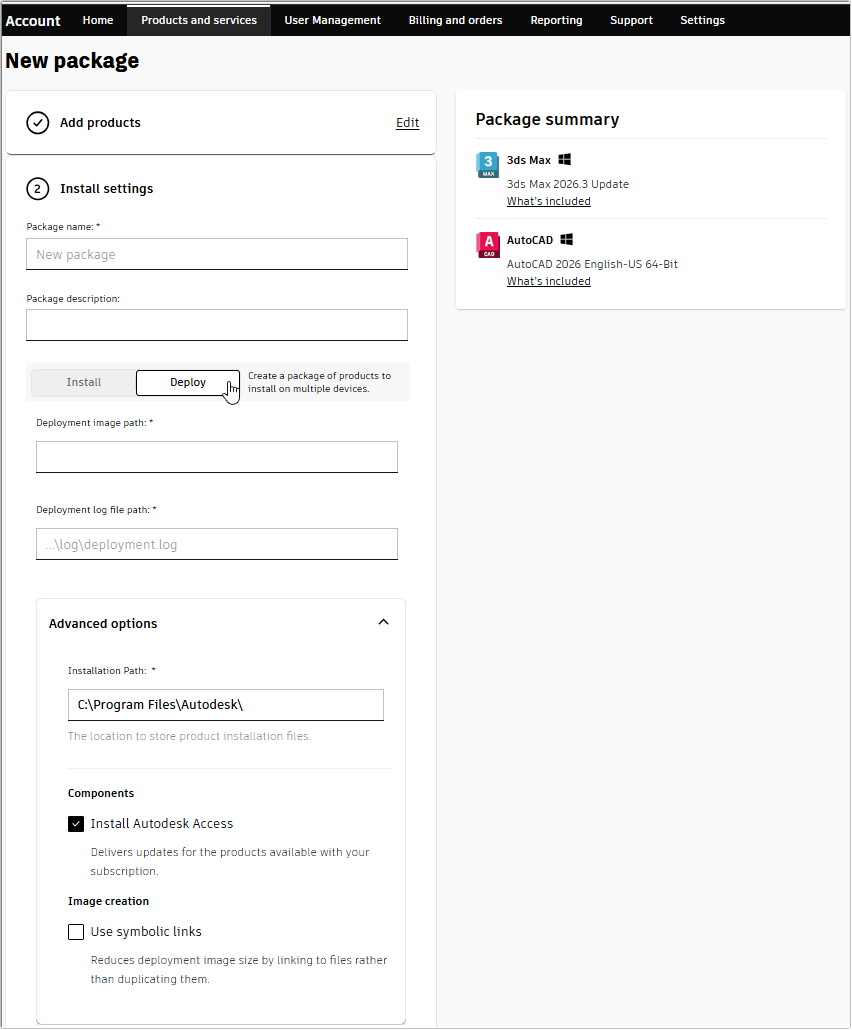
- Installation type: Select Install to create a package of products to install on your own device or select Deploy to create a package of products to install on multiple devices.
- Based on your selection, set advanced options, including default installation paths and organizational preferences.
- Agree to the Terms of Use and select Download.
- Choose the location to save the deployment creation executable for your specifications. In your Autodesk account, you can also find it in your custom install library.
- Deploy the package by running the executable on target computers or through network deployment tools.
Autodesk download methods: Frequently asked questions
Click to view frequently asked questions
What do I do if my chosen download option isn’t available?
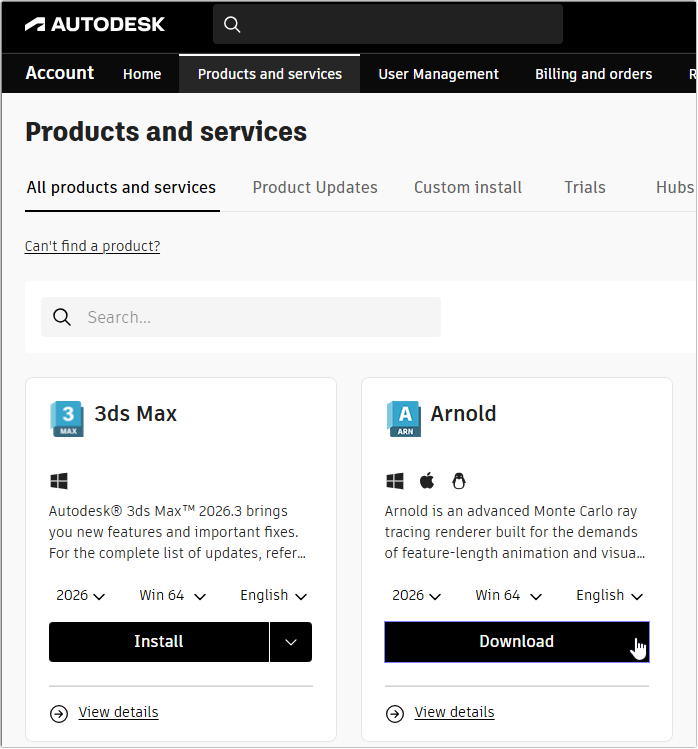
In some cases, the expected download methods may not appear in your product download menu. If this happens:
- Check product details - Some products only support specific download methods based on licensing or platform requirements.
- Clear your browser cache and refresh your Autodesk Account page to reload current method availability.
- Try different browsers or disable browser extensions that might interfere with account functionality.
- Contact your Autodesk account admin if you’re working within an enterprise environment with deployment restrictions.
What do I do if my download fails or becomes corrupted?
If you are downloading Autodesk products and the process fails during download, or won’t install properly after downloading has completed, you should:
- Check available disk space - Ensure you have adequate storage for both download and extracted installation files.
- Disable antivirus software temporarily during the download process to prevent interference with the creation of installation files.
- Try a different download method - Switch from the Install to the Download method for better control over the whole process.
How do I deal with missing files when downloading multiple parts?
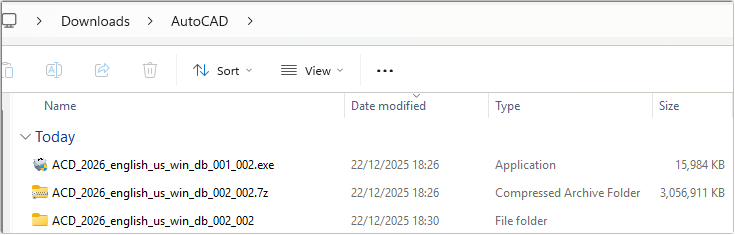
Some larger products will download as multiple files (direct download method), rather than one. However, if any of these files are missing or don't download, it can lead to failed installations. If this happens:
- Keep all downloaded files together in the same folder.
- Run the first file only - always start installation with the file containing "001" in its file name.
- Re-download missing parts by checking you have everything in the download folder.
How do I fix issues with permission and access denied?
If your downloaded installation files won't run or are reporting permission denied errors, then:
- Run the installation as administrator.
- Check your operating systems user account permissions.
- Disable User Account Control temporarily.
- Contact your IT administrator.