Python Hooks Tips
This topic provides various tips for working with Python Hooks. The hooks themselves are documented in the .py files in /opt/Autodesk/<PRODUCT>_<VERSION>/python/.
Examples and samples
Examples of hooks are available in /opt/Autodesk/<PRODUCT>_<VERSION>/python_utilities/examples/.
These examples are simple, incomplete solution snippets that demonstrate and explain code concepts rather than complete implementations.
| Filename | Description |
|---|---|
| context_variables.py | Simple samples of utility methods used to manage OCIO Context Variables. |
| conversion_description.py | Example of how to use the project conversion hook to edit information in the description of a converted project. |
| custom_action_object.py | Example of how custom actions can be any callable python object. |
| custom_menu_structure.py | Examples demonstrating how to define two different menu structures for the same custom actions. |
| import_file_using_custom_dialog.py | Demonstrates how a clip can be imported in Batch Group using a Qt File Dialog or a Flame Browser through a custom action scoped to the Batch Schematic background. |
| object_scoping.py | Example demonstrating how to scope custom actions to specific areas or objects. |
| post_export_asset_after_snapshot.py | Example demonstrating how to scope the post_export_asset hook to be called only after a snapshot operation. |
| post_export_dependency.py | Examples of custom actions that use the Python export API (PyExporter). |
| project_protection.py | Example demonstrating how to use the project hooks abort mechanism to prevent modification of a project. |
| show_messages.py | Example of messages presented in the message bar/console or a dialogue box via a custom action. |
| version_scoping_hooks.py | Example demonstrating how custom actions can be limited to appear in specific software versions only. |
| wait_cursor.py | Example of a Python hook overriding the default wait cursor while running to enable use of another GUI. |
| watch_folder.py | Example on how to leverage the Idle event callback to perform operations during Flame's UI idle time. |
Sample scripts providing more complete solutions are available in /opt/Autodesk/<PRODUCT>_<VERSION>/python_utilities/scripts/.
| Filename | Description |
|---|---|
| batch_write_file_quicktime.py | Example of a hook that transcodes exported media from a Batch Write File node to a QuickTime file as a post-export process. |
| cache_motion_vectors.py | Script that creates Motion Vector Maps for a Clip node located in the Batch Schematic. |
| clean_batch_iteration.py | Script that adds a Clean Batch Iterations custom action to different Media Panel objects. When selected, the content of a Batch Group's Iterations folder is emptied. |
| create_user_shared_library.py | Example demonstrating how a Python hook can be used to fetch the current user for later use in custom actions. |
| export_current_frame.py | Example of a custom action that exports the current frame of each selected clip in a selection. |
| export_selection.py | Example of a custom UI action that exports a thumbnail and a movie for all clips in a selection. |
| manage_archived_clips.py | Example of a custom action that removes archived clips from a clip selection. |
| path_of_selected_clips.py | Example of a simple custom action that can be run on a MediaHub Files object. |
Passing the Project Name Between Hooks
To pass the project name between hooks, use the app_initialized hook. This hook is called whenever the project changes. The project name passed by the hook can be assigned to a global variable that can then be read by other hooks.
global_project_name = ""

def app_initialized(project_name):
    global_project_name == project_name
Environment Variables
DL_PYTHON_HOOK_PATH
Sets the path to the Python hooks files. This variable behaves similarly to other PATH variables.
export DL_PYTHON_HOOK_PATH=/share_1/dev/python_hooks/test:/share_1/dev/python_hooks/productionIn the above example, Flame loads the hooks from test first, and then for any undefined hooks, continue to scan production.
DL_DEBUG_PYTHON_HOOKS
Enables verbose output from hooks, which simplifies the debugging process. Outputs to the shell regarding:
- Which hooks are loaded from which files
- The data sent to each hook that is triggered
export DL_DEBUG_PYTHON_HOOKS=1
Reloading Hooks From Within the Application
A new hotkey has been added to re-scan hook files while the application is running. This is useful to iteratively test changes during implementation.
By default, this is mapped to Ctrl+Shift+P+H, but can be found in the hotkey editor under the name Scan for python hooks.
Threading Hooks
The Python hooks described above block the application until they finish their task. To avoid this, a hook can be run in its own thread. The example below provides the code required to run render_ended() in a separate thread. Comments have been added inline.
from threading import Thread
import atexit

#threads is a list used to keep track of all the threads created
threads = []

def wait_for_threads_at_exit():
    global threads
    if len(threads) > 0:
        for thread in threads:
            print("Waiting for %s" % thread.name)
            # join() waits for the thread to finish before relinquishing
            # control, making sure everything is done before exit.
            thread.join()
    threads = []

# Clean up by Python on exit
atexit.register(wait_for_threads_at_exit)

# The actual code to execute in a thread.
def async_callback(param1, param2):
    print("async_callback(%s, %s)\n" % (str(param1), str(param2)))

# render_ended is the actual hook called by the application,
# with its standard moduleName, sequenceName, and elapsedTimeInSeconds
# parameters.
def render_ended(moduleName, sequenceName, elapsedTimeInSeconds):
    #Creates the separate thread
    thread = Thread(
        target=async_callback,
        name="async callback",
        args=(moduleName, sequenceName, ))
    thread.start()

    # Add to threads[] the just created thread, to keep track and
    # clean up on exit.
    threads.append(thread)
Hooks and Locked Shared Libraries
Export hooks in the context menu for Shared Libraries are always accessible, regardless of lock status. However, if the shared library is locked when the export hook is called, and if the selected preset re-imports the exported material with the source clip in the library, the re-import silently fails.
libwiretapPythonClientAPI.so
libwiretapPythonClientAPI.so is located in /opt/Autodesk/python/<VERSION>/lib/python<PYTHON_VERSION>/site-packages/adsk/. This ensures it is in the right folder for Wiretap calls to be made by the Python hooks.
Note that there is also a symlink in /opt/Autodesk/<PRODUCT>_<VERSION>/python/ to libwiretapPythonClientAPI.so. That way, everything that was working previously should still work.
However, Python hooks should be updated to use the site-package libwiretapPythonClientAPI. This can be accomplished by replacing import libwiretapPythonClientAPI with from adsk import libwiretapPythonClientAPI.
exportHook.py
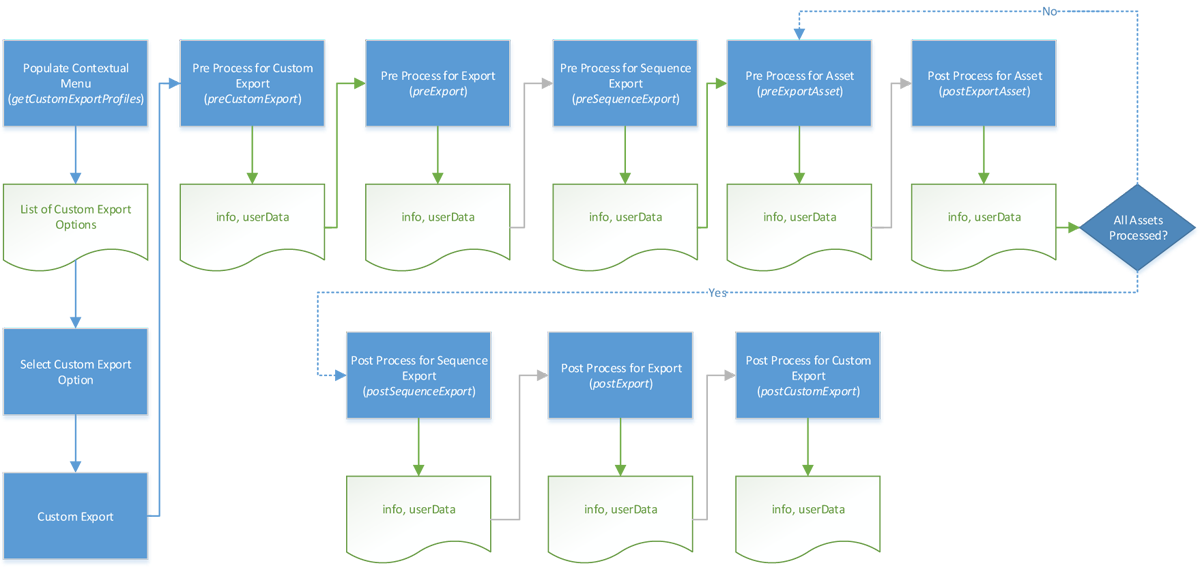
exportHook.py contains all the hooks related to exporting clips.
These hooks are used during export operations from the application.
Export hooks are called in the following order:
pre_custom_exportOptional. Called if required byget_custom_export_profiles. Called when the context menu item defined by getCustomExportProfiles is selected.pre_exportAlways called. In a regular export,pre_exportis called as the Export window is displayed. In a custom export, called afterpre_custom_export.pre_export_sequenceAlways called. Called before writing the sequence.pre_export_assetAlways called. When it is called depends on the export option. With Foreground Export, allpre_export_assetare called for each assets immediately in one go. With Background Export, eachpre_export_assetis called as each asset job is submitted to Backburner.post_export_assetAlways called. Called after an asset is written. Can be done in backburner as determined by useBackburnerPostExportAsset.post_export_sequenceAlways called. Called afterpost_export_asset.post_exportAlways called. Called afterpost_export_sequence.post_custom_exportOptional: called if required byget_custom_export_profiles. Called afterpost_export.