
Installation
A few steps must be undertaken for Houdini to be able to load and render with the Golaem plug-in.
Installing the Golaem For Houdini plug-in
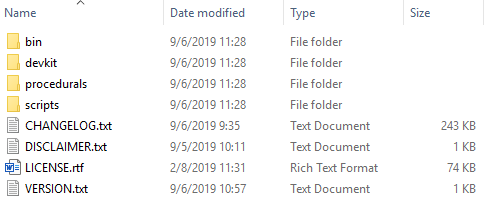
The Golaem for Houdini plug-in can be found can be found in the extension section of the Golaem product in your Autodesk account and it has the following directory structure:
Adding Golaem For Houdini to your Environment
Then, for Houdini to be able to find the Golaem For Houdini plug-in, its path needs to be added to the predefined HOUDINI_DSO_PATH environment variable and a couple of others. There are many ways to add a path to an environment variable, however for our test, we chose to create a bat / shell file to launch Houdini with the correct environment.
Linux
#!/bin/sh
# Set Environment Variables for Golaem
export GOLAEM_INSTALL_PATH=/home/golaem/Golaem-9.2.2-Houdini20.0-Python310-linux
export LD_LIBRARY_PATH=${GOLAEM_INSTALL_PATH}/lib:\&

# Set Environment Variables for Houdini
export HOUDINI_DSO_PATH=${GOLAEM_INSTALL_PATH}/procedurals/houdini:\&
export PYTHONPATH=${GOLAEM_INSTALL_PATH}/procedurals/houdini/python:\&
export HOUDINI_TOOLBAR_PATH=${GOLAEM_INSTALL_PATH}/procedurals/houdini/shelf:\&
export HOUDINI_UI_ICON_PATH=${GOLAEM_INSTALL_PATH}/procedurals/houdini/icons:\&

# Set Environment Variables for USD
export PXR_PLUGINPATH_NAME=${GOLAEM_INSTALL_PATH}/procedurals/usd

# export HOUDINI_DSO_ERROR=3

# Launch Houdini
/opt/hfs20.0/bin/houdinifx
Windows
:: Set Environment Variables for Golaem
set GOLAEM_INSTALL_PATH=C:\Golaem\Golaem-9.2.2-Houdini20.0-Python310-windows
set PATH=%GOLAEM_INSTALL_PATH%\bin;^&

:: Set Environment Variables for Houdini
set HOUDINI_DSO_PATH=%GOLAEM_INSTALL_PATH%\procedurals\houdini;^&
set PYTHONPATH=%GOLAEM_INSTALL_PATH%\procedurals\houdini\python;^&
set HOUDINI_TOOLBAR_PATH=%GOLAEM_INSTALL_PATH%\procedurals\houdini\shelf;^&
set HOUDINI_UI_ICON_PATH=%GOLAEM_INSTALL_PATH%\procedurals\houdini\icons;^&

:: Set Environment Variables for USD
set PXR_PLUGINPATH_NAME=%GOLAEM_INSTALL_PATH%\procedurals\usd

:: set HOUDINI_DSO_ERROR=3

:: Launch Houdini
"C:\Program Files\Side Effects Software\Houdini 20.0\bin\houdinifx.exe"
Troubleshoot
You can also uncomment the line setting the HOUDINI_DSO_ERROR environment variable to 3 in order to get more logs and check what is the issue when loading the plug-in within Houdini