
Setup at First Launch
Golaem Layout and Golaem Crowd are delivered in the same package, and loaded with the same plug-in. The Golaem license determines whether you can use the Golaem Crowd simulation features.
LAYOUT Loading The Golaem plug-in in Maya
Once the plug-in is properly installed, you can load the Golaem Crowd plug-in in Maya. Open the Plug-in Manager using menu Window > Settings/Preferences > Plug-in Manager and look for the following entry in plugins list:
- Either glmCrowd.mll for Windows;

- Or glmCrowd.so for Linux.

Check the "Loaded" box to load the plugins: if the "i" letter next to the check box turns green, it means that the plug-in has been correctly loaded and that you are now ready to play with crowds.
- For Windows

- For Linux

If the plug-in has been correctly loaded, it displays the following message in the Script Editor, with the current version and possibly the night build id:
// GolaemCrowd - 9.2.0.0 - Release 9.2 of 2025/03/26 - Autodesk Golaem plug-in. Copyright (C) Autodesk, Inc. All Rights Reserved.
Configuring Maya
To work properly, Golaem Crowd requires some specific Maya settings (time unit, distance unit…). To check your Maya configuration, run the Golaem Crowd Check Scene Tool using menu Golaem > Check Scene Settings.
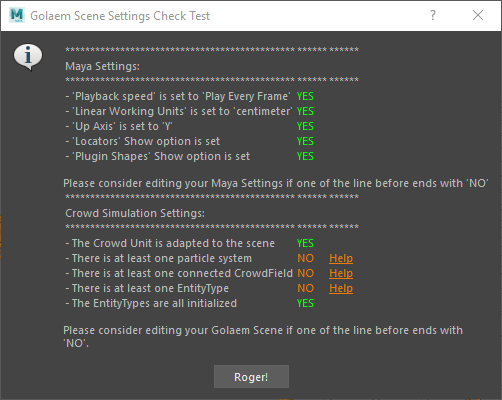
You may consider editing your Maya settings if one of the lines of the tool ends with "NO".
Playback Speed
This setting is only needed when simulating crowds with Golaem Crowd, so you can safely ignore it with Golaem Layout.
Linear Working Units
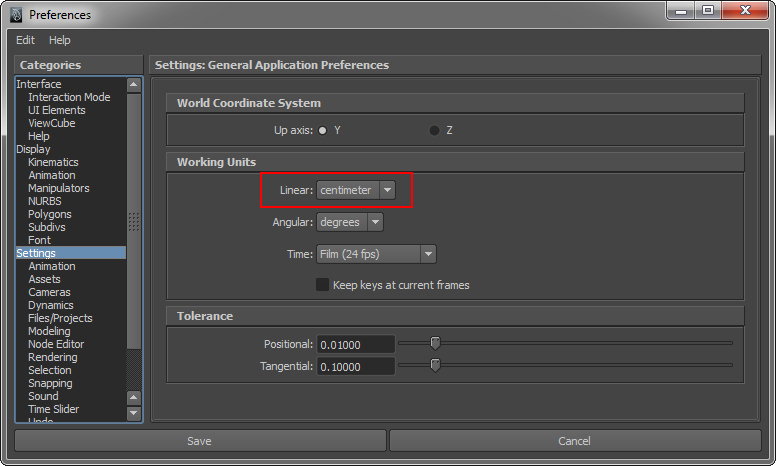
Currently Golaem Crowd only supports the "centimeter" Linear Working Unit (default Maya value). More importantly, by default, Golaem Crowd considers that one Maya Unit equals one meter. This convention can be easily changed if needed (see the Simulation Unit part below).
To change the Linear Working Unit, open the Maya Preferences using menu Window > Settings / Preferences > Preferences then browsing the Settings category:
Up Axis
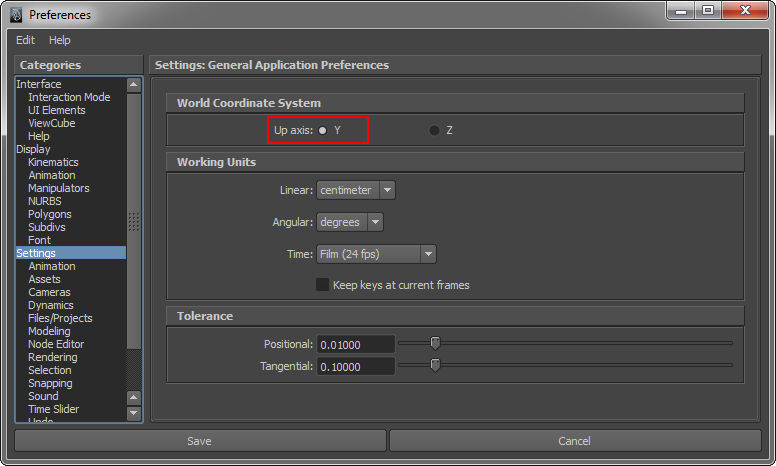
Currently Golaem Crowd only supports the "y" up axis world coordinate system. To change the Linear Working Unit, open the Maya Preferences using menu Window > Settings / Preferences > Preferences then browsing the Settings category:
Show Locators
Most nodes defined in Golaem are Locators. If Locators are hidden in Maya, they will not be computed and then they will not behave correctly. To show Locators, open the Show Menu from any Maya viewport panel and check "Locators".
Show plug-in Shapes
Golaem uses its own node to display Entities. If the display is disabled, you will not be able to see Entities in the viewport. To show Entities, open the Show Menu from any Maya viewport panel and check "Plug-in Shapes".
Crowd Simulation Settings
All settings linked to simulation can be safely ignored in Golaem Layout