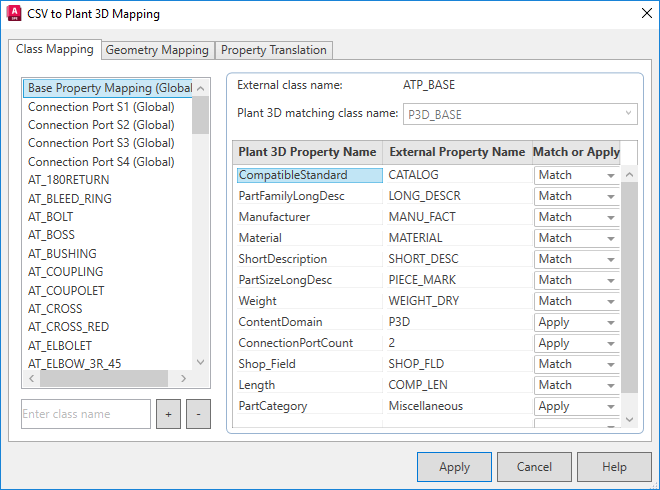
Maps 3rd-party class properties to Plant 3D equivalents.
Note:
- AutoPLANT mappings display by default. If you use another third-party program, delete these mappings and create new ones for your specific program.
- To reorder the class list, right-click and select Move up or Move down. Alternatively, you can press plus (+) or minus (-) keys.
List of Options
- Global Class Properties List
-
Note: The first five items in the list on the left pane are global class properties.
- Lists global properties that apply to all classes. Once these properties are mapped, you do not need to map them again for individual classes.
- If you want to override a global mapping for a specific class, you map that class appropriately, and its mapping takes precedence over the global mapping.
- External Class Names List
-
Note: The remaining items in the list on the left pane are external class names.
- Lists 3rd-party class names that can map to a Plant 3D class.
- Plus (+) Button
- Adds a new 3rd-party class name to the External Class Names list. Enter text into the box and click the + button to add a class name.
-
Note: To reuse existing mappings, right-click an existing class to copy the mapping information, then right-click the new class to paste the information. This action affects only this tab.
- Minus (-) Button
- Deletes an 3rd-party class name from the External Class Names list.
- External Class Name
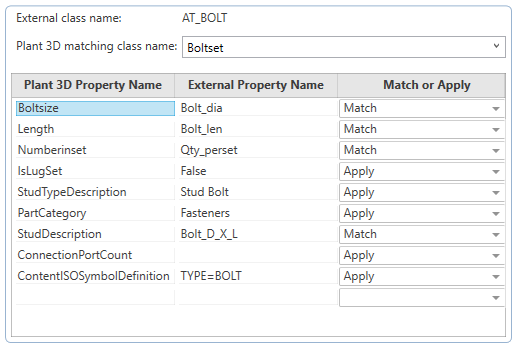
- Displays the 3rd-party class name selected from the External Class Names list on the left pane.
- Plant 3D Matching Class Name
- Specifies the Plant 3D class that corresponds to the 3rd-party class selected on the left pane. When you select one of the global mappings, this field is read-only.
- Plant 3D Property Name
- Specifies the Plant 3D properties that you want mapped to the 3rd-party properties for the class selected on the left pane.
- External Property Name
- Specifies the 3rd-party properties for the class selected on the left pane.
- Match or Apply
- Specifies whether you want to match the properties or apply a specific property value. For example, for the AutoPLANT AT_BOLT class, the Plant 3D length property matches AutoPLANT Bolt_len. But the Plant 3D PartCategory property is set to the specific value Fasteners.