Point: Slope to Surface
Add a point that is located on a target surface at a specified slope from another point.
Properties
Specify the following parameters in the Properties panel.
| Point | |
| Point Number | Specifies the point number. You can change the automatically generated Point Number value. |
| Point Codes | Specifies the codes assigned to the point. |
| Point Geometry Type | |
| Type | Specifies the point type: |
| Point Geometry Properties | |
| From Point | Specifies the point to which the other geometry property values are relative. |
| Slope | Specifies the slope value from the point specified in the From Point row. Click [...] to open the Expression Editor, where you can enter or calculate a value. |
| Reverse Slope Direction | Reverses the Slope, drawing the slope in the opposite direction. |
| Surface Target | Specifies the surface target parameter. |
| Auto Add Link | |
| Auto Link To From Point | Draws a link from the point specified in the From Point row to the current point. |
| Name | Specifies the name of the link. |
| Codes | Specifies the codes assigned to the link. |
| Miscellaneous | |
| Comment | Indicates notes about the point. Comments can be displayed in the Preview panel. |
Examples
To see examples of how this geometry element is used, open the following Sample PKT file:
Point Slope to Surface Example.pkt
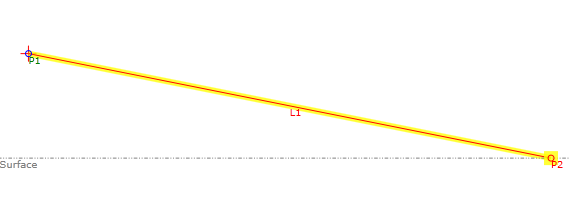
In this example, P2 is created on the surface at a specified slope from P1. To review the parameters, select the Slope to Surface point in the Flowchart, and then see the Point Geometry Properties section of the Properties panel.