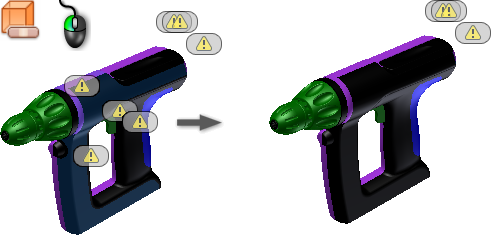
Repairs translated data using the Allowable Change tolerance. Reports errors found and groups by type in the browser.To display the error glyph at all locations, click the error type folder. To display a single error glyph, expand the errors folder and click an individual error entry.
Tip: Use Shift or Ctrl to select more than one error.
Click a glyph to zoom in on the error and activate the repair tools in the mini-toolbar. |
Access: |
In the part browser, double-click the repair node to enter the repair environment. To start, use the Find Errors command and then do one of the following:
|


|
Bodies Selects a body in the graphics window or browser. |
|
Select All Selects are bodies in the repair environment browser. |
|
|
Allowable Change Select or enter a value for the maximum allowable tolerance between free edges. |
|

|
Analyze Selected Bodies Provides textual and graphical feedback of the extent to which the Allowable Change tolerance heals the model. |