- Click Configuration tab
 Data panelConfigure Mapping.
- In the Mapping Configurations dialog box, under Source Data, click any of the following:
- Add File-based Sources To Convert
 . Use this option to convert data from DWG, SDF, SHP, and SQLite sources to design features.
 - Add Industry Model Sources To Convert
 . Use this option to convert data stored in AutoCAD Map 3D. In this case, minimal mapping is needed.
 - Add FDO Connection Sources To Convert
 . Use this option to convert data from an FDO connection to design features. You must first connect to the source using Configuration tabData panelBase MapAdd Base Map Connection.
 - To use a saved mapping file, click Load Mapping From File and specify the mapping file.
- Add File-based Sources To Convert
- To apply a filter to the source data, right-click the source and click Filter Source.
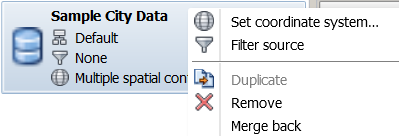
- Right-click the industry model or non-industry model data source to use for merge back and click Merge Back. Only one data source can be specified for merge back. File-based data sources are not available for merge back.
- If necessary, you can change the coordinate system assigned to the source data. Right-click the source and click Set Coordinate System. Note: You must specify the original coordinate system for the data. Do not specify the coordinate system for the design drawing - the application transforms the data to the target coordinate system when it adds it to your design. For more information, see the AutoCAD Map 3D Help.
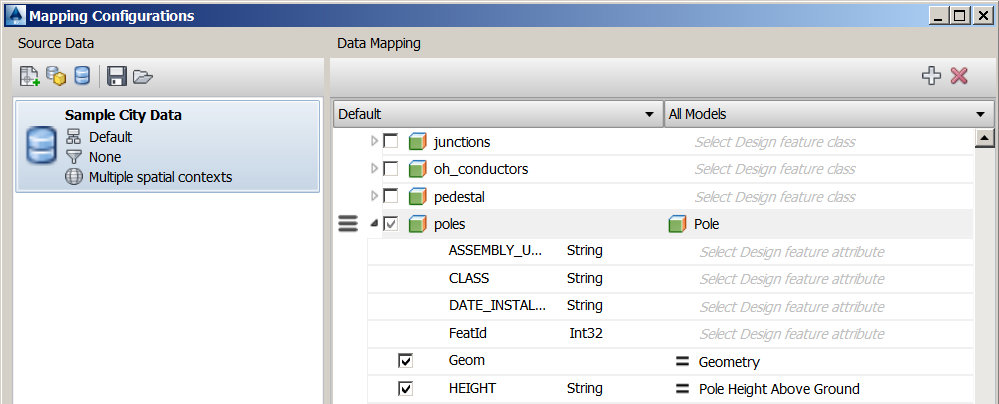
- In the Data Mapping area, define the mapping between items in the source data and feature classes and attributes in the Utility Design drawing.
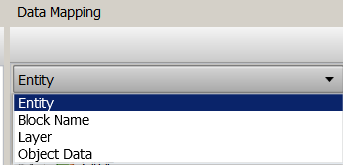
If the source is DWG, you can create mappings from entities, blocks, layers, or object data, to corresponding feature classes in the industry model. From the drop-down list, select Entity, Block Name, Layer, or Object Data.
Only mapped items are extracted. If you do not want to extract a mapped item, clear the checkbox for that item.
- To create direct mappings between particular attribute values in the source data map to values in the design, expand the source feature class name to display available attributes. Select the appropriate corresponding attribute in the design.
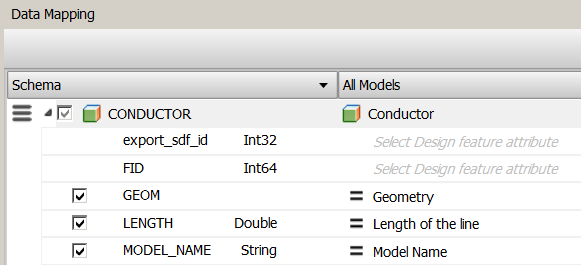
For some attributes, you can use the Expression Builder when mapping attribute values. For example, you can convert units, perform calculations, or concatenate values in the source when mapping to attribute values in the design.
- To use the Expression Builder, for the attribute of interest, click ActionsDefine Attribute Assignment MethodExpressionEdit Extract Expression Assignment.
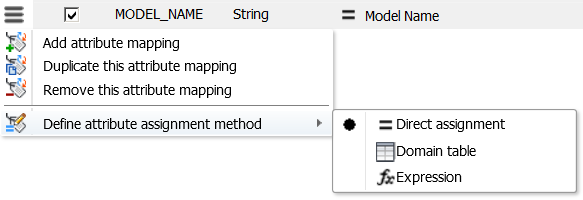
- To map domain values in the source to corresponding domain values in the design, click ActionsDefine Attribute Assignment MethodDomain Table.
For more information, see To Map Domain Values.
- Select any of the following options:
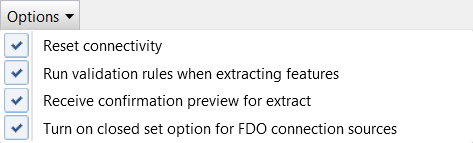
- To establish connectivity between features within the Automatic Connection Tolerance range, select Options Reset Connectivity.
For more information on setting the Automatic Connection Tolerance, see General Layout Options.
- To run design validation rules, select Options Run Validation Rules When Extracting Features.
Errors are displayed in the Validation Results palette of the Dashboard when the source data is converted.
- To display the number of features that will be converted before beginning the process, select Options Receive Confirmation Preview for Extract.
- To include contained features during extract and merge, even if they do not fall within the specified geometric filter, select Options Turn On Closed Set Option for FDO Connection Sources.
For example, you might have a pole with a contained transformer. Even if the pole and transformer do not share geometry, you can preserve the containment relationship during extract and merge. For more information on extract and merge, see To Extract and Merge Data.
- To establish connectivity between features within the Automatic Connection Tolerance range, select Options
- When you have completed the mapping for a source, you can save the mapping to a file. You can later reload the mapping file for future conversions. Click Save Mapping To File.