Autodesk Data Standard for Vault 2015 focuses on providing support for Autodesk Vault Workgroup 2015 and Autodesk Vault Professional 2015. In addition, Autodesk Data Standard for Vault 2015 provides a new way of handling Data Standard templates, enhanced property mapping for AutoCAD DWG properties, and support for generated Inventor components.
Enhanced Mapping for AutoCAD DWG Properties
Currently, Data Standard 2014 for AutoCAD only supports title blocks with attributes. AutoCAD Mechanical 2014 already provides pre-configured title blocks (e.g., ISO_TITLEA), but plain (or vanilla) AutoCAD doesn't come with title blocks, making it difficult to map AutoCAD DWG properties. Users just have regular text elements (MText) with "fields" in their title blocks.
Now, with Data Standard 2015, these AutoCAD title block fields can be mapped to custom DWG properties. These DWG properties can then be mapped to Vault properties.
To support DWG properties, a new attribute for the PropertyDefinition is introduced in the AutoCAD.cfg called SyncDWGProperty.
<?xml version="1.0" encoding="utf-8"?>
<Configuration>
  <PathDefinition>{Workspace}\{Prop[Folder].Value}</PathDefinition>
  <FileNameDefinition>{Prop[GEN-TITLE-NR].Value}</FileNameDefinition>
  <PropertyDefinitions>
    <PropertyDefinition PropertyName="GEN-TITLE-NR" DataType="Text" InitialValue="{PathAndFileNameHandler.FileName}" />
    <PropertyDefinition PropertyName="GEN-TITLE-DES1" DataType="Text" RequiresValue="true" />
    <PropertyDefinition PropertyName="GEN-TITLE-DES2" DataType="Text" />
    <PropertyDefinition PropertyName="Folder" DataType="Text" InitialValue="Assemblies" RequiresValue="true"/>
    <PropertyDefinition PropertyName="Comments" DataType="Text" SyncDWGProperty="true"/>
  </PropertyDefinitions>
  <TitleBlock>ISO_TITLEA</TitleBlock>
</Configuration>
See Modify the CAD Configuration File for more information.
Improved Handling of Templates
In the previous release of Data Standard, users had to place file templates in the $/Templates folder in Vault. The New File function for Data Standard would only look in this folder for a template.
In Data Standard for Vault 2015, administrators can now customize the template path by modifying the Data Standard XAML. In addition, administrators can specify unique folder paths for different applications. This means that Inventor templates can be stored in one folder and AutoCAD templates in another.
The New File dialog for Data Standard has been updated to include a Document Type selection list.
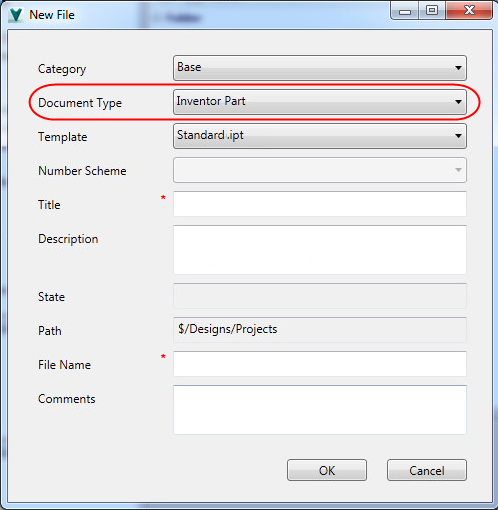
Users can select which document type to use, and the dialog automatically looks for the template in the folder specified in the XAML.
See Customize the Data Standard Template Path for more information.
New Data Standard Support for Generated Inventor Components
Autodesk Data Standard for Vault 2015 now supports Inventor components generated with Design Accelerator, Frame Generator, Tube and Pipe, and Cable and Harness modules.
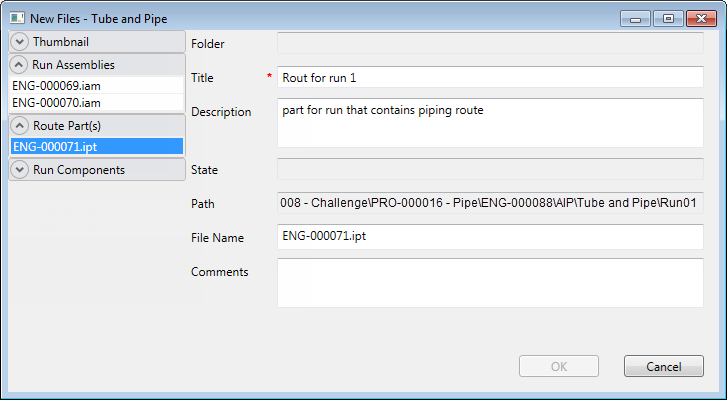
As with the other Data Standard dialogs, this dialog can be customized by the administrator. A new .xaml file for each module is available for modification. See Configure the Data Standard dialog for more information.
Folder Lists Now Available for Data Standard
The New File dialog for Data Standard now comes with a default folder selection list for where the new file should be saved.
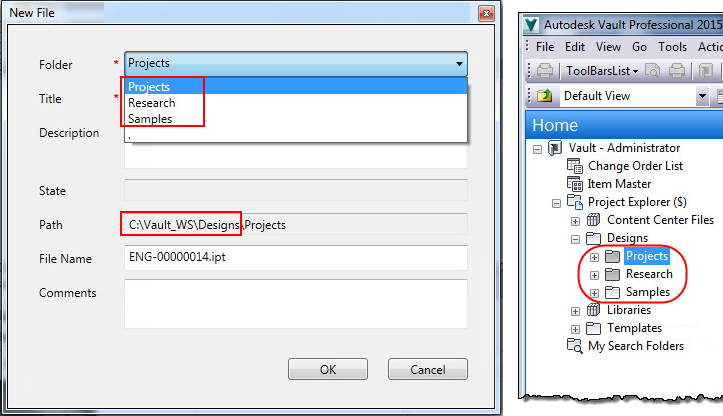
Default Folder List Sources
- For Vault and Inventor, this list automatically displays the subfolders of the $\Designs folder.
- For AutoCAD and AutoCAD Mechanical, the list displays the subfolders for the root ($) folder.
All of the list sources can be customized. Administrators also have the option of introducing 3rd party solutions.
New Custom Object Support
Autodesk Data Standard for Vault 2015 introduces Custom Object support, making it easier to standardize your workflow experience.
Users can create and edit custom objects directly from the context menu.
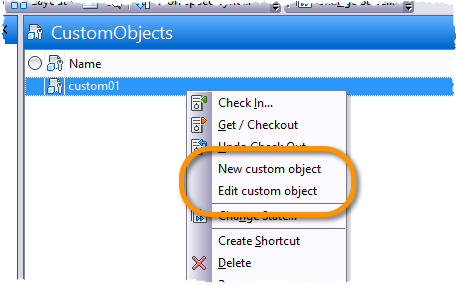
In addition, dialogs and tabs can be configured to display custom object data.
See Configure Data Standard for Custom Objects for more information.
Suppress Default Data Standard Commands
By default, when Data Standard for Vault 2015 is installed, the New Folder command in Vault is removed from the File and right-click menus. Administrators have the option of suppressing the Rename Folder or New Library Folder commands as well by modifying the mymenu.mnu file.
See Suppress Default Vault Commands for more information.
New Localization Support
Autodesk Data Standard for Vault 2015 now has localization support. A new Data Standard multi-language installer is available for the Vault Client, Inventor, and AutoCAD. In addition, the XAML files, MNU file, and PS1 files have been updated to be language independent. This means that administrators can add text strings and Vault property names in any language for their respective customizations.