Autodesk Vault 2015 focuses on transforming the Item/BOM experience, making it easier for you to manage your design process. In addition, this release improves the editing workflow, introduces a brand new thin client experience, and broadens the feature offerings in the Revit Vault Add-in. Additional functionality and enhancements have been made to the Inventor Vault Add-in, Project Sync, ADMS Console, and Installation experiences.
Editing Workflow Enhancements
You can now resolve files which have been edited out of turn in Inventor or all editions of the Vault Client.
In previous Vault releases, the Inventor application could modify the memory status of certain files, thus "dirtying" the file. Some of these modifications were system-forced changes and some were due to user responses to a system prompt.
With the Edited Out of Turn enhancement, users can now see which files have been edited out of turn and can save over them, making it easier to continue working without interruption.
Impact to Common Workflows
- Download File—If a user attempts to download a file from vault when the local file has been modified, the file is not downloaded. Users can select Force Overwrite in the Vault Client's Get/Check out dialog to force the download.
See Get/Check Out for more information.
- Revert to Latest—Users can continue using the Revert to Latest command in Inventor to check out files if the they do not have the latest revision on disk (regardless of the local disk modification).
New Vault Status Modifier
In previous Vault releases, the information icon  would be displayed along with a tooltip noting that the file was edited out of turn.
Now when a file is edited out of turn, Vault shows the last downloaded state for the file and applies a modifier icon  to indicate that the local copy has saved changes that are not recorded in the vault.
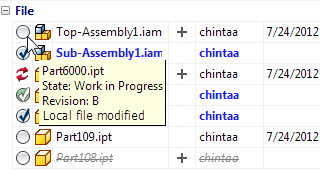
The modifier icon is displayed by default in the Vault browser in Inventor and Vault Explorer.
See Vault Status icons for more information.
Updated Behavior for the Available for Check Out Icon
- The Available for Check Out
 icon in Autodesk Vault Workgroup and Vault Professional now displays for any file that was latest and available for Check Out in the vault before it was modified on the local disk. The modifier icon also displays for this file.
See Vault Status icons for more information.
New Filter in Inventor
The Vault Filter in the Inventor Vault Add-in has been updates with new filter options for local files, including files that are without edits, with saved edits, and with unsaved edits.

See Using the Vault Filter in Inventor for more information.
Items and BOMs Enhancements (Vault Professional)
Not only has this release enhanced existing functionality, but it focuses on improving usability, providing long lead item support, and integrating the item feature with AutoCAD Mechanical and Inventor.
Long Lead Item Support
In previous releases, users had to assign items to the entire structure using an Item Wizard. Autodesk Vault 2015 introduces greater flexibility in item assignment, allowing you to assign items as needed without the use of a wizard.
- Assign Items to parent files only
- Assign Items to an entire file structure
- Turn BOM rows on and off at will.
New Item CAD Integrations
AutoCAD Mechanical and Inventor both support item awareness.
- Search for and attach items as primary files or part references in AutoCAD Mechanical.
- Search for and place items as primary files or virtual components in Inventor.
Improved Usability
Several areas of the Item Workflow have been overhauled or improved to make it easier for you to manage your items and BOMs.
-
New Modeless Item Interface
The Item Wizard has been eliminated and a new modeless interface introduced for item management. Now you can manage item records and work with the main Vault client at the same time. In addition, you can drag and drop or copy/paste files onto items, components onto items, or items onto items.
See Work with Item File Links for more information.
-
Save Item as Needed
In previous releases, you had to save and close an item to record changes, and then reopen it to continue modifying it. Now you can save as you edit without having to close the record.
-
Save a Copy of an Item as a New Item
Save a current item as a new item so that all of the properties, BOM rows, and item details are copied into the new item.
Note: Item links are not copied to the new item.See Save Item As for more information.
-
Open Item from File
Not only can you go to an item from a selected file but you can open the item directly from the file.
See Open Item from File for more information.
-
Assign Items to Components
Assign items to virtual components, allowing you to keep track of placeholders in your BOMs.
See Assign Items for more information.
-
Change Item State from the Right-Click Menu
Not only can you change item states from the item record, you can also right-click on an item and select change state without ever opening the item record.
-
Easy File Link Management
Restrictions on file links have been eased. In addition, an associated link type column has been added to the Associated Items dialog so you can see at a glance whether a link is primary or not.Note: Administrators have the option of suppressing the Associated Items dialog.
When viewing the Associated Files section of an item, non-primary links are hidden by default, making it easier to locate the associated file that you need. Users have the option of revealing the other links with the click of a button. See Work with Item File Links for more information.
-
Auto-select Duplicate Item
Right now, Vault will automatically select one item for assignment when it finds two of the same items. Administrators can opt out of auto-selection by modifying preferences on the Configure Assign Item dialog. Administrators can also decide whether or not to allow a user to override auto-assignment.
-
Flexible BOM Management
Now, instead of having to remove BOM rows, you can turn rows off to keep them listed in the BOM but exclude them from the BOM-related processes.
In previous releases, you could only modify the parent item in a BOM. Now you can make nested edits to items listed in the BOM, as well as add and remove nested items.

Automatically add rows to a BOM by creating new items. Administrators can also specify on the Configure BOM Row Settings dialog whether Vault automatically creates items for children files in the BOM or turns BOM rows on for them.
Additionally, you can easily reorder rows in the BOM by dragging and dropping them (Bill of Materials - Reordering) as well as configure item position numbers (Bill of Materials - Change the Position of an Item in a BOM.
Export BOM has been renamed to Save BOM view and now has a simplified workflow.
-
Enhancements to Item Number Workflow
When an item is created, the default numbering scheme is used to generate the item number. If the scheme requires user input, users are immediately prompted to fill in the required values so there is no need to go back and edit the item record later.
A Replace button is provided to help you search the Vault for properties that you want to map to fields requiring user input. A Precheck button is provided to verify the mapped values.
See Assign Item Numbers for more information.
In addition, you can quickly access the Change Number dialog by right-clicking on an item.
-
New status icons and improved User Interface
New status icons and an improved user interface help you manage your items and BOMs with quicker, more convenient workflows.
Revit Vault Add-in Enhancements
Autodesk Vault 2015 focuses heavily on the Revit Vault add-in experience by introducing several new features and enhancing existing features.
New Import from Vault Feature
The new Import from Vault feature lets you import CAD files stored in the Vault into the current Revit project. However, unlike Link from Vault, when the project is saved to Vault, only the project is updated.
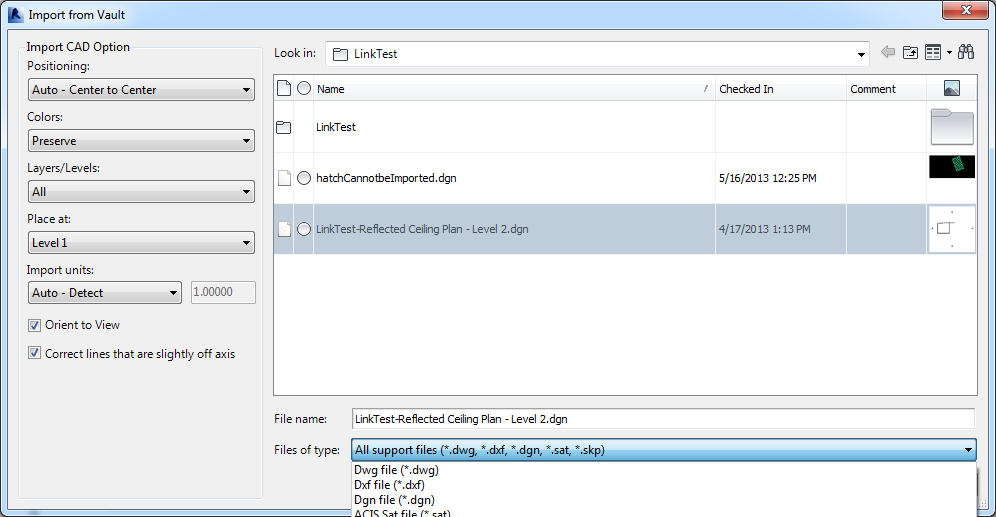
The Import from Vault feature supports DWG, DXF, DGN, SKP, and SAT file types.
See Importing Files from Vault for more information.
New Load Group from Vault Feature
Vault now supports loading Model groups, Detail groups, and Attached Detail groups from the Vault into the current project. In addition, Vault allows users to choose whether they want to load all groups or just specific groups, making it easy to incorporate only the groups that they need in a single workflow.
A new Load Group icon has been added to the Revit Vault ribbon to streamline the load group experience.
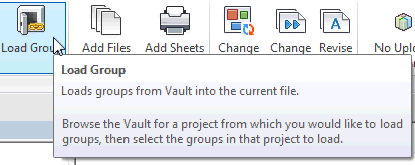
See Load Group from Vault for more information.
Improved Load Family from Vault Workflow
Users can now load all of the family types in a selected family in one click, making it faster to retrieve all of the family types needed for a project. In addition, users can also select Load and Place to load the family type and leave the workflow in Place mode so that the user need only click on the appropriate element in the active model to place the family type that was just loaded.
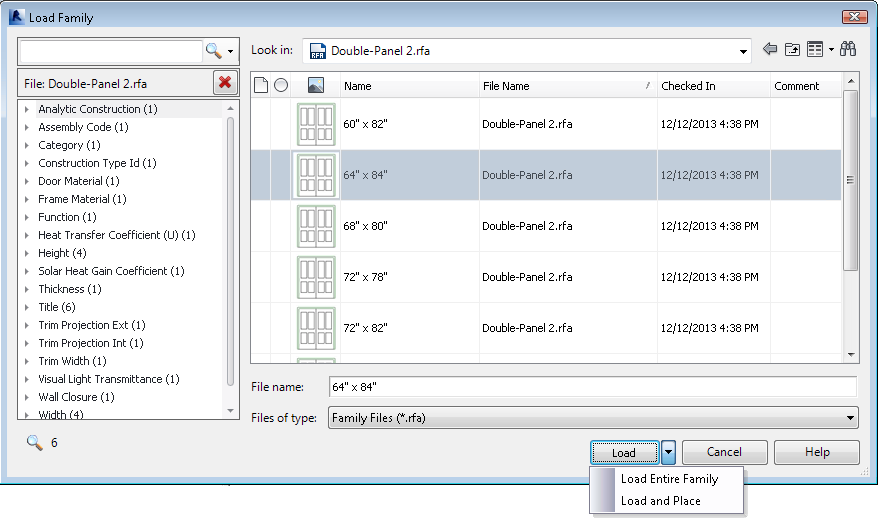
Additionally, the Load Family from Vault dialog makes it easier for you to find the family types you use most often by defaulting to the last folder location from which a family type was loaded.
See Load Family from Vault for more information.
Administrators can also specify which categories and parameters are displayed when loading family types. These preferences can be configured on the Searching tab of the Vault Options dialog.

See Configure Searching Options for Revit Vault Add-in for more information.
Link More File Types
You can now link .dgn, .sat, and .skp files from the Vault. Additionally, you can import image links of type .bmp, .jpg, .jpeg, .png, and .tif.
See Linking Files from Vault for more information.
Maintain Link to DWF
Previously when linking to a DWF or DWFx file, the link was read-only and users would have to manually check out DWF markups to modify them. Now if a user checks out a file with a DWF link, the DWF file is automatically checked out as well. When the file is closed, the DWF link is automatically checked back into the vault.
See Linking Files from Vault for more information.
New Login Interface and Connection Status
The Log in and Log out buttons on the Revit Vault ribbon have been combined to create a single toggle button. Users can view their connection status by hovering their mouse over the button.
See Check Vault Connection Status in Revit and Log into a Vault for more information.
Shared Parameters Support
Users can now point to a shared parameters file stored in the Vault, making it easier to activate shared parameters.
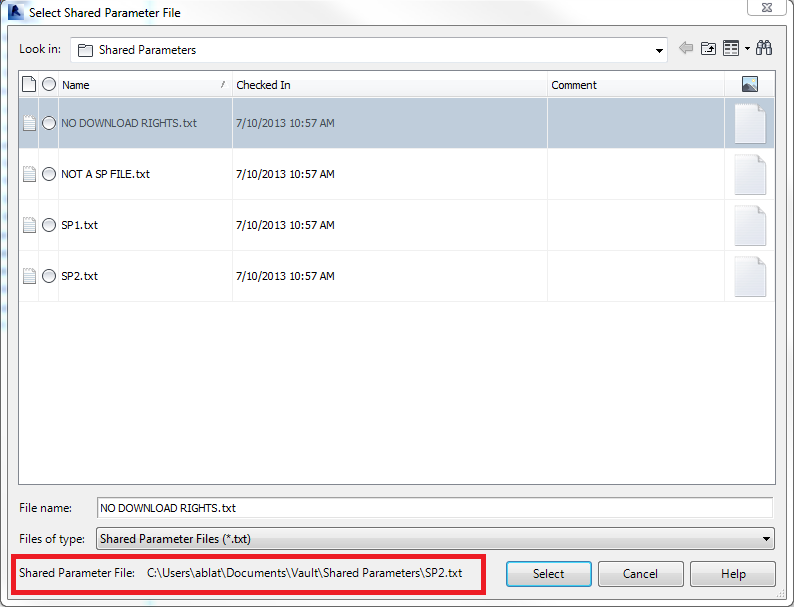
A Select Shared Parameters button has been added to the Revit Vault ribbon to simplify the workflow.

See Select a Shared Parameters File in Vault for more information.
New Lifecycles, Revisions, and Categories Support
The Revit Vault Add-in now supports change state, revise file, and change category workflows, making it easier for you to manage your design files.
See Change Lifecyles and States, Revise Files, and Change Categories for more information.
New Mapping User Interface on the Vault Options Dialog
The Mapping tab on the Vault Options dialog has been enhanced to streamline common workflows.
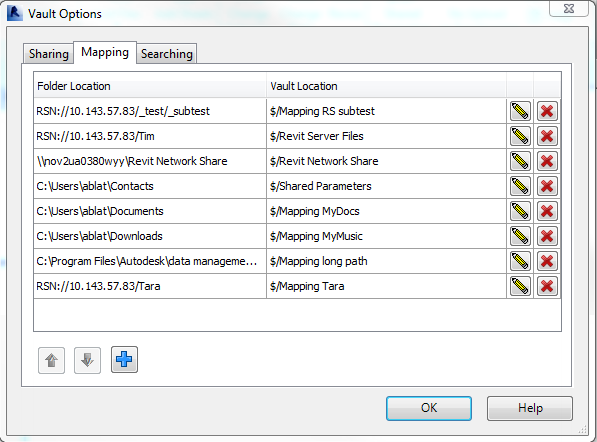
Additionally, a mapping wizard is introduced to help users map local folders, folders on a shared drive, or folders on the Revit Server to a folder in the vault.
See Configure Mapping Options for more information.
Import Revit Project Properties
Properties for Revit Projects are now extracted from the Revit model into and stored in the Vault. Once the properties are mapped, users can search them and modify them. Most properties can be written back to the Revit project.
See Properties and the Revit Vault Add-in for more information.
New and Improved Vault Thin Client (Vault Workgroup and Vault Professional)
The thin client has been completely redesigned to provide a superior experience when accessing a vault through a web browser. The redesign includes a new interface, better workflows, additional views, and improved customization.
See the Thin Client help for more information.
In addition, the Vault Thin Client supports DWF viewing across all browsers with the Autodesk Design Review (ADR) plug-in. If the browser does not have the ADR plug-in installed, the DWF is downloaded instead.
Inventor Vault Add-in Updates
The Inventor Vault Add-in has been updated to include a Fast Open from Vault option. This means that you can open a drawing without finding or resolving any of the referenced files.
Refer to Open File from Vault with the Inventor Add-in for more information.
Project Sync Updates
Project Sync now provides multiple mapping support. In previous releases, users had to map a folder that contained all of the files that they wanted to synchronize with Vault. This meant that the folder had to be high enough in the folder hierarchy to contain all of the necessary files. However, as a result, many files and folders inside the hierarchy did not need to be synchronized.
Autodesk Vault 2015 introduces a way to specify multiple mappings between Vault folders and Buzzsaw sites/folders within one Vault. Now users can select the exact Vault folders that they want to synchronize.
- The Project Sync Settings dialog now offers a way to specify folders for mapping and site management.
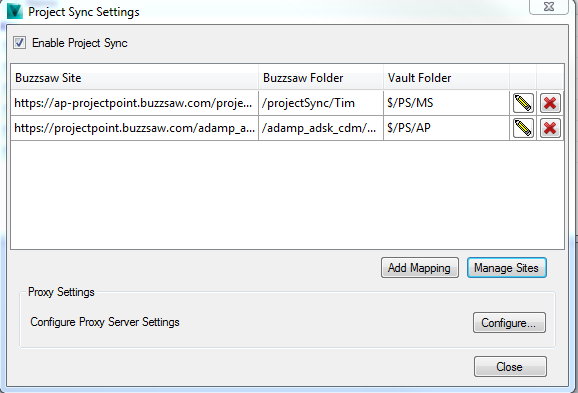
See Project Sync Settings for more information.
- In addition, the Add from Buzzsaw workflow has been updated to include a new dialog that asks users to choose the mapping from which they want to add files.
ADMS Console Updates
Vault templates have been introduced to the ADMS Console for easy vault creation based on your industry. Now when you first log in after installation, you are prompted to create a vault. You must select an industry template or choose the default template before the vault is created.
In addition, the Civil 3D template is now included with all three industry templates.
See Create a Vault for more information.
In addition, the enable SSL compatibility option has been relocated to the Administration dialog.
New Consolidated Installation Process
Vault Server Installation
- Revit Vault Server Integration
- Autodesk Vault Office 2015 (Server)
- Autodesk Vault Thin Client 2015
- Autodesk Vault File Server 2015
- Content Center Libraries for Inventor 2015
- Network License Manager
The Vault Server Installation package includes the option of installing these components now:
Vault Client Installation
- Autodesk Vault Office 2015 (Client)
- Autodesk Vault Professional Project Sync
- Autodesk Design Review 2013
The Vault Client installation package not only combines additional components for installation, but also includes the option of creating a custom deployment.
In addition, administrators can now specify whether they want to use the default SQL credentials or configure new ones. See Customize the Vault Server Installation for more information.