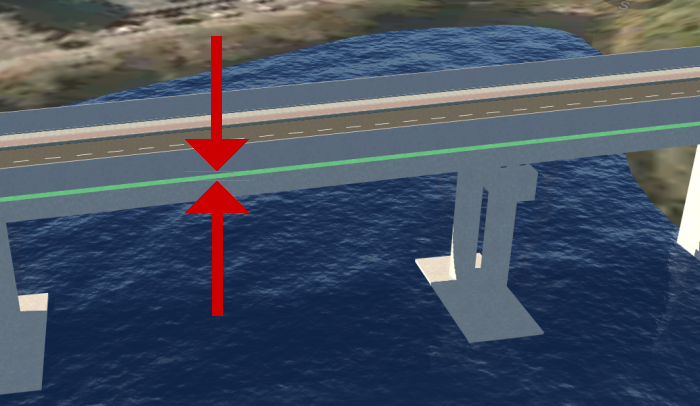
Bridge styles determine the visual appearance and design parameters of a bridge. Edit or create bridge styles in the Style Palette. You can apply a bridge style to a bridge using the bridge asset card or by dragging-and-dropping styles onto a bridge from the Style Palette.
To change bridge style using the Style Palette
Note: It is important to understand that Bridge styles and Road/Deck styles are different types of styles.
- Bridge styles are part of the Bridge style catalog in the Style Palette, and determine bridge, deck, girder group, abutment, pier, and bearing settings. Follow the instructions in this Help topic to change the bridge style for an existing bridge.
- The Road/Deck style for a bridge is actually a road style that has 3D model decorations such as medians, barriers, handrails, and fences. Road/Deck styles are stored in the Street/Bridge Deck style catalog on the Road tab of the Style Palette. See To change deck style for more information.
- Click


 to open the
Style Palette.
to open the
Style Palette.
- Select a desired style from the Bridge style catalog.
You can also edit or create bridge styles to use instead.
- Drag the desired style from the palette and drop it onto the bridge deck, which is located directly beneath the road surface. The bridge deck will highlight green when you drag a style over the bridge deck.