Choose an abutment style for your bridge from a catalog of parametric abutment styles and edit abutment properties.
- Select the bridge and then click again on the abutment to select it. Tip: To make it easier to view and edit an abutment, you can toggle bridge deck transparency, adjust terrain surface opacity or even hide the terrain layer.
- Click


 to toggle bridge deck transparency.
 - Click
 to adjust terrain surface opacity.
 - Click


 to manage visibility for the terrain layer.
- Click
-
Once you select an abutment, its asset card will display.
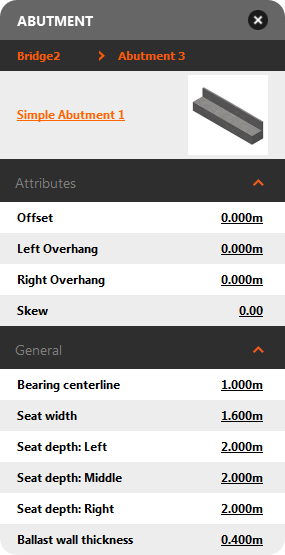
- Select the Abutment component style name to choose another parametric abutment component style in the catalog.
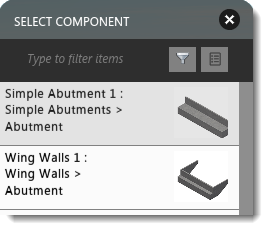 Note: Wing Wall style abutments have additional editable properties in the asset card: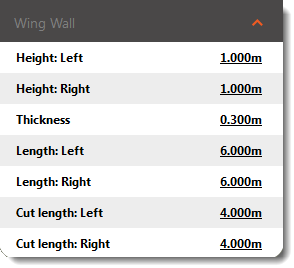
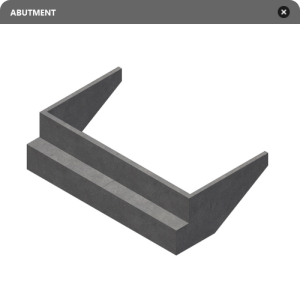
- Click the thumbnail image in the Abutment asset card to see a more detailed view of the current abutment style (Wing Walls 1: Wing Walls > Abutment style pictured below).
- Modify attributes such as skew and offset in Edit mode.
- Modify General properties in Edit mode. For example, extend the size of your wing walls to create a retaining wall.
- Select the Abutment component style name to choose another parametric abutment component style in the catalog.
Video Help
Watch the Bridge Design Update June 2015 (Video Playlist) for more help with reviewing and modifying bridge abutments.