Available in Inventor 2016 R3 - Subscription customers
To start and manage an Inventor Design Share
- Open the part or assembly file you want to share.
- The 3D viewable will be created from the present view of the open part or assembly file.
- Hide any components you do not want to share to protect the intellectual property.
- Feel free to simplify and turn off visibility before creating a design share as you do not need to save simplifications or visibility changes before you start a the Design Share.
- If not already open, click the Design Share button in the bottom right corner of the graphics window
 .
.
You are prompted to sign into Autodesk A360 if you are not already signed in. If you do not have an A360 account, you are prompted by A360 to create a username and password the first time you try to access the Design Share.
- In the Connected Design on A360 panel, click
Design Share this View on the bottom of the panel.

- In the Start Design Share on A360 dialog box:
- Enter a title for the design you are sharing (optional - the file name displays by default).
- In the comment field, explain to your collaborators the key things you want them to review and be aware of in the design (optional).

- Click Generate Preview to open the file in the 3D viewable share and view exactly what you are sharing (optional). A 3D viewable is a read-only copy of the view of the 3D model that was open when you created the Design Share.
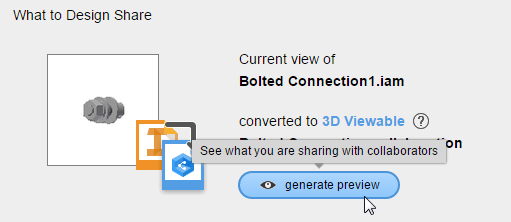
- Click the close button to return to the Start Design Share on A360 dialog box.
- Enter the email address of a collaborator you want to share the design with in the email field, and click add. Repeat for each email address.
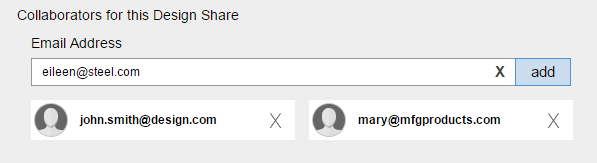
- Click
Start Design Share
to create a 3D viewable of the open file on A360:

- The link to the 3D viewable is sent in an email to your collaborators.
Collaborators that have Inventor 2016 R3 and are signed in to A360 in Inventor receive a notification that they have been added to the Design Share in their Connected Design on A360 panel in Inventor.
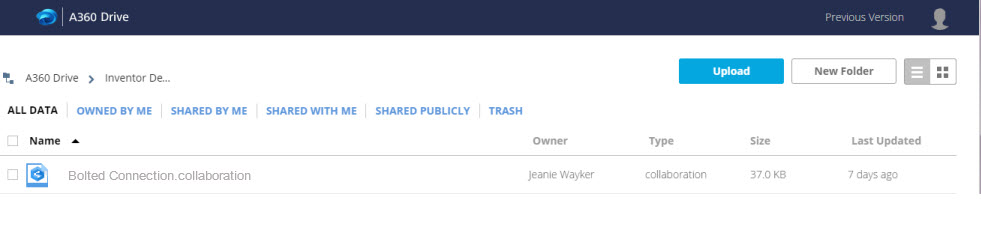
- A .collaboration file is created and placed in the Inventor Design Shares folder on A360 for the owner of the file. Use the tools on your
A360 drive to manage your Design Shares.
- The link to the 3D viewable is sent in an email to your collaborators.
To participate in an Inventor Design Share as a collaborator
- Access the Design Share using one of the following:
- Click the link in the email requesting your collaboration on an Inventor Design Share. Bookmark the link for easy access to the Design Share.
Note: If you do not have an A360 account, you are prompted by A360 to create a username and password the first time you try to access the Design Share.
- Go to your A360 Drive: The SHARED WITH ME section displays links to all Design Shares that are shared with you. The Inventor Design Shares folder contains all the Design Shares that you own.
- If you have Inventor 2016 R3: Open Inventor 2016 R3 and click
to see comments and to access the Connected Design on A360 panel.
Note:
 displays in the bottom right of the graphics window signals a new event.
- Click the link in the email requesting your collaboration on an Inventor Design Share. Bookmark the link for easy access to the Design Share.
- With the 3D viewable Design Share open, you can:
- View the 3D viewable.
- Add comments in the comments panel to the right of the model. All comments are visible to the owner and all collaborators.
- Use the mini toolbar viewing tools to pan and zoom.
Important: The section tools are disabled to protect intellectual property.
Find out more about using the Connected Design on A360 panel.