Interoperability with Stingray

Maya now supports powerful connectivity to the new Autodesk Stingray game engine, helping you streamline your 3D asset creation pipeline. Several key workflows let you iterate on your designs and make it easy to see how assets appear in the context of a game.
Install and load the DCC link plug-in (found in your Stingray install directory) to enable the following in Maya 2016 Extension 1:
- Send assets to Stingray
The File > Send to Stingray export options let you export models and animations directly to a Stingray project folder.
-
Connect
Maya and Stingray viewports
A new Stingray menu lets you synchronize cameras between Maya and Stingray so that you can verify how models, animations, and materials appear in Stingray immediately as you work in Maya.
Also available with your Stingray install is the NVIDIA PhysX plug-in for Maya. For information on finding, installing, and loading the DCC link and PhysX plug-ins, see Enable Stingray and PhysX plug-ins for Maya.
For more information about the Autodesk Stingray game engine, see http://www.autodesk.com/stingray-help.
Improved LOD (Level of Detail) workflow
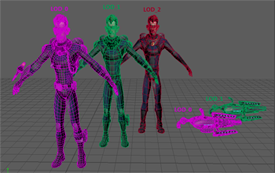
A new
Threshold Type option for LOD groups give you greater flexibility when exporting LODs to your game engine. Select
Edit > LOD (Level of Detail) > Create >  to set whether the threshold for switching levels is based on
Distance or
Screen Height Percentage. The setting you choose when creating the LOD group is preserved in your FBX file when you export a selected group.
to set whether the threshold for switching levels is based on
Distance or
Screen Height Percentage. The setting you choose when creating the LOD group is preserved in your FBX file when you export a selected group.
Game Exporter improvements
Updates in the Game Exporter continue to streamline the process of exporting models and animation from Maya. New options let you automate more routine tasks during export, such as placing each object into its own file, and moving objects to the origin. In addition, the Anim tab now gives you more room to work with the clip list.