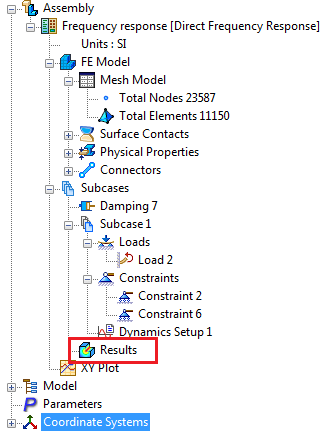
After running an analysis, the Results are loaded under each Subcase in the Model tree.
Each set of results has four different plots loaded automatically in case of Linear Static and Prestress Static analyses.
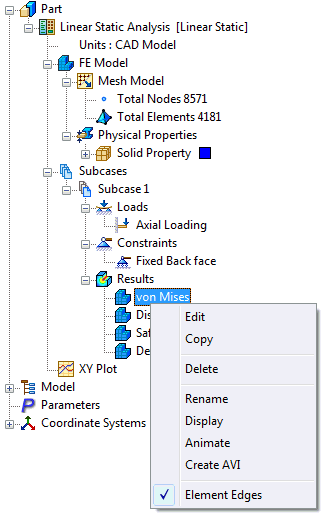
- von Mises: It plots von Mises results with deformed plot.
- Displacement: It plots displacement results with deformed plot.
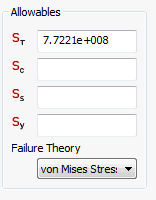
- Safety Factor: Plots factor of safety. Make sure to define the material allowables and failure theory in the material dialog.
- Deformed: Deformed model only (total displacements).
Each set of results has two different plots loaded automatically in case of Linear Steady State Heat Transfer analysis.
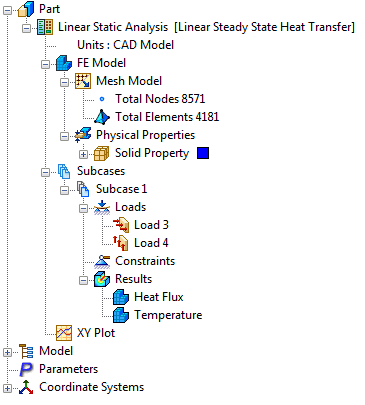
- Heat Flux: Contour plot by default is heat flux results.
- Temperature: Contour plot of temperature distribution.
Each set of results has Results for Subcase1 and Fatigue Results different plots loaded automatically in case of Multi-Axial Fatigue analysis.
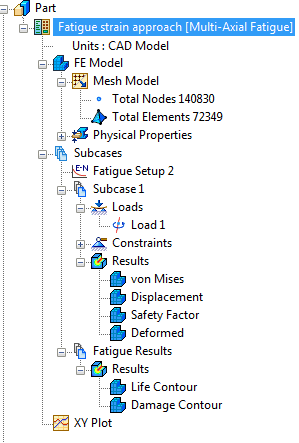
- Results: Has four different plots loaded automatically.
- Fatigue Results: Contour plot for Life and Damage.
Other analyses will have a single Results node in the Model tree which is explained in Plot Templates .
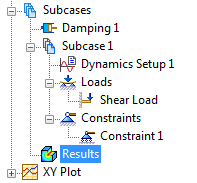
All the above plots use templates listed under Plot Templates at the bottom of the tree view with default post-processing display settings.
Each of these templates can be dragged and dropped into either a Subcase/Results or mode/increment under a Subcase/Results. Four of these templates are available; more can be created by right-clicking on Plot Templates and selecting New.
Right-click on any of the four different plots or on Results single node. The following options are available:
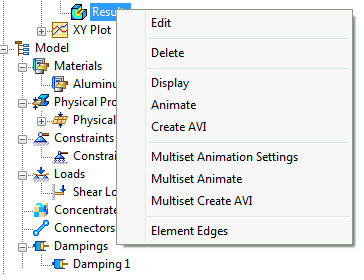
- Edit: Allows to edit the results.
- Delete: Allows to delete the results.
- Display: Allows to display the results.
- Animate: Allows to animate for the single set based on the selected results.
- Create AVI: Allows to create AVI for the single set based on the selected results.
- Multiset Animation Settings: Allows to define the multiset animation.
- Multiset Animate: Allows to animate for the multiset based on the settings done in Multiset Animation Settings.
- Multiset Create AVI: Allows to create AVI for the multiset based on the settings done in Multiset Animation Settings.
- Element Edges: Allows to display the element edges.
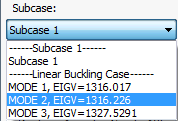
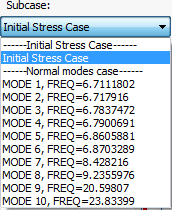
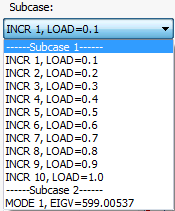
Multiset results dialog will have a separator between them as mentioned below.
- Linear Buckling:
- Prestress Normal Modes:
- Nonlinear Buckling:
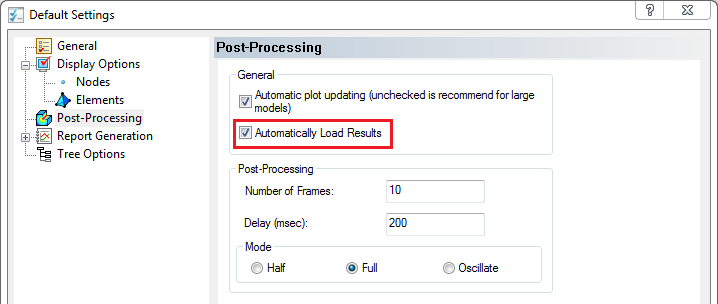
 Nastran In-CAD supports automatic loading of results of previously solved models when entering the In-CAD Environment. To enable this option, check the Automatically Load Results box in the Default Settings dialog, as shown in the figure below. Then when you enter the In-CAD Environment, the available results are loaded in the folder where the model file is located.