Surfaces
- Tessellate Surfaces
- VRED uses ray tracing to display NURBS data without any preparation. In OpenGL mode, VRED tessellates objects in order to generate a polygonal representation. This involves changing the complexity or amount of polygons of an object at any time. NURBS coexist with polygons on nodes within the Scenegraph. This enables you to re-tessellate without having to reload the files. A polygonal representation will never be as precise as source NURBS data, so more polygons will have to be generated when a higher precision is required.
The Tessellate Surfaces dialog box contains these settings.
- Tessellation Quality: Use these presets to get an approximate quality and automatically adjust the other values in the dialog box.
- Chord Deviation: The maximum deviation between the NURBS surface and the tessellated surface. A low value results in a more accurate polygon model but an increased number of triangles.
- Normal Tolerance: The allowed normal deviation between the normals on the endings of a tessellated edge.
- Max Chord Length: The maximum edge length of the generated polygons. Long polygon edges will not be smoothly shaded within the render view; this setting is helpful to avoid this.
- Enable Stitching: Tessellation re-builds existing topology and aligns the edges of selected shells to each other. Stitching avoids the ragged edges of a tessellated representation within the Stitching Tolerance.
- Stitching Tolerance: Set the tolerance where two adjacent edges are considered to be touching and where they should be stitched together.
- Create Shell from Selection
- Combine the selected NURBS components into one contiguous NURBS shell.
- Convert to Mesh
- Delete NURBS information that is stored with the tessellated object. This reduces memory requirements for the scene, but re-tessellation of that object will no longer be possible.
Geometry
The following features are found in the Scenegraph under Edit > Geometry.
- Merge Geometry
- Merge polygonal objects with the same material into one contiguous object. Can also be used on group nodes. Will also work when NURBS data exists with the polygonal representation. If nothing is selected, this applies to all items in the Scenegraph. (Ctrl+Shift+M)
- Split Geometry
- Split the selected object into meshes. In the dialogue box that opens, enter the maximum number of triangles each resulting mesh can have. For example, if there is an object with 1000 polygons and it should be divided into fragments with a maximum amount of 100 polygons each, the splitting will yield 10 objects. This cannot be undone.
- Split Geometry into Primitives
- Convert the object into a group node of the same name. The group node contains single triangles for each polygon of the source object. (Ctrl+T)
- Unsplit Geometries with One Triangle
- Merge triangles into one object. To combine a number of polygons this way, they should be grouped and this feature used on the group node. Material from the first node below the parent group is applied to the merged object. (Ctrl+Shift+T)
- Subdivide Geometry
- Subdivide an existing polygon mesh into smaller triangles. This feature is helpful when NURBS data for re-tessellation is not available but a refined mesh is required. For example, ambient occlusion calculation requires a fine mesh resolution to avoid ragged edges on shadows.
In the Subdivide Geometry dialog box that opens, select a Subdivision Mode.
- Standard: Each polygon is subdivided until the edge lengths fall below the value you enter in the Max Edge Length box.
- Phong Interpolation: Each polygon is subdivided into a specific amount of triangles depending on the value you select in the Iterations box.
Iterations Triangles/Polygons 1 4 2 16 3 64 4 256
Animation
The following features are found in the Scenegraph under Edit > Animation.
- Load Animation to Nodes
- Apply a saved transformation animation to the selected nodes.
- Load Animation to Materials
- Apply a saved material animation to the selected nodes.
- Create Turntable Animation
- Create a turntable to rotate selected object around the perpendicular axis. Adjust settings in the dialog box that opens, including:
- Interpolation: Determine object velocity during animation playback. Linear results in a constant rotation of the object while Ease In or Ease Out reduces velocity during the beginning or end of the animation.
- Rotation Pivot(s): Click Set To Center to set the rotation pivot to the center of the selected object's bounding box.
- Copy Animations
- Copy the animation from a selected animated object.
- Paste Animations
- Paste an animation to the selected node.
- Paste Clone Animations
- Paste an animation to the selected node as a reference. This means that any change to the animation will affect the cloned instance; the reverse is true as well.
Asset
Use Edit > Asset to save, find, and reload referenced files in the Asset Manager. You can also remove referenced connections without deleting the assets.
Copy, Paste, and Clone
Aside from standard delete, copy, and paste functions, VRED includes these clipboard options in the Scenegraph Edit menu. When components are dragged and dropped or pasted in the Scenegraph, shells are created.
- Paste the nodes currently stored in the clipboard as a group node of clones in the Scenegraph. The clones are also known as referenced objects. Referenced objects are underlined. (Ctrl+Shift+V)
- Paste the nodes currently stored in the clipboard to the same location as the originally copied nodes. (Ctrl+Shift+V)
- Paste the nodes currently stored in the clipboard as a group node of clones in the Scenegraph, and at the same location as the originally copied nodes. The clones are also known as referenced objects. Referenced objects are underlined. (Ctrl+Shift+V)
- Clone
-
Groups the edit menu commands copy and paste clone to a single action. The use of one of the mirror commands creates a referenced and mirrored instance of the source object or structure. Referenced nodes are underlined within the Scenegraph. Cloned groups are transformable by default.
Note: Edit > Preferences > Scenegraph >Transformable Clone Root is activated by default. -
- Clone: Creates a cloned instance of the source selection at the same position in 3D. When the Transformable Clone Root is activated, the selected node and its duplicate are synchronized with each other. All children of both nodes are clones of each other. Adding, removing, and reordering children does the same on the children of the synchronized node. The two synchronized nodes can be independently transformed, animated and named. Only Groups (Transform3Ds) can be synchronized. That means, cloning with the option enabled is only possible on Transform3D nodes. (Ctrl+Shift+D)
- Clone Mirror X, Y or Z: Creates a cloned instance of the source selection mirrored on the related axis. When the Transformable Clone Root is activated, the subtree of the selected node is cloned, and the roots of both subtrees (source and result) are synchronized with each other, as with Clone. The cloned subtree is added as a child to a Mirror Transform node.
- Duplicate
- Duplicate is the same as Clone, except the new objects are independent, rather than referenced. Additional "flush" options for axis mirroring flush the transformations from the sub-tree into the object nodes. (Ctrl+D)
-
- Duplicate: Creates an independent instance of the source selection at the same position in 3D. All clone connections are preserved within the duplicate. (Ctrl+D)
- Duplicate and Keep Clones: Creates an independent instance of the source selection at the same position in 3D. All clone connections are preserved to other parts of the scenegraph.
- Duplicate Without Clones: Creates an independent instance of the source selection at the same position in 3D. All clone connections are disrupted within the duplicate.
- Duplicate Mirror X/Y/Z: Creates an independent instance of the source selection mirrored across the selected axis.
- Duplicate Mirror X/Y/Z Flush: Creates an independent instance of the source selection mirrored across the selected axis. This command also flushes the transformations from the subtree into the object nodes.
- Unshare
- Remove a referenced connection. Changes made to one object no longer affect its former reference. Internal clones are preserved.
-
- Unshare: All clone connections from nodes in the selected subtree are disrupted to other parts of the scenegraph.
- Unshare Selected Node: Only the clone connection of the selected node are disrupted.
- Unshare Subtree: All clone connections in the selected subtree are disrupted.
- Copy Transformation
- Copy all transformation information from the selected node to the clipboard. A transformation contains information about the position and the orientation of an object within 3D space. It also provides information about the position and orientation of the object's coordination system.
- Paste Transformation
- Access paste options for transformations. You can paste all transformation information, that is, translation, rotation, scale, and pivot, or select one attribute to paste. Paste the pivot to apply the location and orientation from the object’s local coordinate system.
Lock/Unlock
Nodes can be locked, so they and their children cannot be modified anymore. A locked node is indicated in the Scenegraph by its icon
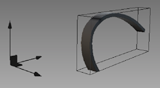
 . In the Render window, when a selected node is locked, the bounding box, wireframe and transformation handle are grey.
Group
Use these options in the Edit menu to group objects.
- Group by Material
- Group objects by their applied materials into new nodes.
Caution: This rearranges the Scenegraph structure.
- Group Selection
- Move selected objects into a new node. (Ctrl+Shift+G))
Show Optimize Module
Opens the Optimize Module to optimize the scene and increase rendering performance. All optimization processes are applied to the selected nodes and their children.