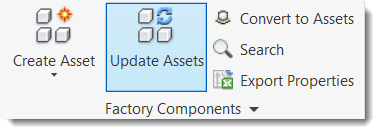
Update Factory assets with the latest asset data, and download cloud assets for use and reuse.
To update placed assets in your Inventor layout:
After you create and publish an asset, you might need to make changes. Editing the asset is not a problem, but what about applying those changes to the assets you have already placed in your layout? The Update Assets command in the Inventor ribbon lets you selectively update placed assets to bring them up to date with new asset data definitions.
Using the Asset Builder, you can make the necessary changes to the asset you need to edit and then publish the asset.
- Open the layout in which you have placed the asset.
- Select
Update Assets in the Factory ribbon to display a list of out-of-date assets.
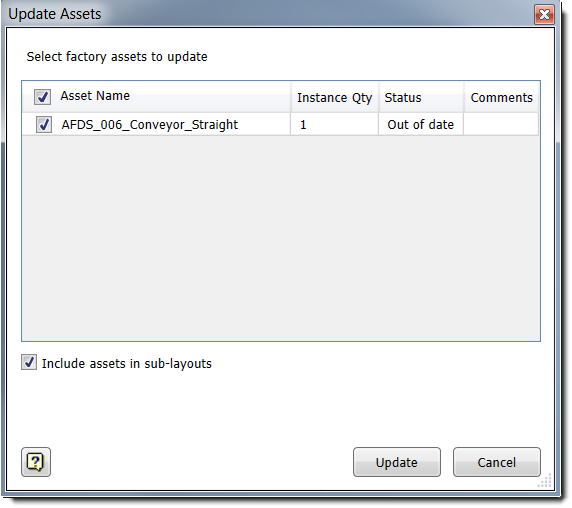
- Select the checkbox next to the placed assets to update. Hovering the mouse anywhere in a row highlights the corresponding assets in the layout to help you easily identify what will change.
- Select the Include assets in sub-layouts checkbox to also update assets that are placed in subassemblies.
- Select Update. The status changes to Successful when asset updates are complete. If an update fails, hover your mouse over the status to see the reason.
To bulk update assets from the Asset Browser:
Once you make changes to assets, you can also select to update an entire folder structure of assets. Select to update your assets in bulk from the Asset Browser to bring assets up to date with the latest asset data..
- Select any folder from the Asset Browser.
- Right click a folder structure to access the list of context-menu commands.
- Select Update Assets.
All of the assets located in the selected folder are available and up to date with the latest data definitions.
To bulk download assets from the Asset Browser:
You can Download Assets for use and reuse in your factory layout. Downloaded Factory cloud assets are stored on your local hard drive in a folder called FactoryCloudLibrary.
To download factory assets from the Inventor Asset Browser:
- Select any folder, or list of Search Results from the Asset Browser in Inventor.
- Right click the selected folder, or Search Results node to access the list of context-menu commands.
- Select Download Assets from the menu.
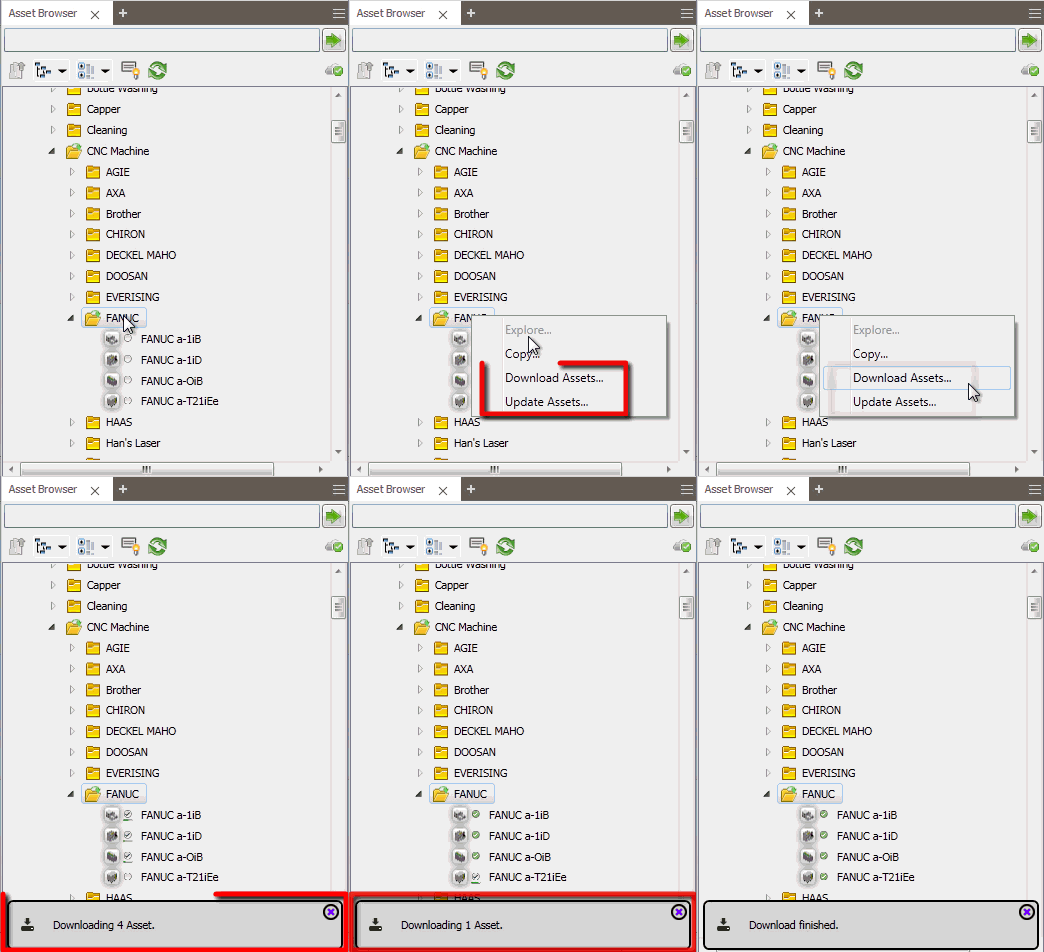
All of the downloaded assets are now available for use and reuse in your factory layout.
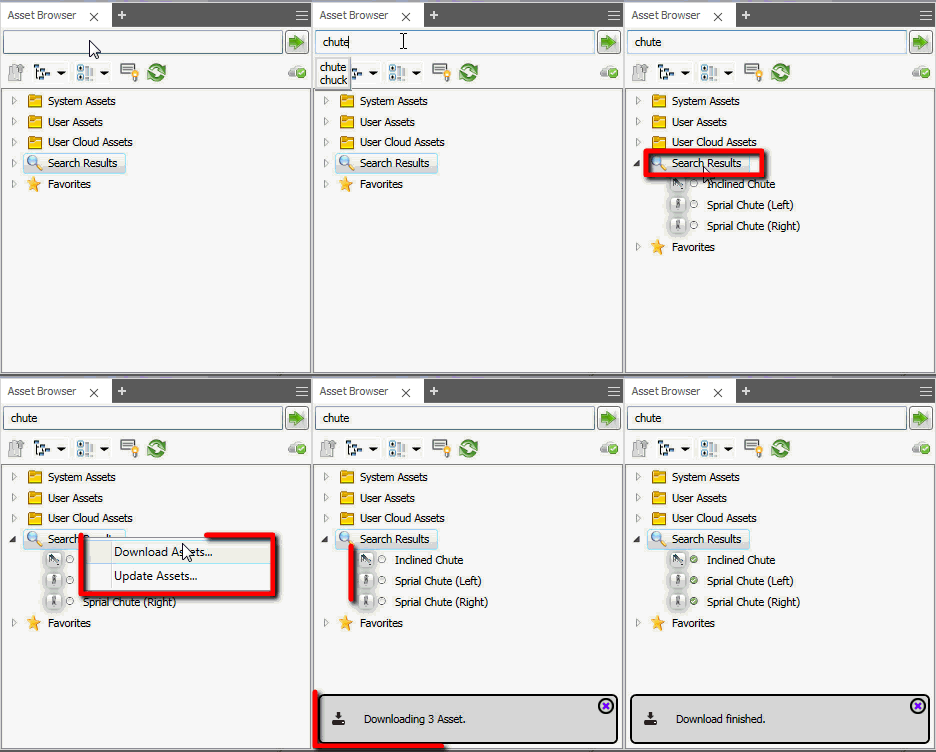
To bulk update or download assets from Asset Browser Search Results:
Alternatively, you can select to bulk update or download a list of assets in the Search Results from within the Asset Browser.
- Type in your search criteria and press Enter.
- Select and right click on the
 node in the Asset Browser to access the context-menu options.
- Hover over the Factory option to extend the context menu and select Update Assets or Download Assets.