New Features in Autodesk® Civil 3D® 2020
Autodesk® Civil 3D® 2020 contains the following new features and enhancements.
Design Efficiency Updates
- Use the updated Analyse Gravity Network command to analyse a pipe network and apply the results to the pipe network.
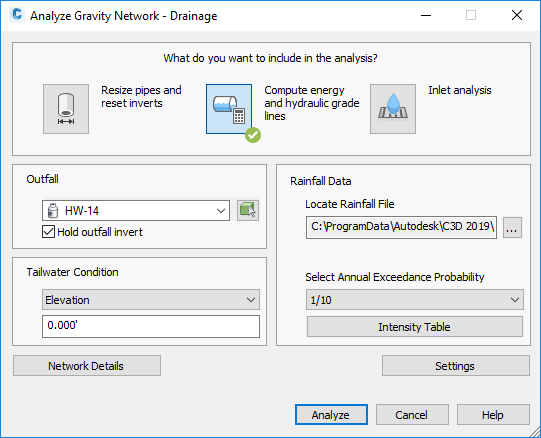
The updated command uses a modeless dialog box so you can leave it open while you do other work.
You can use this command to perform the following analysis types:
- Resize Pipes and Reset Inverts: Analyses the flow through the pipes, and then resizes the pipes and resets inverts to accommodate the flow.
- Compute Energy and Hydraulic Gradient Lines: Calculates the energy and hydraulic gradient lines and reports whether each line in the system is in a normal state, surcharged or flooded.
- Inlet Analysis: Analyses the capacity of the inlets and reports the flow, depth and spread at each inlet.
For more information, see About Analysing and Sizing a Gravity Pipe Network.
- Use new structure feature settings to specify default values that can be used by the Analyse Gravity Network command.
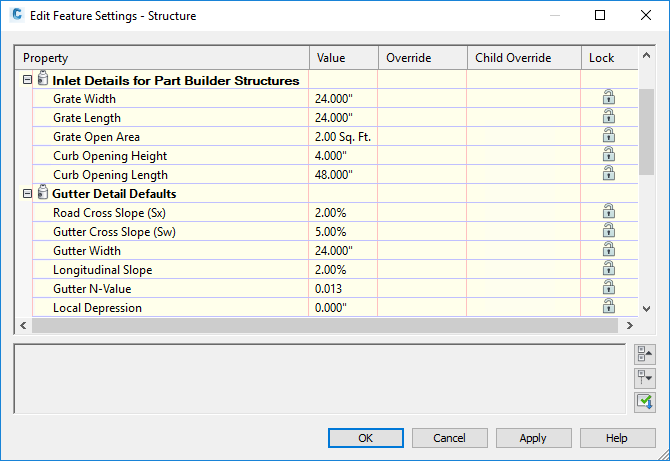
For more information, see About Analysing and Size a Gravity Pipe Network and Edit Feature Settings – Structure Dialog Box.
- Autodesk Storm and Sanitary Analysis has been updated with the following features:
- Tailwater conditions can be set separately for each storm while running multiple storm events.
- The Peak Rate Factor for a dimensionless hydrograph can be set for each sub-basin.
- New and updated storage chambers from Advanced Drainage Systems® (ADS) and CULTEC® are available.
- In alignment reports for alignments which use chord-based stationing, chord-based calculations are now used to report the chainage values and the end chainage.
- Chinese design standards are now supported for rail platform design. You can select the China_Metric.json design criteria file when creating or editing a rail platform edge. For more information, see Create/Edit Platform Edge Dialog Box.
Production Efficiency Updates
- Use the Autodesk Dynamo for Civil 3D commands to develop and run scripts for automating tasks and workflows in Autodesk Civil 3D.
Autodesk Dynamo for Civil 3D is a visual programming application that is available as a separate installation through the Autodesk Desktop App and from your Autodesk Account.
After you install the application, the Dynamo-related commands are available on the Manage ribbon tab in Civil 3D.
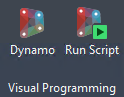
For more information, see About Autodesk Dynamo for Civil 3D.
- When you attach an additional reference template to a drawing, it's now added to the bottom of the list of templates and customised settings that have already been specified for the previously-attached templates are preserved.
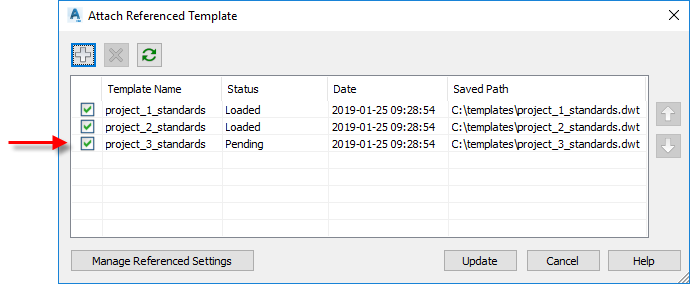
For more information, see To Work With Reference Templates.
-
Use a new system variable named SyncDrefPsetToSource to control whether property sets are synchronised when you synchronise data shortcut references. You can use the following settings for SyncDrefPsetToSource:
Value Description 0 Property sets will never be synchronised when related data referenced objects are synchronised.
1 Property sets will be synchronised when related data referenced objects are synchronised.
Property set synchronisation will occur in the host drawing only if the object has been changed in the source drawing.
- If the object has been changed in the source drawing, the object and the related property set will be synchronised in the host drawing.
- If the object has not been changed in the source drawing, the object and the related property set will not be synchronised in the host drawing.
Note: If the property set has been changed in the source drawing, the property set will not be synchronised unless the object has been changed in the source drawing.
- Data shortcut synchronisation related to superelevation and cant changes has been enhanced. With this enhancement, changes to more types of superelevation or cant parameters in a source alignment will prompt you to synchronise a data referenced alignment.
Collaboration and Data Exchange
- The Export Civil 3D Drawing command has been updated with the following features:
- Labels with background masks are no longer exported with bowtie-shaped hatches.
- Xrefs are exploded appropriately on export.
- Proxy state messages are no longer displayed on export.
- The option to convert feature lines, plot segments and survey figures to 2D or 3D polylines that was included in the Autodesk Civil 3D 2019.2 Update is included in Autodesk Civil 3D 2020.
- Use a new setting to control whether rail alignments are exported from Autodesk Civil 3D for use in Autodesk InfraWorks as centreline alignments or rail alignments.
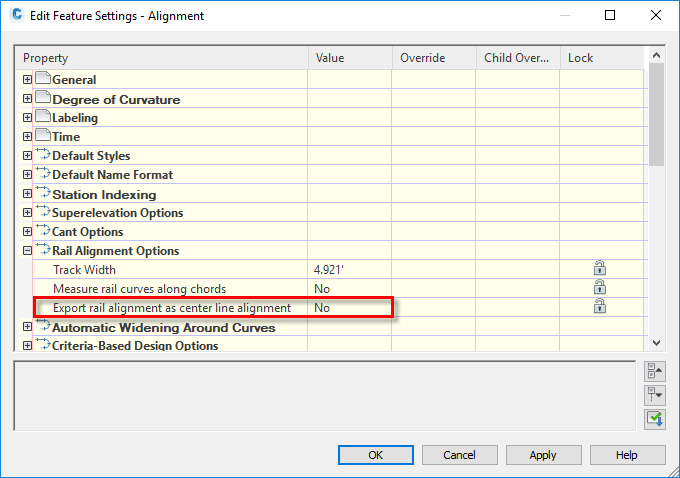
- When set to No, a rail alignment exported to IMX from Civil 3D will become a railway object in InfraWorks which can cause it to lose some of the accuracy of its geometry.
- When set to Yes, a rail alignment exported to IMX from Civil 3D will be exported as a centreline alignment and will become a component road when it's brought into InfraWorks. The component road will have the same geometry as the rail alignment in Civil 3D.
Note: This setting is applicable when using the Export IMX command in Civil 3D and when opening a Civil 3D drawing directly in InfraWorks.For more information, see Edit Feature Settings – Alignment Dialog Box.
Other Updates
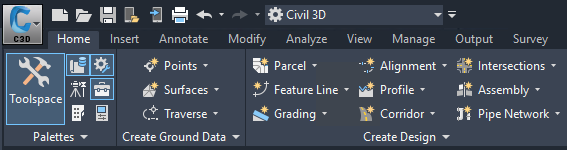
- The Dark colour scheme and the application ribbon icons have been updated.
- The Dark colour scheme that controls the appearance of the application window, ribbon and other user interface elements has been updated with new colours.
- Ribbon icons for both the Light and Dark colour schemes have been updated for style and clarity, optimised to work with the background colours and updated to scale with high-resolution monitors.
- The survey database format has been updated from Microsoft SQL Server Compact (SQL CE) format to SQLite. To use existing survey databases with Autodesk Civil 3D 2020, they must be converted to SQLite.
Use the Autodesk Civil 3D Survey Database Migration Utility to convert survey databases from SQL CE to SQLite.
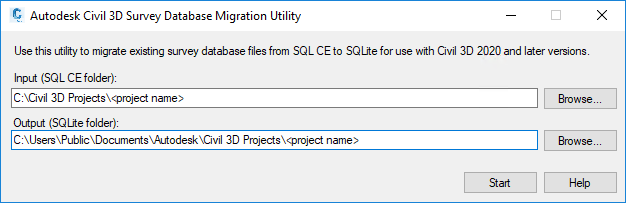
The Autodesk Civil 3D Survey Database Migration Utility is a separate download available at https://www.autodesk.com/civil3d-survey-database-migration-utility.
Important: Migrated databases are not compatible with earlier releases of Autodesk Civil 3D.For more information about using this utility, see To Update a Survey Database.
- The default folders for projects and project templates have been updated.
Preceding folder New folder C:\Civil 3D Projects C:\Users\Public\Documents\Autodesk\Civil 3D Projects C:\Civil 3D Project Templates C:\Users\Public\Documents\Autodesk\Civil 3D Project Templates
Integration of the Autodesk Civil 3D 2019 Update Releases
The following features in the Autodesk Civil 3D 2019 Update releases have been integrated into Autodesk Civil 3D 2020. For more information, see New Features in Autodesk Civil 3D 2019.1 and New Features in Autodesk Civil 3D 2019.2.
Design Efficiency Updates from the Autodesk Civil 3D 2019 Update Releases
- Access rail-related commands from the Rail and Rail Alignment ribbon tabs.
- Access rail subassemblies from a tool palette that is dedicated to rail subassemblies. For more information, see New Rail Subassemblies.
- Create rail alignments using alignment creation commands which have rail-related settings selected by default. For more information, see To Create a Rail Alignment and To Create a Rail Alignment from Objects.
- Apply cant to an offset alignment. For more information, see Offset Parameters Tab (Alignment Properties Dialog Box).
- Create, edit and export rail platform edges. For more information, see About Rail Platform Edges.
- Create and label best fit alignments and profiles using new options. For more information, see Create Best Fit Alignment Dialog Box and Create Best Fit Profile Dialog Box.
- Specify the maximum rate of change for the superelevation crossfall for an alignment. For more information, see Edit Feature Settings – Alignment Dialog Box.
- Create a floating vertical tangent in a profile by specifying a gradient and a length. For more information, see To Add Floating Straights to Profiles.
- Use new report stylesheets to control the appearance and content in reports for rehab corridors. For information about how to select these stylesheets, see To Generate Rehab Corridor Reports.
- Access transparent commands from the ribbon and context menu and use new and updated transparent commands. For more information, see About Transparent Commands, About the Profile Toolset Transparent Command and To Transparently Use a Chainage and Offset to Specify a Point Location.
- Specify the type of connection points on structures to use when laying out pipe networks. You can also reset the connection points after laying out the pipe network. For more information, see About Pipe Network Connection Points and To Reset Pipe Network Connection Points.
- Assign properties to structures that can be used by the Analyse Gravity Network command for drainage analysis. For more information, see Part Properties Tab (Structure Properties Dialog Box).
Production Efficiency Updates from the Autodesk Civil 3D 2019 Update Releases
- Synchronisation notifications are displayed for data references only if a data-referenced object is changed in the source drawing and the drawing is saved and are not displayed if something unrelated to the object occurs in the drawing.
- Reference sample line groups into drawings using data shortcuts. For more information, see To Work With Data Shortcuts.
- When creating a data shortcut reference to a sample line group, you can now automatically create references to the sampled sources if data shortcuts exist for those sources. For more information, see About Sample Line Group Data Shortcuts and References.
- Use Autodesk Vault to reference sample line groups into drawings. For more information, see To Create Sample Line Group References.
- Add crossing objects to profile views to show where linear objects cross the profile relative to the parent alignment. For more information, see About Adding Crossing Objects to Profile Views.
- Enter folder paths, including UNC paths, directly into the Folder field in dialog boxes that prompt for a folder location.
Collaboration and Data Exchange Updates from the Autodesk Civil 3D 2019 Update Releases
- Publish surfaces to Autodesk® BIM 360™ Document Management for use in Autodesk® Revit®. For more information, see To Publish Surfaces to Autodesk BIM 360 to Reference into an Autodesk Revit Model.
- Use updated LandXML import and export features when importing or exporting data. Import and export rail cant data, import breaklines as either feature lines or as 3D polylines when importing surface data from LandXML files, and specify whether property set definitions are created and applied when surface data is imported from a LandXML file. For more information, see To Import LandXML Drawing Data, To Export Drawing Data to LandXML and Import Tab (LandXML Settings Dialog Box).
- Update existing object data in a drawing and create property set data when importing LandXML files. For more information, see Import Tab (LandXML Settings Dialog Box).
- Specify whether the Export Civil 3D Drawing command converts feature lines, plot segments and survey figures to 2D or 3D polylines. For more information, see To Export an Autodesk Civil 3D Drawing to an AutoCAD DWG File and Export Settings Dialog Box.
New Features in Autodesk® AutoCAD® 2020
For information about new features in AutoCAD, please see the What's New In AutoCAD 2020 topic, the AutoCAD 2020 New Features Overview video and the New AutoCAD Commands and System Variables Reference topic in the AutoCAD Help.
New Features in Autodesk® AutoCAD® Map 3D 2020
For information about new features in AutoCAD Map 3D, please see the What's New in AutoCAD Map 3D 2020 Toolset topic in the AutoCAD Map 3D Help.