Track View gives you a range of tools for working with directly with controllers, as opposed to the underlying animation data.
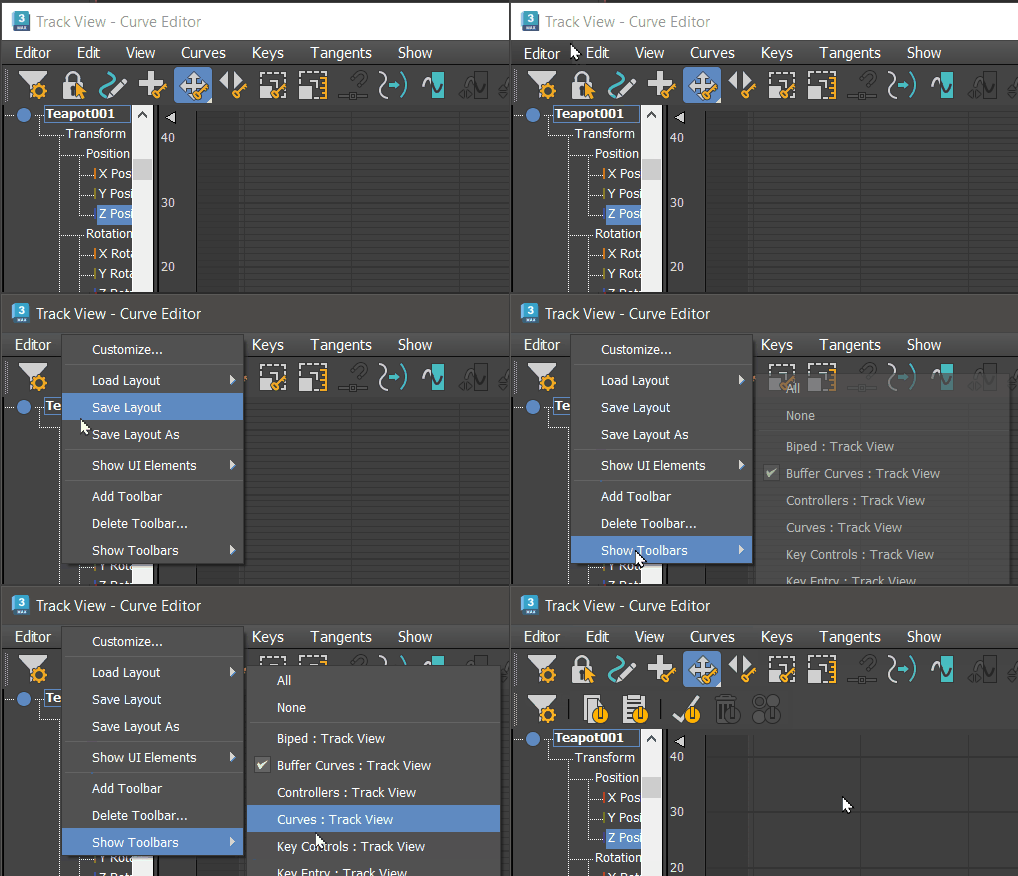
Tip: Controller tools can also be found on the Controllers: Track View toolbar, which is hidden by default. Right-click the toolbar, then choose Show Toolbars Controllers: Track View to display the icons for Assign, Copy, Paste. Delete Controller and Make Controller Unique.
Topics in this section
Copy Controller
Copy Controller copies the highlighted item to the clipboard.
Paste Controller
Paste Controller pastes the contents of the clipboard. You can use the Copy and Paste buttons to copy tracks, controllers, objects, and components.
Assign Controller in Track View
Use Assign Controller in Track View or on the Motion panel to assign animation controllers to any animatable parameter or track.
Delete Controller
You can delete certain node subcontrollers in Track View. Visibility tracks, Image Motion Blur Multiplier, Object Motion Blur, and On/Off are examples of controllers that can be deleted. Most controllers, however, cannot be deleted.
Ignore Animation Range
Ignore Animation Range allows a parametric, non-keyable controller track to be active throughout the entire length of the animation, independent of the track's current animation range. Choosing this option changes the track's background color to purple.
Respect Animation Range
Respect Animation Range constrains a parametric, non-keyable controller track to be active only within the track's current animation range. Choosing this option changes the track's background color to gray.
Make Controller Unique
Make Controller Unique converts an instanced clone of a controller to a copy that's unique to the current object. Objects and modifiers can also be made unique.