Spinner Right-Click Menu
To open the spinner right-click menu, right-click the editable field of an animatable parameter. This menu provides options for cutting, copying, and pasting values, wires, and animation tracks between various object parameters. It also allows you to show the parameter in Track View or in the Parameter Wiring dialog.
Interface
With the exceptions of Undo and Select All, each of the following commands takes effect on the parameter you right-click. It's not necessary to first click in the value field. However, to use certain commands such as Copy and Delete, the value to be affected must first be highlighted.
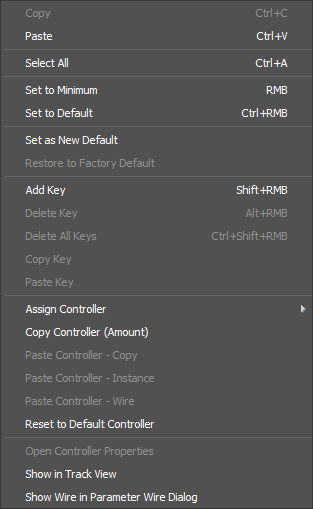
Undo
Reverses the effect of the last action.
Cut
Removes highlighted text to be pasted elsewhere.
Copy
Copies highlighted text to be pasted elsewhere.
Paste
Inserts cut or copied text into the editable field.
Delete
Removes highlighted text.
Select All
Highlights all text within the active editable field.
Set to Minimum
Resets to 0 or to the minimum value set.
Set to Default
Resets to the default value.
Set Max Limit
Sets the maximum value allowed.
Set Min Limit
Sets the minimum value allowed.
Set as New Default
Makes the current value the default value.
Restore to Factory Default
Reverts changes to the current value to the original default value.
Add Key
Adds a key on the current frame.
Delete Key
Deletes a key on the current frame.
Delete All Keys
Deletes all animation on the current parameter.
Copy Key
Copies the selected key to be pasted elsewhere.
Paste Key
Inserts copied key into the field.
Assign Controller
Shows a list of available controllers so you can assign an animation controller to the selected animatable parameter or track.
Copy Controller
Copies the animation controller, including all animation keys, to a buffer, which you can then assign elsewhere by pasting.
Paste Controller - Copy
Assigns a copy of the controller in the buffer to the right-clicked field.
Paste Controller - Instance
Assigns an instance of the copied controller to the right-clicked field.
Paste Controller - Wire
Opens a Parameter Wiring dialog with the copied controller parameter and the paste destination parameter selected. This is equivalent to creating a wire parameter in the viewport between two parameters.
Reset to Default Controller
Reverts the current controller to the value specified as default.
Copy Animation
Copies the animation controller, including all animation keys, to a buffer, which you can then assign elsewhere by pasting.
Paste Animation - Copy
Assigns a copy of animation controller in the buffer to the right-clicked field.
Paste Animation - Instance
Assigns an instance of the copied animation controller to the right-clicked field.
Paste Animation - Wire
Opens a Parameter Wiring dialog with the copied parameter and the paste destination parameter selected. This is equivalent to creating a wire parameter in the viewport between two parameters.
Edit Wire
Opens the Parameter Wiring dialog expanded and positioned to show the wire controller assigned to the selected parameter.
Show in Track View
Opens a Track View - Curve Editor window, titled “Selected,” expanded and positioned to show the selected parameter. This is very useful for fast access to a particular curve or track.
Show in Parameter Wire dialog
Opens a Parameter Wiring Dialog with a focus on the selected parameter.