Menu Bar
The menu bar is located directly under the main window’s title bar. The title of each menu indicates the purpose of the commands on the menu.
Menu systems
3ds Max includes two menu systems. The default menu is the one you see on the initial product launch; it follows standard Windows conventions. Alternatively, you can use the Alt menu, which organizes things slightly different. The Alt menu is part of the Alt Menu and Toolbar, and Modular-mini workspaces.
The optional Alt menu system features improved organization of the default layout, configurable display, detailed tooltips that link to relevant help topics, drag-and-drop menu categories, and the ability to search for menu commands from the keyboard.
To access the Alt menus, open the Workspaces selector and choose one of the workspaces with Alt menus.
Common menu features
The following is a list of functions common to both menu systems:
To open a menu from the menu bar, click its name, such as Edit or Customize. The menu opens as a list of commands and submenus or panels. To open a submenu, point at its name. To invoke a command, click its name.
Tip: While a menu is open, you can open any other menu simply by pointing to it with the mouse; no further clicking is necessary.As an alternative to using a mouse or other pointing device, most menu names includes an underlined character when you hold down the
Altkey. PressingAlt+ that character key opens the menu, unless that particular key combination is assigned to a keyboard shortcut.Some commands in the open menu have an underlined character as well. While the menu is open, pressing that character key invokes the command. While navigating menus with the keyboard, you can also use the arrow keys to move the highlighting and the
Enterkey to activate a command.An ellipsis (…) after a command name indicates that invoking the command opens a dialog.
A right-pointing triangle after a command name indicates that pointing at the name will cause a submenu to open.
If a command has a keyboard shortcut, the menu shows it to the right of the command name.
If a command has an icon, it displays to the left of the command name.
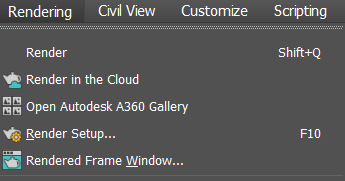
In the Rendering menu, Render Setup has an icon, an ellipsis, and a keyboard shortcut.
If the 3ds Max window isn't wide enough to display all menu titles, a scroll bar appears just below the menu bar. To access hidden parts of the menu bar, drag the scroll bar or click the arrows at the left and right ends.
To view a tooltip that provides a brief description of a menu command, hover the mouse pointer over the command briefly. While a tooltip is visible, you can open the help to a topic about the command by pressing function key
F1.To float a menu panel or submenu, drag its title bar away from the menu in any direction. To dock a floating panel with another, drag it over the other panel. Then, when a blue line appears, indicating where the panel will dock, release the mouse button. Depending on where you position the panel while dragging, you can dock it above or below the host panel.
Note: A floating panel also remains in its original location on the menu. Also, all floating panels are saved upon exiting the program and restored upon restarting.- To move a floating panel or panel group, drag the bar at the top of the group.
- To restore a floating panel group to the menus, click the icon at the right end of the bar at the top of the group.
- When a command name is too long to fit in the allotted space, the center of the name is elided. The beginning and end of the name are shown, and the middle part is replaced by an ellipsis (...).
Global menu search
To search the entire 3ds Max system (menus and actions) for a particular command, press the X key with no menus open to open a small Search dialog at the mouse cursor location.
As you enter the search text, a drop-down list opens from the search dialog showing matching actions. To choose an action, click its name. To clear the Search field, click the X icon at the right end of the search box. To exit the search, choose a command, click outside the search interface, or press Esc. See Search 3ds Max for more.
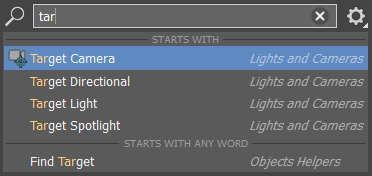
Entering text in the Search field shows all matching actions.
This function is also available as Search 3ds Max Commands on the Help panel of the Help menu in the Alt menu system.