Main Toolbar
The main toolbar provides quick access to tools and dialogs for many of the most common tasks in 3ds Max.

The main toolbar, split in two for this illustration
The Main toolbar is visible by default when first launching 3ds Max. However, if you close it and want to reopen it, you can open it from the Show UI submenu.
The main toolbar can be floated and docked in a different position on the interface by clicking and dragging the handle to the left of the toolbar. You can also make the Main toolbar modular, by selecting the Main Toolbar-Modular workspace from the Workspace Selector. Once modular, you can float and dock groups of tools to your liking.
Tip: If the main toolbar is wider than the 3ds Max window (or even than your computer screen), you can pan it by dragging a gray area of the toolbar, such as below the drop-down lists.


 Bind to Space Warp
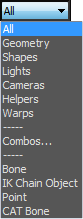


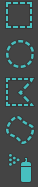
 Window/Crossing Selection Toggle


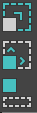
Note: Right-clicking the Move, Rotate, or Scale button opens the Transform Type-In dialog.

Note: Right-clicking the Select And Place or Select And Rotate button opens the Placement Settings dialog, also described in Select and Place.

 Keyboard Shortcut Override Toggle