Using Transforms
A transform is an adjustment of an object’s position, orientation, or scale, relative to the 3D world (or world space) in which you’re working.
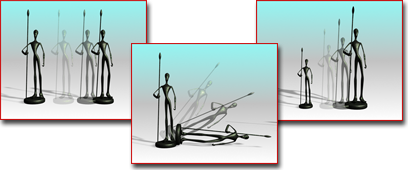
Changing a model by changing its position, rotation, or scale
You can apply three basic types of transform to an object:
And a fourth transform command lets you position an object automatically on an underlying surface:
This section presents brief topics to help you quickly start learning how to transform objects and how to animate your transforms.
Failure to Move or Rotate
In some cases, an object might fail to move or rotate, even when the proper command is active and the object is selected. This could be due to one of the following reasons:
- The object is frozen.
- A transform controller has been assigned to the object. See Animation Controllers.
- Inverse Kinematics mode is on and the preference called Always Transform Children of the World is off. See Introduction to Inverse Kinematics (IK).
Procedures
To transform an object using the main toolbar:
On the main toolbar, click one of the three transform buttons: (Select And Move), (Select And Rotate), or (Select And Uniform Scale). These buttons are usually referred to as Move, Rotate, and Scale.
Alternatively, to position an object on another object's surface, click (Select And Place).
Position the mouse over the object you want to transform.
- If the object is already selected, the cursor changes to indicate the transform.
- If the object is not selected, the cursor changes to a crosshairs to show that the object can be selected.
Drag the mouse to apply the transform.
If you start the drag over an unselected object, it becomes selected and is also transformed.
You can restrict transforms to one or two axes easily with the Using Transform Gizmos.
To cancel a transform:
- Right-click while dragging the mouse.
To transform an object from the quad menu:
- Right-click a selected object. The quad menu lists the available transforms.
- Choose a transform: The equivalent transform button is activated on the main toolbar.
- Drag the object to apply the transform.
To use the Transform Type-In dialog:
Choose Edit menu > Transform Type-In to display the dialog.
Apply a transform to a selected object.
You can do any of the following, switching from one to the other as required.
- Type a value in an axis field and press
Enterto apply the transform change to the selection. - Drag a spinner in an axis field to update the selection.
- Drag the object to apply the transform and read the resulting change in the dialog.
- Type a value in an axis field and press
For example, if Move is active, the dialog fields read out both the absolute and offset positions of the selected object in world space. If no object is selected, the fields turn gray.
To use transform type-in on the status bar:
Select an object or a group of objects.
On the main toolbar, choose a transform (Move, Rotate, or Scale) to perform on the objects.
On the status bar, you can do any of the following, switching from one to another as required:
Type a value in an axis field and press
Enterto apply the transform change to the selection. The Absolute/Offset toggle, to the right of the X, Y, and Z fields, lets you switch between entering values that are absolute (in world space) or offset (relative to the selection's present position, orientation, and dimensions).Drag a spinner in an axis field to update the selection.
Drag the object to apply the transform and read the resulting change in the X, Y, and Z fields.
Tip: To see the Z field, drag the transform type-in portion of the toolbar while a pan hand is visible.