Viewport Navigation
At the right end of the status bar are the buttons that control the display and navigation of the viewports.
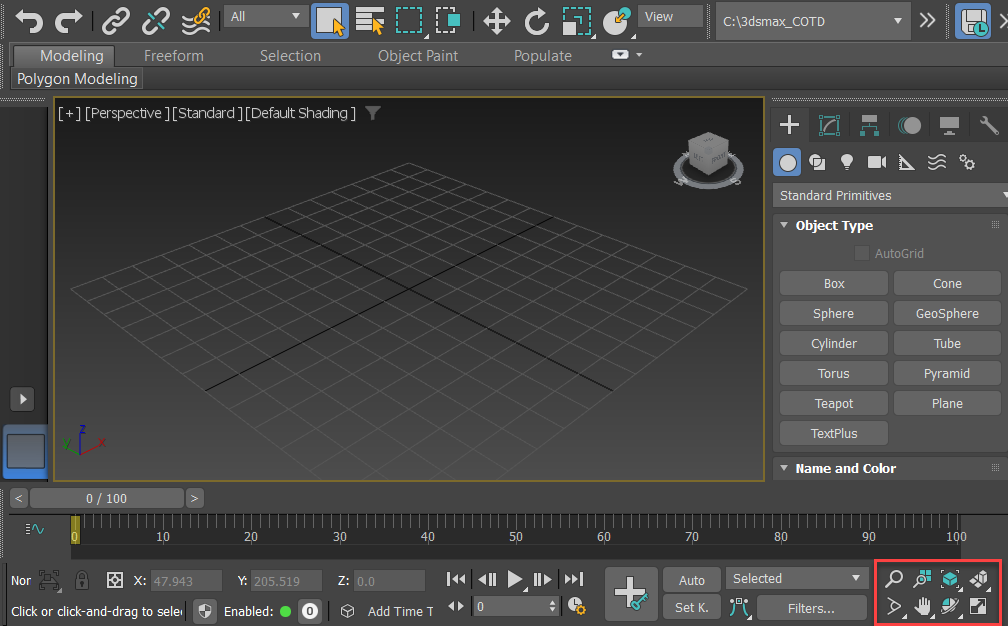
The location of the Viewport Navigation controls
Some of the buttons change for camera and light viewports. The Field Of View button changes for Perspective viewports.
The state of the navigation-button flyouts for all viewport types is saved in the [Performance] section of the Initialization file.
Viewport Navigation Controls
The navigation controls depend on the active viewport. Perspective, orthographic, camera, and light viewports all have specialized controls. The term “orthographic” refers to User viewports as well as viewports like Top, Front, and so on. The Zoom Extents All flyout and Maximize Viewport toggle, available in all viewports, are included with the perspective and orthographic viewport controls.
Many of these controls are modal, meaning the tool stays active for repeated use. The button highlights when on. To turn it off, press Esc, right-click in a viewport, or choose another tool.
 2D Pan Zoom Mode
Controls Available in All Viewports
 Zoom Extents All, Zoom Extents All Selected
 Maximize Viewport Toggle
Perspective and Orthographic Viewport Controls
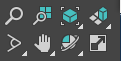
 Zoom
Zoom
 Zoom All
 Zoom Extents/Zoom Extents Selected

 Field-of-View Button (Perspective) or Zoom Region
 Pan View
 Walk Through
 Orbit, Orbit Selected, Orbit Sub-Object
Camera Viewport Controls
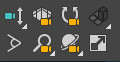


 Dolly Camera, Target, or Both
 Perspective
 Roll Camera
Field-of-View Button
Truck Camera
Walk Through
 Orbit/Pan Camera
Light Viewport Controls

Dolly Light, Target, or Both
 Light Hotspot
Roll Light
 Light Falloff
Truck Light
Orbit/Pan Light