File Preferences
On the Files panel of the Preference Settings dialog, you set options relating to file handling. You can choose the program used for archiving and control the options for log file maintenance. And the Auto Backup function lets you save your work automatically at defined intervals.
- Default menu: Customize menu > Preferences > Preference Settings dialog > Files tab
- Alt menu: Customize menu > Customization > Preferences > Preference Settings dialog > Files tab
- Right-click

Interface
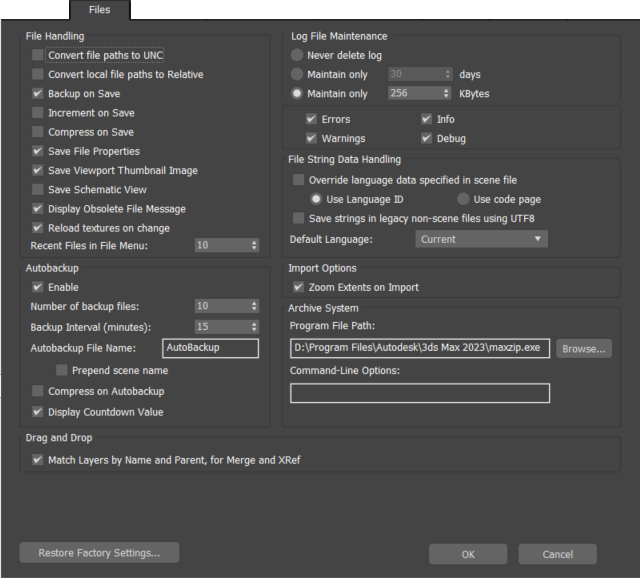
File Handling group
Convert file paths to UNC
When on, paths shown in the user interface for any files present on a mapped drive use Universal Naming Convention (UNC) format. When off, each path starts with the mapped drive letter (for example, w:\).
This checkbox is linked to the Convert file paths to UNC switch on the Asset Tracking dialog > Paths menu. Toggling either one toggles both.
Convert local paths to Relative
Converts the file paths of all newly added assets in a scene so that they are relative to the project folder. Default=off.
Backup on Save
Creates a backup file if a file of the same name already exists. The existing file is renamed maxback.bak and placed in the autoback directory before the save occurs. You can edit the automatic backup settings in the Auto Backup group. Default=on.
Increment on Save
Creates a new copy of the file in the same directory whenever you save the file. The name of the new file is incremented by 1 ( filename01.max, filename02.max, and so on). Default=off.
Compress on Save
Saves the 3ds Max file in a compressed format. Depending on the details of the file, the compressed file can be as small as one-fifth the size of its uncompressed equivalent. Default=off.
Save Viewport Thumbnail Image
Saves a 64-pixel thumbnail of the active viewport when you save each MAX file. The Asset Browser reads thumbnails. Saving thumbnails adds about 9K to each MAX file. Default=on.
Save Schematic View
When on, the active schematic view is saved with the MAX file. Default=on.
Save File Properties
When on, any data entered in the File Properties dialog is saved with the scene file and can be accessed with Windows Explorer and File Finder. When off, the file properties information is not stored with the file. Default=on.
Display Obsolete File Message
Turns off the "Obsolete data format found - Please resave file" alert that is displayed when you load a MAX file created in an earlier version of 3ds Max. Default=on.
There is a matching "Do not display this message" checkbox in the alert itself, and you can also turn off the alert from there.
Reload textures on change
When on, reloads bitmapped textures if the date of the bitmap file has been updated. Default=on.
Recent Files in File Menu
Sets the maximum number of recently edited MAX files to display in the File menu’s Recent Documents page. Range=0 to 50. Default=10.
Autobackup group
Autobackup saves your work periodically. In the event of a power failure, if you have not saved your work, you can load an auto backup (autoback) file and continue working with little lost work.
Autobackup creates automatic backup files based on a time interval. The name of an auto backup file is autobackupNN.max, where autobackup is the main part of the name ( autobackup is the default), and NN is an integer from 1 to 99.
The default folder for auto backup files is: C:\Users\<username>\Documents\3ds Max <Release>\autoback\
However, if you have set a project folder, the /autoback folder is in that project.
While 3ds Max is saving the auto backup file, the prompt line displays this information "Autobackup in progress" with the percent complete.
Enable
Toggles Auto Backup.
Number of backup files
The number of backup files to write before overwriting the first one. Range=1 to 99. Default=10. Note that the total number of backup files depends on whether "Prepend scene name" is enabled (see below). If it is, this setting determines the maximum number of backup files per scene, otherwise it determines the total number of backup files.
Backup Interval (minutes)
The minimum number of minutes between backup file generation. Default=15.
Autobackup File Name
Lets you enter an alternative name for the auto backup file. Auto backup files with a different name still have the filename extension . max. Default=AutoBackup.
If you don't want to take the time to save the auto backup file, you can press the Esc key to stop the auto backup. (The "Autobackup in progress" message is usually brief: It lingers on the screen only when saving very large files, and these are the occasions where you might want to stop the auto backup in order to continue working.)
Prepend scene name
Prepends the autobackup save file with the current scene name.
Compress on Autobackup
When enabled, the autobackup file is compressed. This can save space when working with very large scenes, as a compressed file can be up to one-fifth the size of its uncompressed counterpart, though compressed files may take longer to load.
Display Countdown Value
When enabled, the number of minutes or seconds left until the next backup is displayed in the autobackup status icon on the autobackup toolbar:  . Hovering the mouse over the timer icon displays the exact timer value.
Log File Maintenance group
The following controls affect the max.log file.
- Never Delete Log Determines how long the log file is maintained. When you choose Never Delete, the max.log file remains on the hard disk and continues to grow.
- Maintain Only...Days Resets the file to zero bytes after it reaches the number of days specified in this field.
- Maintain Only... Kbytes Resets the file to zero bytes after it reaches the number of kilobytes specified in this field.
Errors
Writes fatal errors to the max.log file instead of generating Alert dialogs. Alerts halt network rendering for one or more servers.
Warnings
Writes warning messages to the max.log file instead of generating Alert dialogs.
Info
Writes general information to the max.log file instead of generating Alert dialogs.
Debug
Writes debug messages to the max.log file instead of generating Alert dialogs.
The type of errors covered by these four categories include maps that can't be found, missing UV coordinates, missing output directories, full disks, missing DLLs, disks to which you don't have access, invalid meshes, and obsolete MAX files.
The max.log file is saved in this location:
C:\Users\<username>\AppData\Local\Autodesk\3ds Max\<3ds Max version>\ENU\Network\
As of 3ds Max 2015, the log file includes column headings, and entries include the process and thread IDs of the 3dsmax.exe process that added them. (All 3dsmax.exe processes running at the same time write to the same max.log file.)
File String Data Handling group
These settings control how strings are converted when opening a scene file created with a version of 3ds Max that uses a different language. For instance, when going from Chinese to English.
Override language data specified in scene file
When on, or, if the file is from a version of 3ds Max 2011 prior to the service pack (SP), the string conversion is based on the Default Language setting (see following).
When Override ... is off, the following radio buttons are enabled and allow you to choose how 3ds Max handles the string conversion. Use these options only with scene files originating in 3ds Max 2011 SP or later (earlier files don't contain Language ID or code page data).
- Use Language ID Uses the Language ID embedded in the scene file for conversion. In general, this option provides better results.
- Use code page Uses the code page data embedded in the scene file. Use this option if the Use Language ID option doesn't work. If Use Code Page also doesn't work, turn on Override Language Data Specified In Scene File and choose the incoming language.
Save strings in legacy non-scene files using UTF8
When saving non-scene files such as material libraries, enabling this switch ensures that the files can open properly in 3ds Max 2013 and later.
Default Language
The language used in the incoming file. In most cases, the Default setting works; if not, use the drop-down to specify the language explicitly.
Import Options group
Zoom Extents on Import
Automatically zooms all viewports to scene extents after importing a file.
Archive System group
Program
Specifies the name and location of the program to use for archiving. The archive program must be independently installed on your system. You can add command-line arguments to follow the executable file name. For example, for the PKZIP program, the arguments might be:
project1.zip c:proj0?.max -o
Drag And Drop group
Match Layers by Name and Parent, for Merge and XRef
This option is for dragging and dropping MAX scene files. When you drop a MAX file on a 3ds Max viewport and choose Merge or XRef, the Merge File or XRef Scenes dialog does not appear—instead, all objects in the scene you drop are Merged or XRef'd.
When this option is on, objects are placed on layers that have the same name and the same hierarchy of parent layers as in the source scene. When off, objects are placed on layers of the same name, but the names of parent layers are disregarded. Default=on.
When this checkbox is on and a layer name matches but its parents do not, 3ds Max creates a new, parentless layer that has the same name followed by a sequence number.
For example, suppose the source file has this arrangement:
Layer: Men
   Layer: Soldiers
      Soldier character objects
... and the local file has this arrangement:
Layer: Women
   Layer: Soldiers
      Soldier character objects
With Match Layers By Name And Parent off, the Merged or XRef'd characters are placed on the Women Soldiers layer. With Match Layers By Name And Parent on, the Merged or XRef'd characters are placed on a new layer, with no parent, named Soldiers.001.