Create separate 3DGS objects using detach
You can use the Detach function in the Editable Point parameters to create separate objects from a single imported 3DGS object. In the following example, we imported a single 3DGS object that contains multiple grasses. Each grass can be detached to create individual objects.
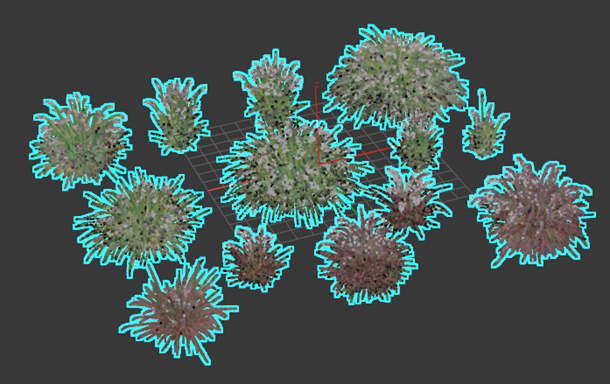
Detach grass objects
Select the Gaussian Splat object, in this case the grasses.
Do one of the following to turn a Gaussian Splat object into an Editable Point object:
- Right-click the Gaussian Splat object and select Convert To: > Convert to Editable Point from the Quad menu.
- Right-click the Gaussian Splat object in the Modifier stack and select Editable Point.
Now one of the objects has been converted to an Editable Point object, letting us use the Editable Point parameters to make edits.
Ensure that point selection mode
 is turned on in the Editable Point > Selection rollout. See Points Object.
From the Main Toolbar, select the Lasso tool
 .
.Use the Lasso tool to select one of the grass objects.
In the Editable Point parameters, select Detach in the Selection rollout.
In the Detach dialog that appears, enter the name for the new object, in this case Grass001.
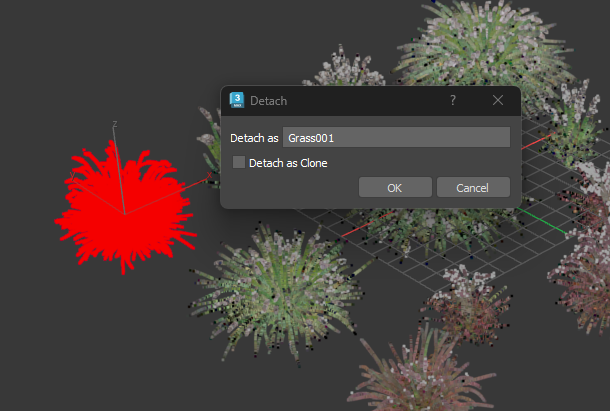
With Grass001 selected, select the Hierarchy tab
 in the Command Panel, and then select Adjust Pivot > Affect Pivot Only.
Now we can adjust the location of the pivot for our new object, Grass001.
With the Move tool selected, move the pivot so it is located at the center of our new object, Grass001.
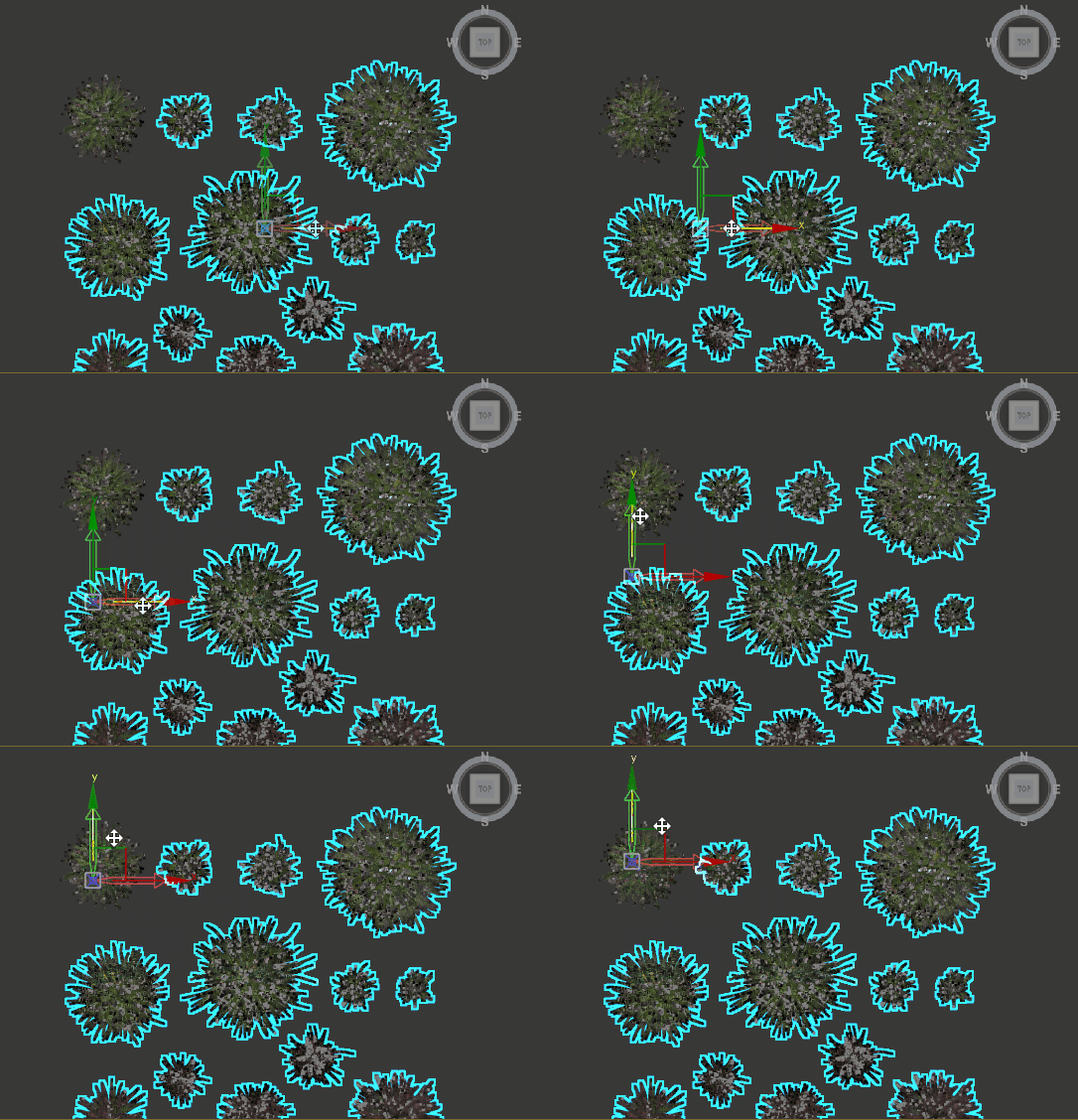
Repeat the previous steps to separate and move the pivot for the remaining grass objects.