Vertex Weld Modifier
The Vertex Weld modifier behaves like the Weld feature in editable poly and similar objects by combining all vertices within a specified distance from each other into a single vertex. Vertex Weld is useful for cleaning up meshes that contain clusters of vertices within small areas and for procedurally welding open splines and knots by the ends.
- Select a mesh, spline, patch, or PolyMesh object. >
 Modify panel > Modifier List > Vertex Weld
 - Default menu: Select a mesh, spline, patch, or PolyMesh object. > Modifiers menu > Mesh Editing > Vertex Weld
- Alt menu: Select a mesh, spline, patch, or PolyMesh object. > Modifiers menu > Geometry (Convert to Mesh) > Vertex Weld
How it works and new vertices
The new vertex is automatically placed at the average position of the combined vertices. For meshes, because the original vertices are removed, some associated faces and edges are usually removed as well. Welded vertices also need not belong to the same element, so welding can result in combining elements within an object. For splines, this is useful for keeping a spline editable, procedural and renderable, by combining splines to one another by their end vertices. For poly-based objects that the Vertex Weld is applied to, dead vertices (old data structures that are no longer needed but occured as a result of topology-changing poly operations) can also be easily cleaned up.
Procedure example for meshes
For example, apply the Vertex Weld modifier to a mesh using the following steps:
Create a box with Length, Width, and Height set to 40.
Right-click the box and choose Convert to > Convert to Editable Poly.
Go to the Polygon sub-object level and select polygon 6.
Tip: To see which polygon is selected, watch the readout at the bottom of the Selection rollout.Press
Deleteto delete polygon 6.By deleting the polygon, you create an open mesh.
Apply a Turn To Poly modifier, and set the Selection Level to Object.
Apply a Mirror modifier, and set Mirror Axis to X.
Turn on Copy, and set Offset to –40.
The reflection of the box shares a common seam but the vertices along the seam are not welded.
Apply a Vertex Weld modifier to cement the two boxes into one element.
Procedure example for splines
For example, procedurally weld editable splines into a renderable object using the following steps:
Create a line that has two segments perpendicular to one another, in the shape of an arrowhead, less than or greater than sign (<).
From the Modifier List dropdown, add the Array modifier.
In the Array Distribution Parameters, change the Count Y to 6.
From the Modifier List dropdown, apply the Edit Spline modifier.
Tip: Use the Edit Spline modifier to see the free edges or vertices of your spline.From the Modifier List dropdown, apply the Vertex Weld modifier.
Go back to the Array options, and change the Count Y to 10.
From the Modifier List dropdown, apply the Renderable Spline modifier.
Now you have a procedural and continuous bendy straw.
Interface
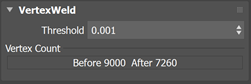
Threshold
For meshes
Vertices are automatically combined when they are within this distance (in scene units). The higher the value, the more vertices are welded and smaller details are removed. For meshes, the algorithm only looks at vertices within the threshold. If no threshold is given, the algorithm will look at all vertices and attempt to weld them together.
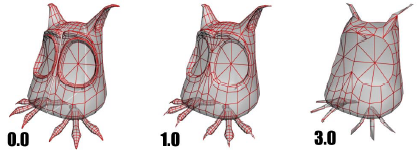
The results of using different Vertex Weld threshold settings.
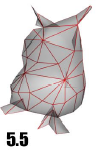 A threshold setting of 5.5 removes all detail, making the model unrecognizable.
For splines
Vertices are automatically combined when they are in this threshold or neighbouring distance of the ends of a spline. Hence, neighboring vertices from the ends of a spline are the focus for the threshold value. Unlike meshes, if you choose a higher threshold value, it will make it easier to weld one spline to another. Vertex weld in splines is designed to merge splines to one another as opposed to the reduction that occurs in the mesh use case. It is meant to retain the true curvature of the spline and only weld the ends of vertices to another.