Poly Select Modifier
The Poly Select modifier lets you pass a sub-object selection up the stack to subsequent modifiers. It provides a superset of the selection functions available in Editable Poly. You can select vertices, edges, borders, polygons, and elements. You can change the selection from sub-object level to object level.
- Make a selection. > Modify panel > Modifier List > Poly Select
- Default menu: Make a selection. > Modifiers menu > Selection Modifiers > Poly Select
- Alt menu: Make a selection. > Modifiers menu > Selection > Poly Select
When you apply the Poly Select modifier and then go to any sub-object level, the select-and-transform buttons in the toolbar are unavailable, and the Select Object button is automatically activated.
Using XForm Modifiers to Animate a Poly Selection
When you apply a Poly Select modifier, there are no animation controllers assigned to the sub-object selection. This means that the selection has no way to "carry" the transform information needed for animation.
To animate a sub-object selection using Poly Select, apply either an XForm or Linked XForm modifier to the selection. These modifiers provide the necessary controllers for animating the effects of transforms. In a sense, they give "whole-object status" to the sub-object selection.
-
Animates transforms directly on a sub-object selection. Creates a gizmo and center for the sub-object selection. You can animate both, with the center acting as a pivot point for the selection.
-
Lets you choose another object to control the animation. The sub-object selection is linked to the "control object." When you transform the control object, the sub-object selection follows accordingly.
Procedures
To use the Poly Select modifier:
Create or select an object.
Note: Applying a Poly Select modifier to an object other than a polymesh type will convert the object to a polymesh object. If you want more control over the conversion, add a Turn To Poly modifier before applying the Poly Select modifier. The Turn To Poly modifier provides conversion options that aren't available with the Poly Select modifier.Apply the Poly Select modifier.
Select vertices, faces, or polygons.
Add another modifier to affect only the selection from step 3.
Interface
Modifier Stack
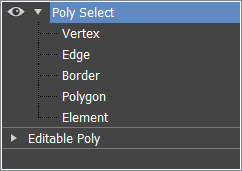
Vertex
Selects vertices.
Edge
Selects edges.
Border
Selects borders.
Polygon
Selects polygons.
Element
Selects elements.
For more information on the stack display, see Modifier Stack.
Parameters rollout
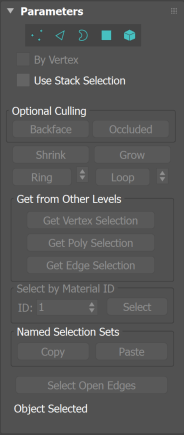
Provides buttons for accessing different sub-object levels, working with named selections and handles, display settings, and information about selected entities.
The icons at the top of the Selection rollout let you specify the method of face selection.
Clicking a button here is the same as choosing a sub-object type in the modifier stack. Click the button again to turn it off and return to the Object selection level.
You can convert sub-object selections in two different ways with the use of the Ctrl and Shift keys:
- Clicking a sub-object button in the Selection rollout with
Ctrlheld down converts the current selection to the new level, selecting all sub-objects in the new level that touch the previous selection. For example, if you select a vertex, and thenCtrl+click the Polygon button, all polygons that use that vertex are selected. - To convert the selection to only sub-objects all of whose source components are originally selected, hold down both
CtrlandShiftas you change the level. For example, if you convert a vertex selection to a polygon selection withCtrl+Shift+click, the resultant selection includes only those polygons all of whose vertices were originally selected.
 Vertex
Selects a vertex beneath the cursor; region selection selects vertices within the region.
 Edge
Edge
Selects a polygon edge beneath the cursor; region selection selects multiple edges within the region.
 Border
Turns on Border sub-object mode, which lets you select an area on a mesh that can generally be described as a hole. Areas like this are usually sequences of edges with faces on only one side. For example, a box doesn't have a border, but the Teapot object has several of them: on the lid, on the body, on the spout, and two on the handle. If you create a cylinder, then delete the top face, the top row of edges forms a border.
When the Border sub-object level is active, you can't select edges that aren't on borders. Clicking a single edge on a border selects that whole border.
Borders can be capped (either in editable poly or by applying the cap holes modifier). They can also be connected to another object (compound object connect).
 Polygon
Selects all coplanar polygons beneath the cursor. Usually, a polygon is the area you see within the visible wire edges. Region selection selects multiple polygons within the region.
 Element
Selects all contiguous polygons in an object; region selection selects the same.
By Vertex
Selects any sub-objects at the current level that use a vertex you click. Applies to all sub-object levels except Vertex. Also works with Region Select.
Use Stack Selection
When active, this option locks your current stack selection. With this button, you can switch between the selection that is being passed into the modifier, or modify that selection with the tools and functionality that already exist within the modifier.
Optional Culling
Choose Backface or Occluded as culling selections. Selecting these sub-objects selects only those whose normals make them visible in the viewport. When off (the default), selection includes all sub-objects, regardless of the direction of their normals. The state of this selection also affects edge selection at the Edge sub-object selection level.
Shrink
Reduces the sub-object selection area by deselecting the outermost sub-objects. If the selection size can no longer be reduced, the remaining sub-objects are deselected.
Grow
Expands the selection area outward in all available directions.
For this function, a border is considered to be an edge selection.
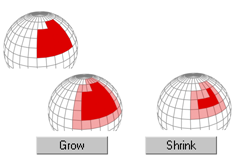
With Shrink and Grow, you can add or remove neighboring elements from the edges of your current selection. This works at any sub-object level.
Ring
Expands an edge selection by selecting all edges parallel to the selected edges. Ring applies only to edge and border selections.
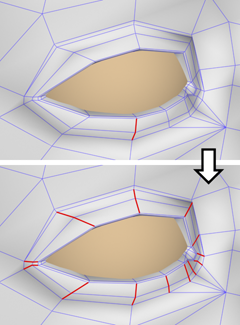
Ring selection adds to the selection all the edges that are parallel to the ones selected originally.
Loop
Expands the selection as far as possible, in alignment with selected edges.
Loop applies only to edge and border selections, and propagates only through four-way junctions.
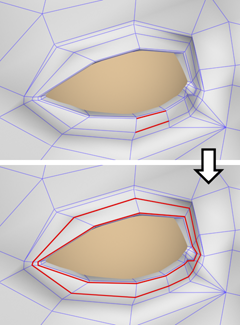
Loop selection extends your current edge selection by adding all the edges aligned to the ones selected originally.
Get from Other Levels group
Applies selections from one sub-object level to another.
Get Vertex Selection
Selects faces based on the last vertex selection. Selects all faces shared by any selected vertex. The selection is added to the current selection. Available only when the current sub-object level is not Vertex.
Get Poly Selection
Selects vertices based on the last polygon/element selection. This selection is added to the current selection. Available only when the current sub-object level is not Polygon or Element.
Get Edge Selection
Selects faces based on the last edge selection. Selects those faces that contain the edge. Available only when the current sub-object level is not Edge or Border.
Select by Material ID group
Selects faces based on their material ID.
ID
Set the spinner to the ID number you want to select, and then click the Select button. Press Ctrl while clicking to add to the current selection, or press Alt to remove from the current selection.
Named Selection Sets group
These functions are primarily for copying named selection sets of sub-objects between similar objects, and between comparable modifiers and editable objects. For example, you can apply a Poly Select modifier to a sphere, create a named selection set of edges, and then copy the selection to a different sphere that's been converted to an editable mesh object. You can even copy the selection set to a different type of object, because the selection is identified by the entities' ID numbers.
The standard procedure is to create a selection set, name it, and then use Copy to duplicate it into the copy buffer. Next, select a different object and/or modifier, go to the same sub-object level as you were in when you copied the set, and click Paste.
Copy
Places a named selection into the copy buffer.
Paste
Pastes a named selection from the copy buffer.
Select Open Edges
Selects all edges with only one face. In most objects, this will show you where missing faces exist. Available only at the Edge or Border sub-object level.
[selection info]
At the bottom of the Parameters rollout for Mesh Select is a text display giving you information about the current selection. If 0 or more than one sub-object is selected, the text gives the number and type selected. If one sub-object is selected, the text gives the ID number and type of the selected item.
Soft Selection rollout
Soft Selection controls affect the action of sub-object Move, Rotate, and Scale functions. When these are on, 3ds Max applies a spline curve deformation to unselected vertices surrounding the transformed selected sub-object. This provides a magnet-like effect with a sphere of influence around the transformation.
For more information, see Soft Selection Rollout.