Array Modifier Material ID Rollout
 Modify panel > Make a selection > Modifier List > Object-Space Modifiers > Array > Material ID rollout
- Default menu: Make a selection > Modifiers menu > Parametric Deformers > Array > Material ID rollout
The Array modifier's Material ID rollout lets you control how material IDs are applied to the clones in the selected array. A Multi/Sub-object material must be assigned to your array, and sub-materials must be assigned to take advantage of the parameters in this rollout.
Interface
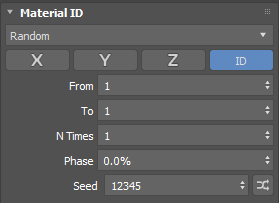
Material ID Method
Lets you control how Material IDs are assigned to the clones in the selected array.
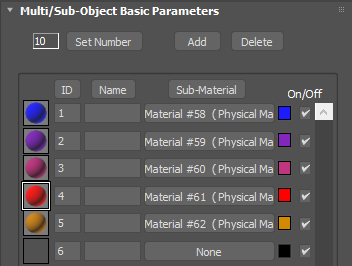
A Multi/Sub-object material is assigned to the array used in the following examples. Five sub-materials are assigned solid colours:
You can select the following methods:
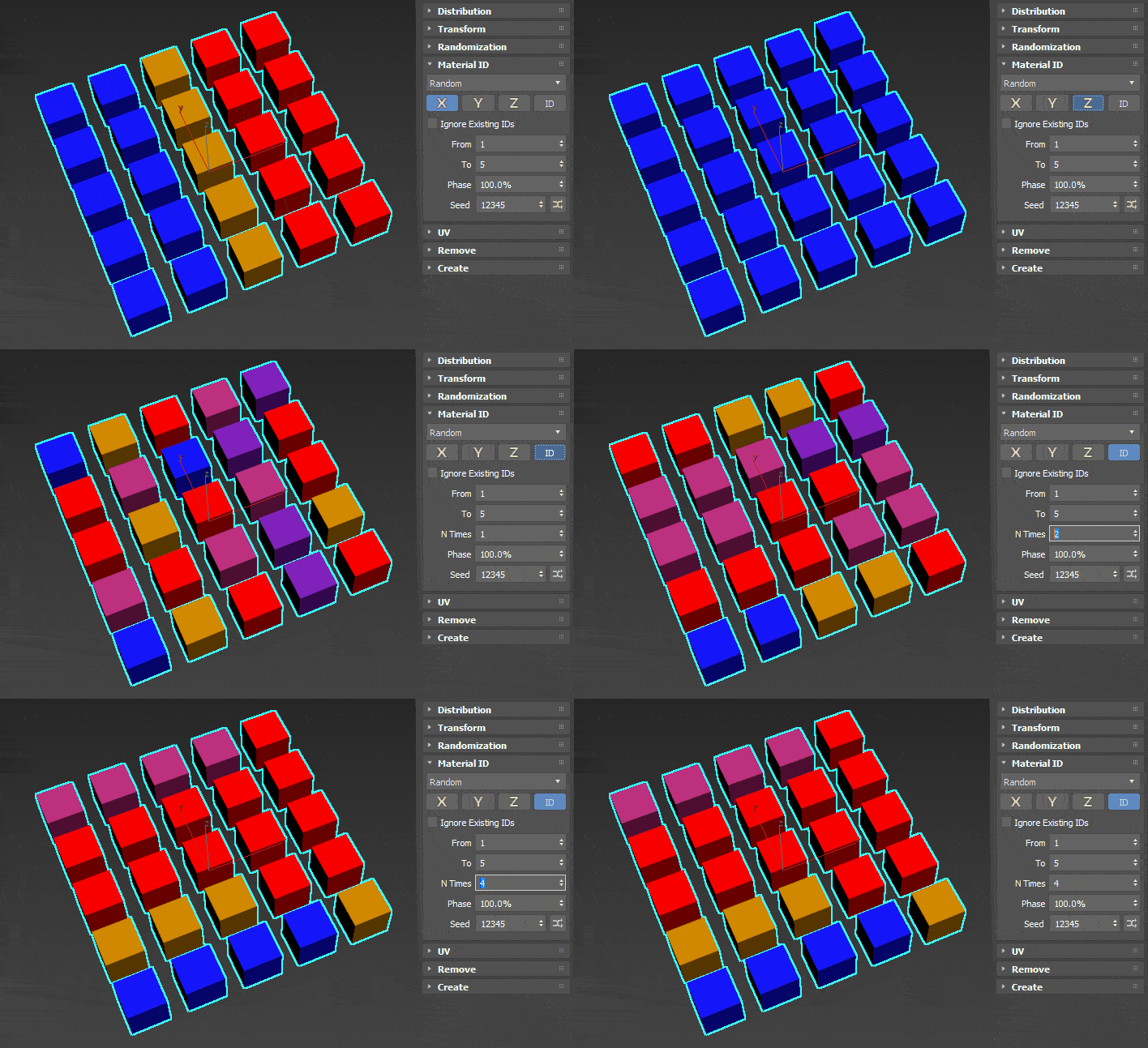
Random:
Material IDs are assigned to clones randomly based on a selected orientation:
- X: In the following example, IDs one, five, and four (1-blue, 5-orange, 4-red) appear randomly along the X-axis
- Y: In the following example, IDs one, five, and four (1-blue, 5-orange, 4-red) appear randomly along the Y-axis
- Z: In the following example, only one ID appears (1-blue), because there is a single clone along the Z-axis
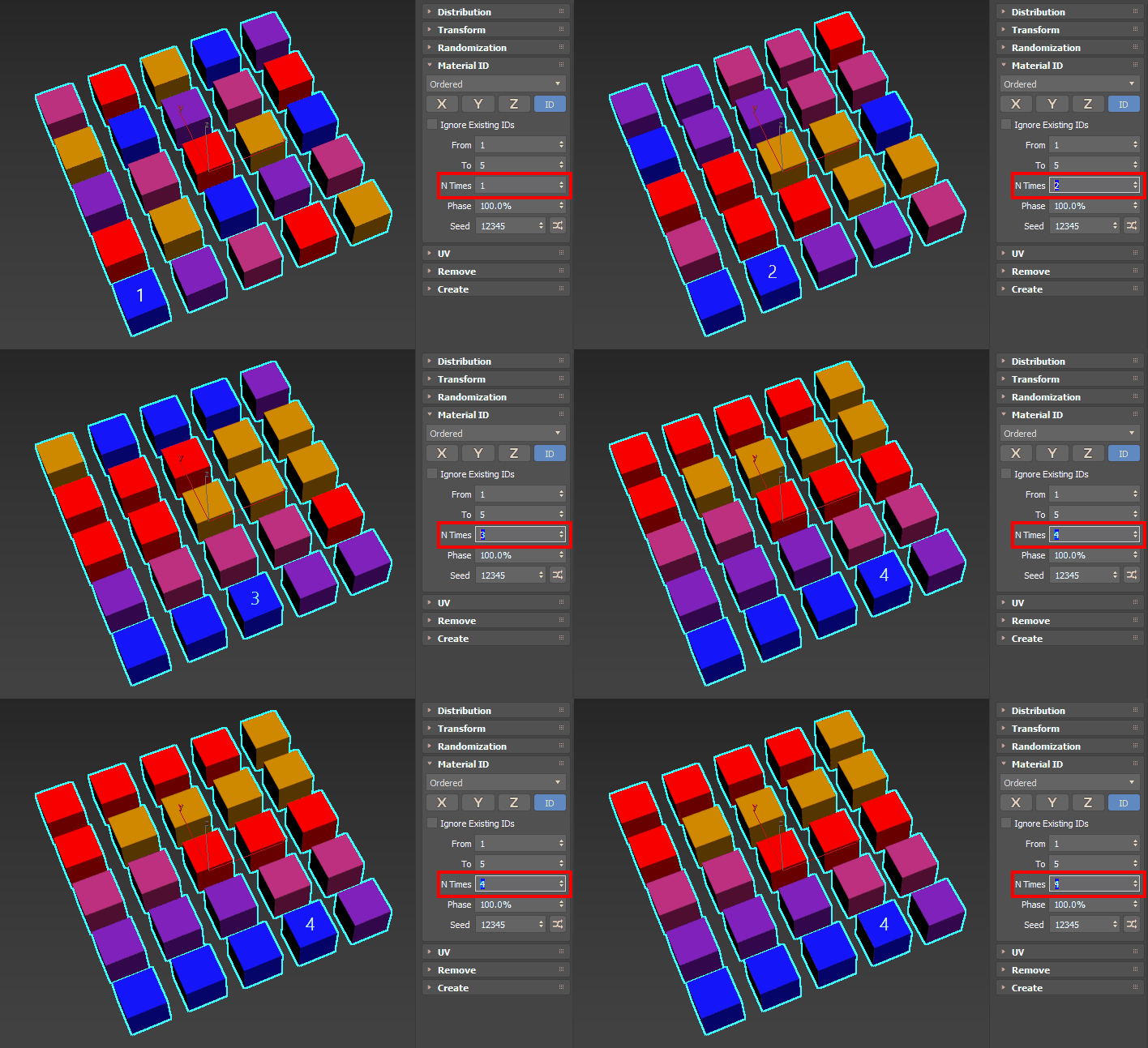
- ID: In the following example, CloneIDs are used for material ID assignment. When N Times is increased, the material ID is repeated.
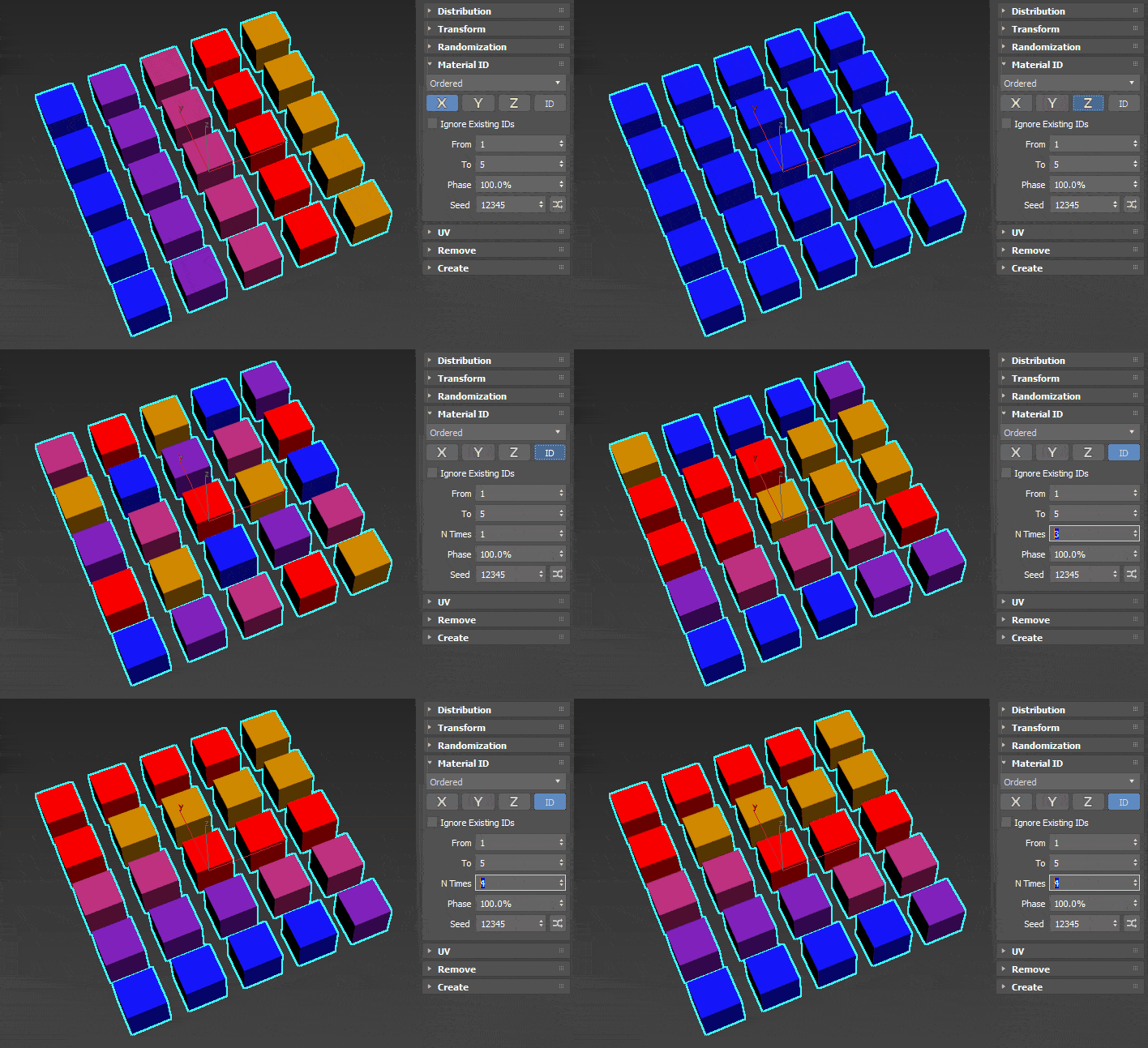
Ordered
Material IDs are assigned to clones in sequential order based on a selected orientation:
- X: In the following example, IDs one through five (1-blue, 2-purple, 3-pink, 4-red, 5-orange) appear in sequential order along the X-axis
- Y: In the following example, IDs one through five (1-blue, 2-purple, 3-pink, 4-red, 5-orange) appear in sequential order along the Y-axis
- Z: In the following example, only one ID appears (1-blue), because there is a single clone along the Z-axis.
- ID: In the following example, CloneIDs are used for material ID assignment. When N Times is increased, the material ID is repeated on the adjacent clone.
First Middle Last
The specified material IDs are assigned to the first and last clone and the remaining material ID assignments are random. The results change based on the selected orientation:
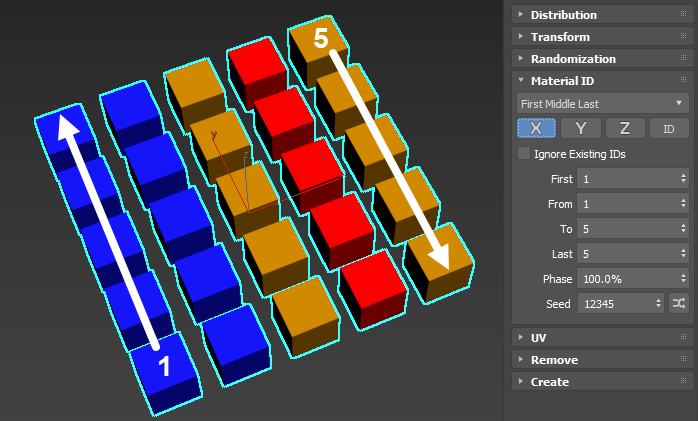
X: In the following example, the First clone (1) is assigned material ID one (blue) and the Last clone (5) is assigned material ID five (orange). Other clones in these rows along the X-axis are also assigned the same material ID.
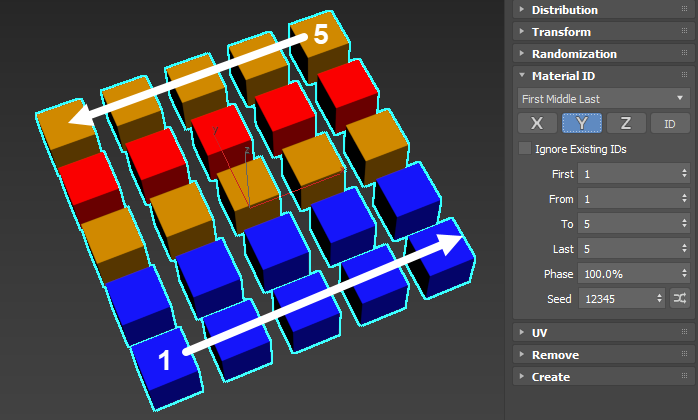
Y: In the following example, the First clone (1) is assigned material ID one (blue) and the Last clone (5) is assigned material ID five (orange). Other clones in these rows along the Y-axis are also assigned the same material ID.
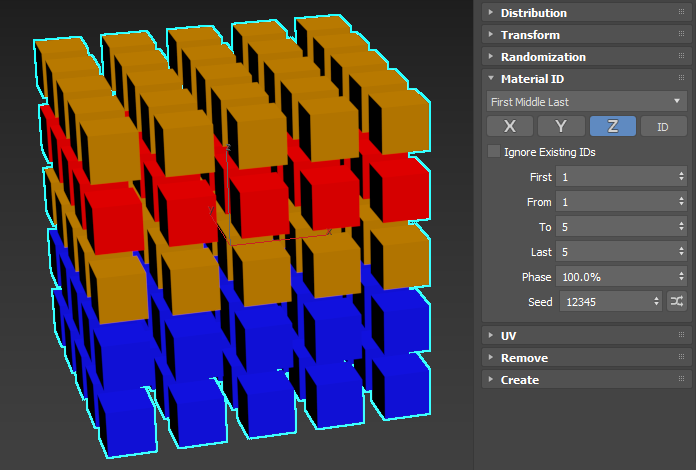
Z: In the following example, the Count Z parameter has been adjusted, making the grid five clones tall. The First clone (1) is assigned material ID one (blue) and the Last clone (5) is assigned material ID five (orange). Other clones in these rows along the Z-axis are also assigned the same material ID.
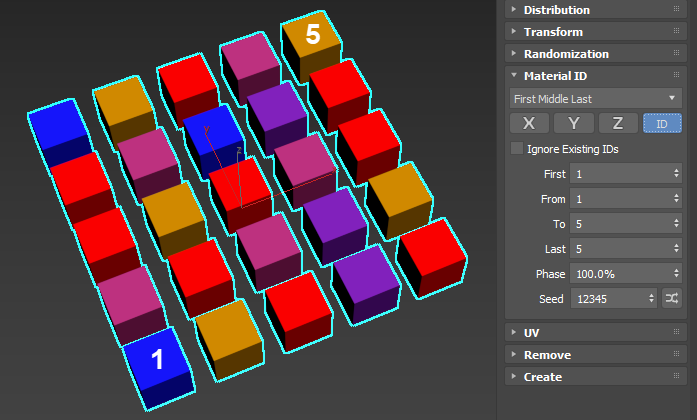
ID: In the following example, the First clone (1) is assigned material ID one (blue) and the Last clone (5) is assigned material ID five. The remaining clones' CloneIDs are used for material ID assignment.
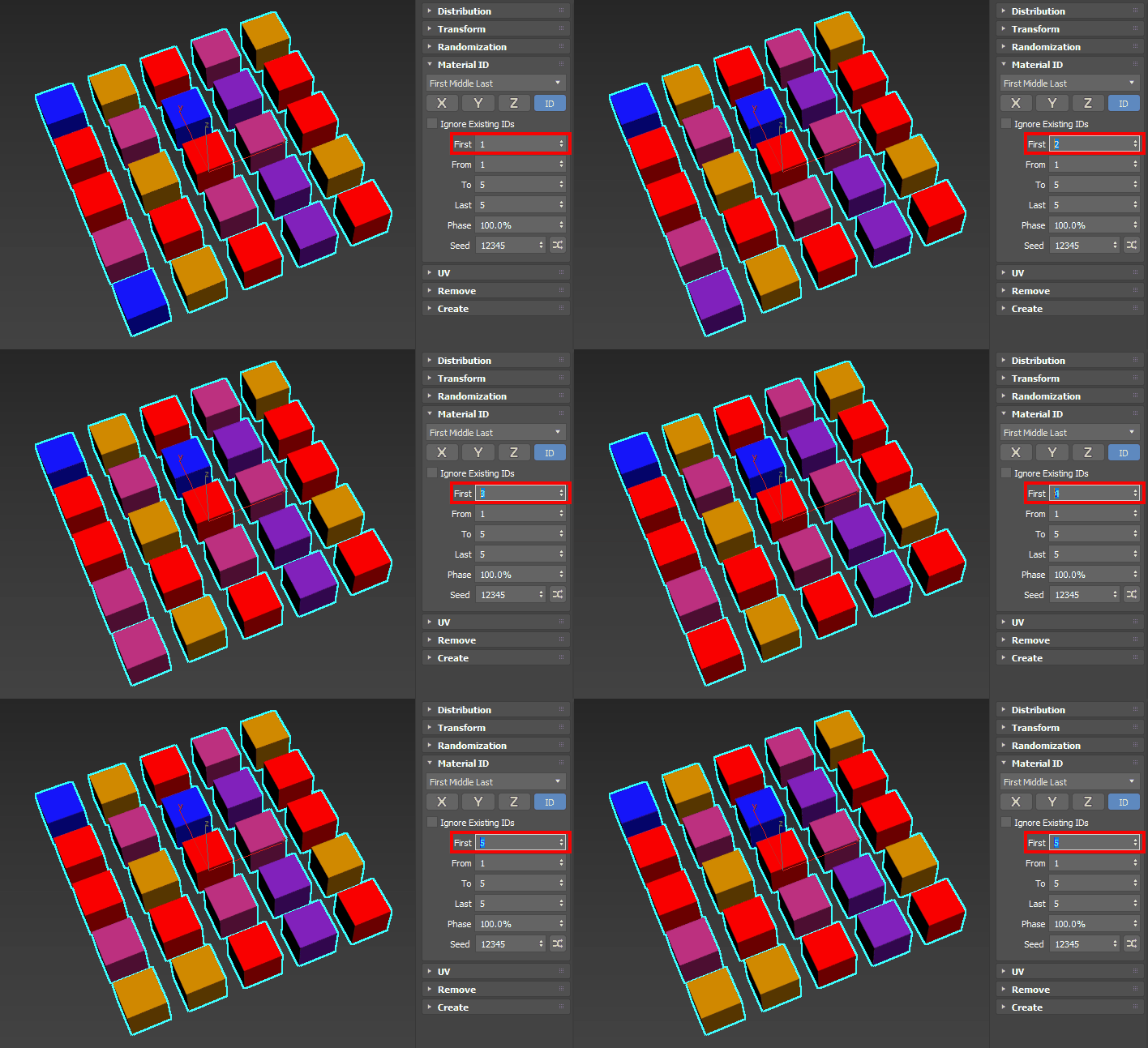
First
This parameter is only available when the First Middle Last method is selected.
Sets the material ID for the first clone in the array.
From
Sets a minimum ID value that is randomly applied to the clones.
To
Sets a maximum ID value that is randomly applied to the clones.
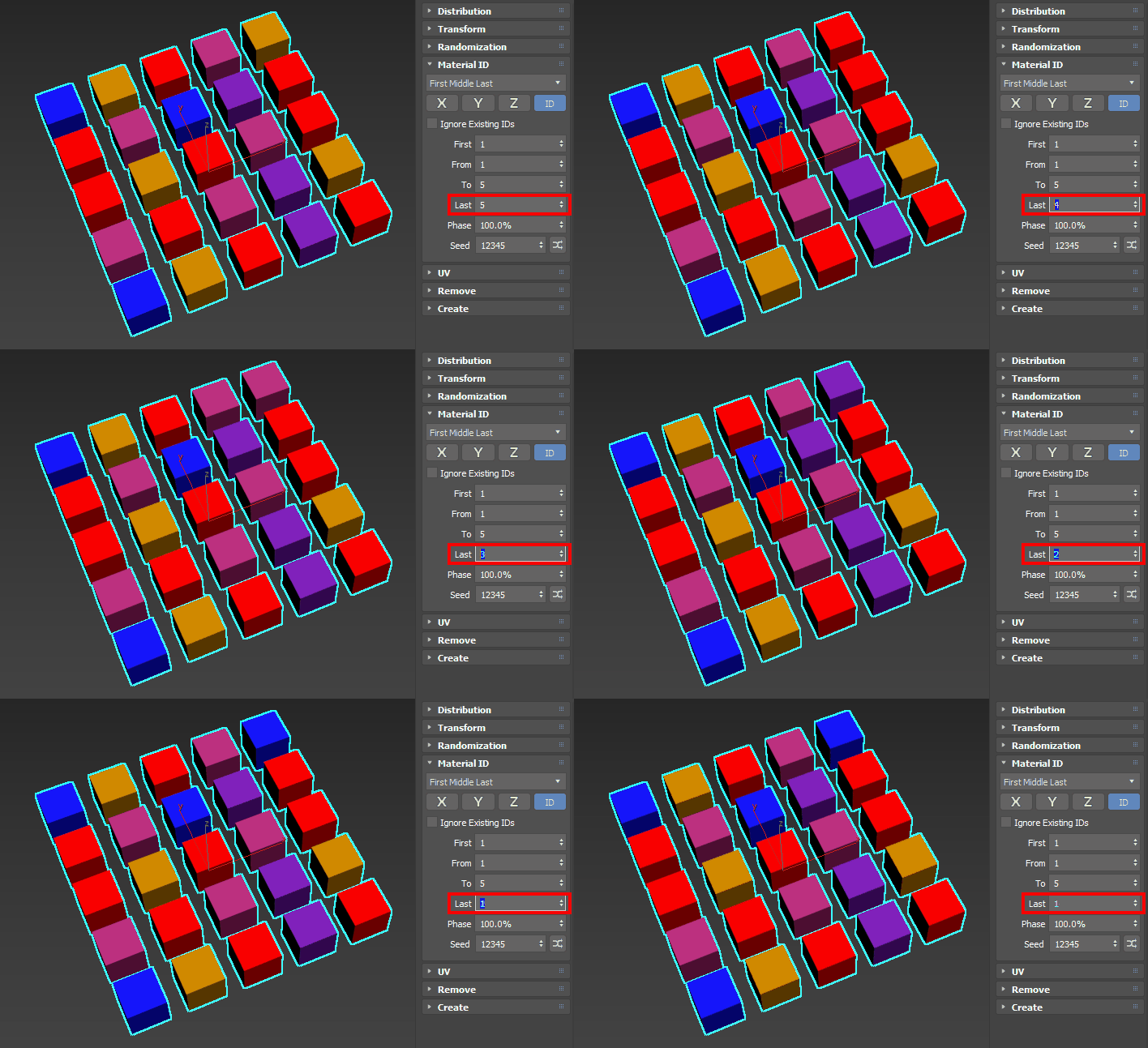
Last
This parameter is only available when the First Middle Last method is selected.
Sets the material ID for the last clone in the array.
N Times
Is only available when the Random or Ordered method is selected and the orientation is set to ID.
Specifies the number of times each material ID is repeated in the array.
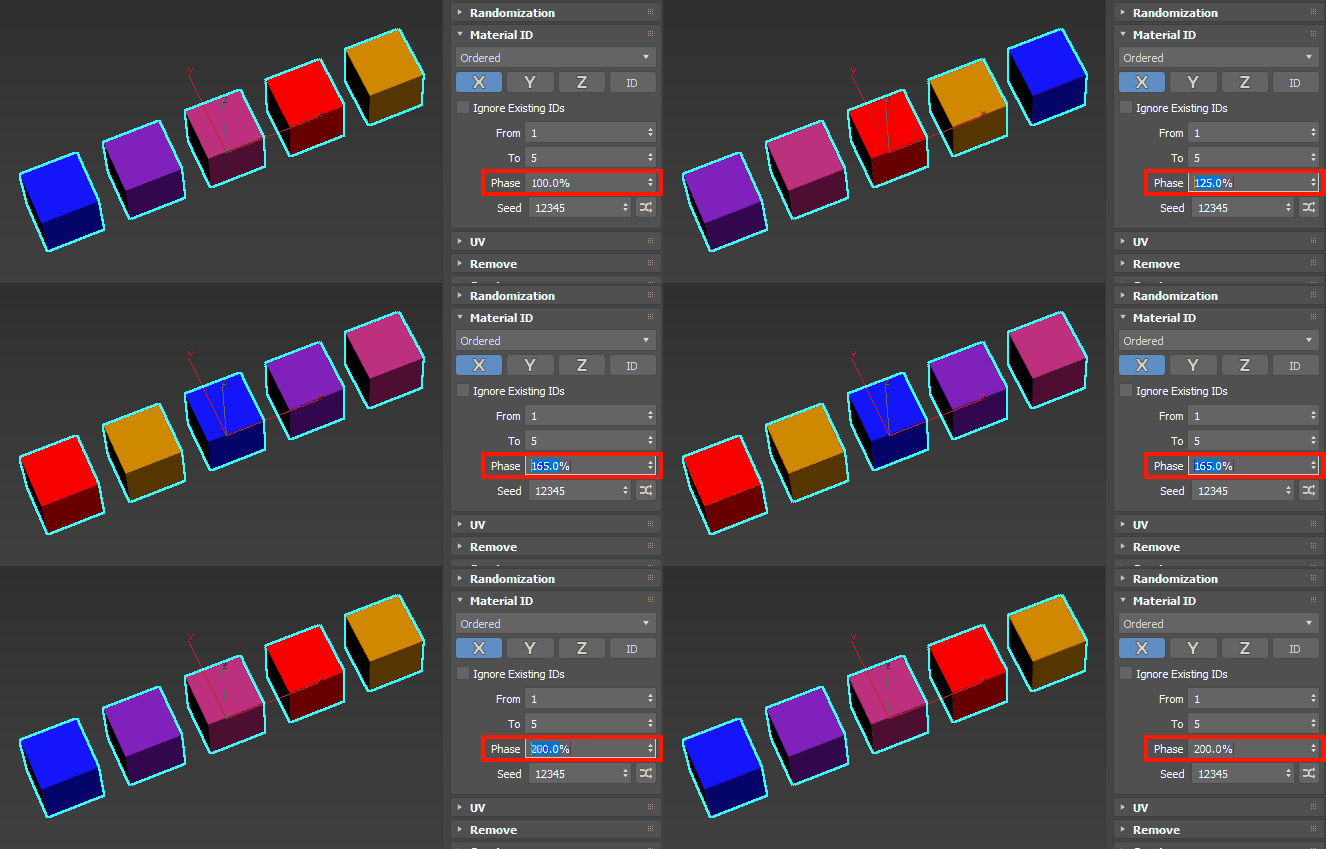
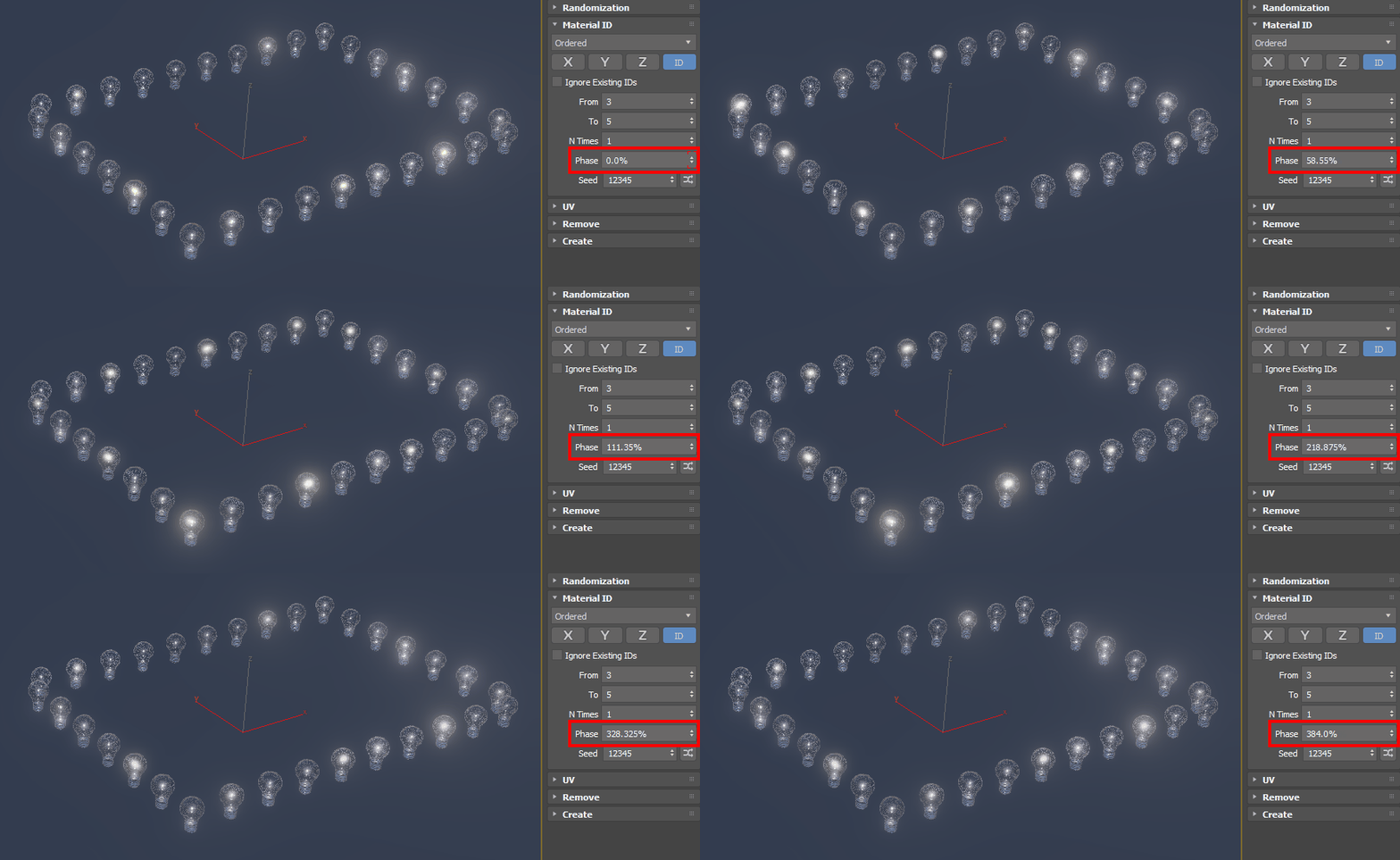
Phase
Cycles through the assigned material IDs.
The following example shows how the clones cycle through material IDs one through five as the Phase parameter is adjusted:
Animating the Phase parameter can create interesting effects, as illustrated by this marquee. In this example, the Multi/Sub-object material assigned to this array has two different material IDs for the lightbulb filament: on and off. As the value of the Phase parameter changes, the material on the filament cycles from one clone to the next. When the Phase parameter is animated, the result is a glittering marquee.
Seed
Sets a random number seed for the material ID value.
Seed Randomization
Click  to randomize the seed value.