Boolean Modifier Add Operands Rollout
 Modify panel > Make a selection > Modifier List > Object-Space Modifiers > Boolean > Add Operands rollout
- Default menu: Make a selection > Modifiers menu > Parametric Deformers > Boolean > Add Operands rollout
After a boolean modifier is applied to a base object, you can use the Add Operands rollout to perform a boolean operation. Simply click one of the boolean operation buttons and start picking operands (objects) in your scene.
Interface
Union 
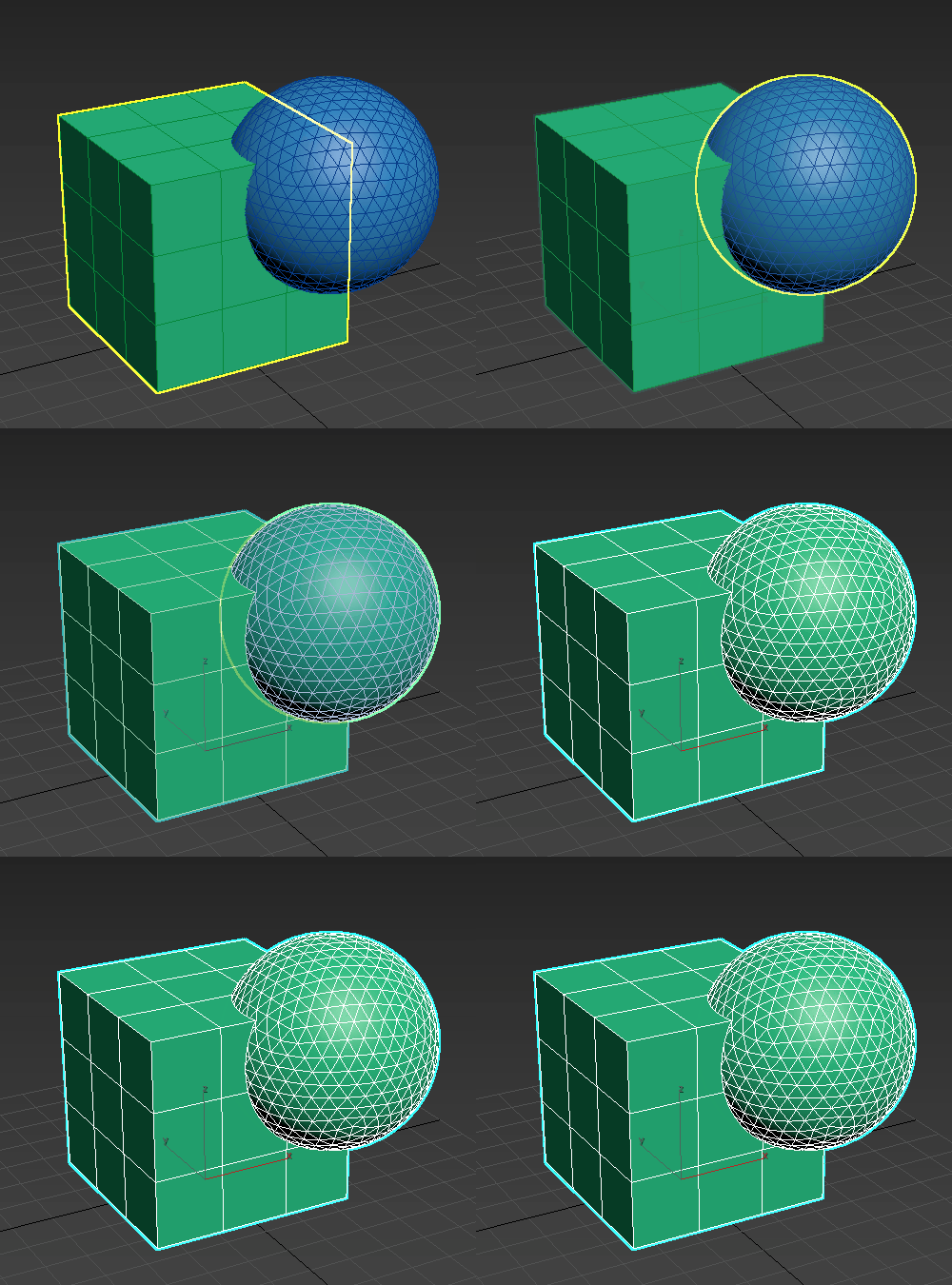
Unifies the volume of both objects. The intersecting or overlapping portion of the geometry is discarded. Operands with Union applied are outlined in green when displayed in the viewport.
Intersect 
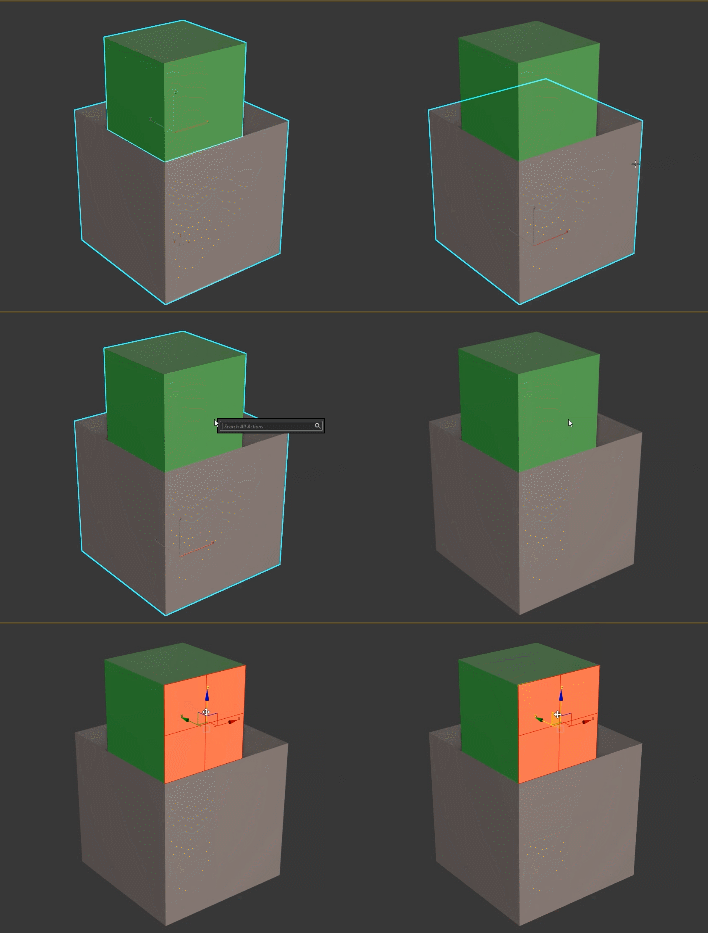
Intersects the overlapping volume common to both original objects. The remaining geometry is discarded. Operands with Intersect applied are outlined in yellow when displayed in the viewport.
Subtract 
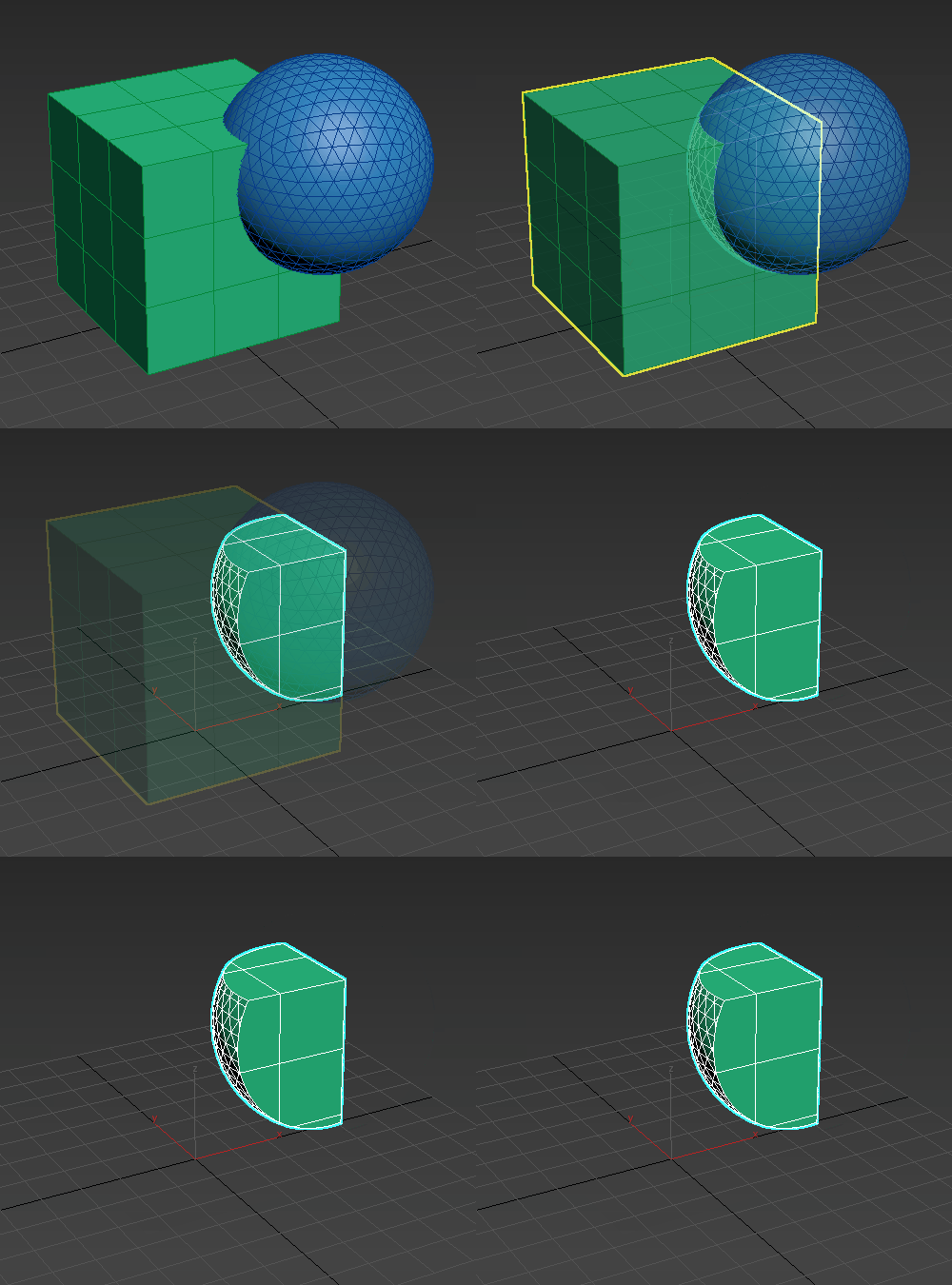
Removes the intersecting volume from the base (originally selected) object. This operation is also known as difference. Operands with Subtract applied are outlined in blue when displayed in the viewport.
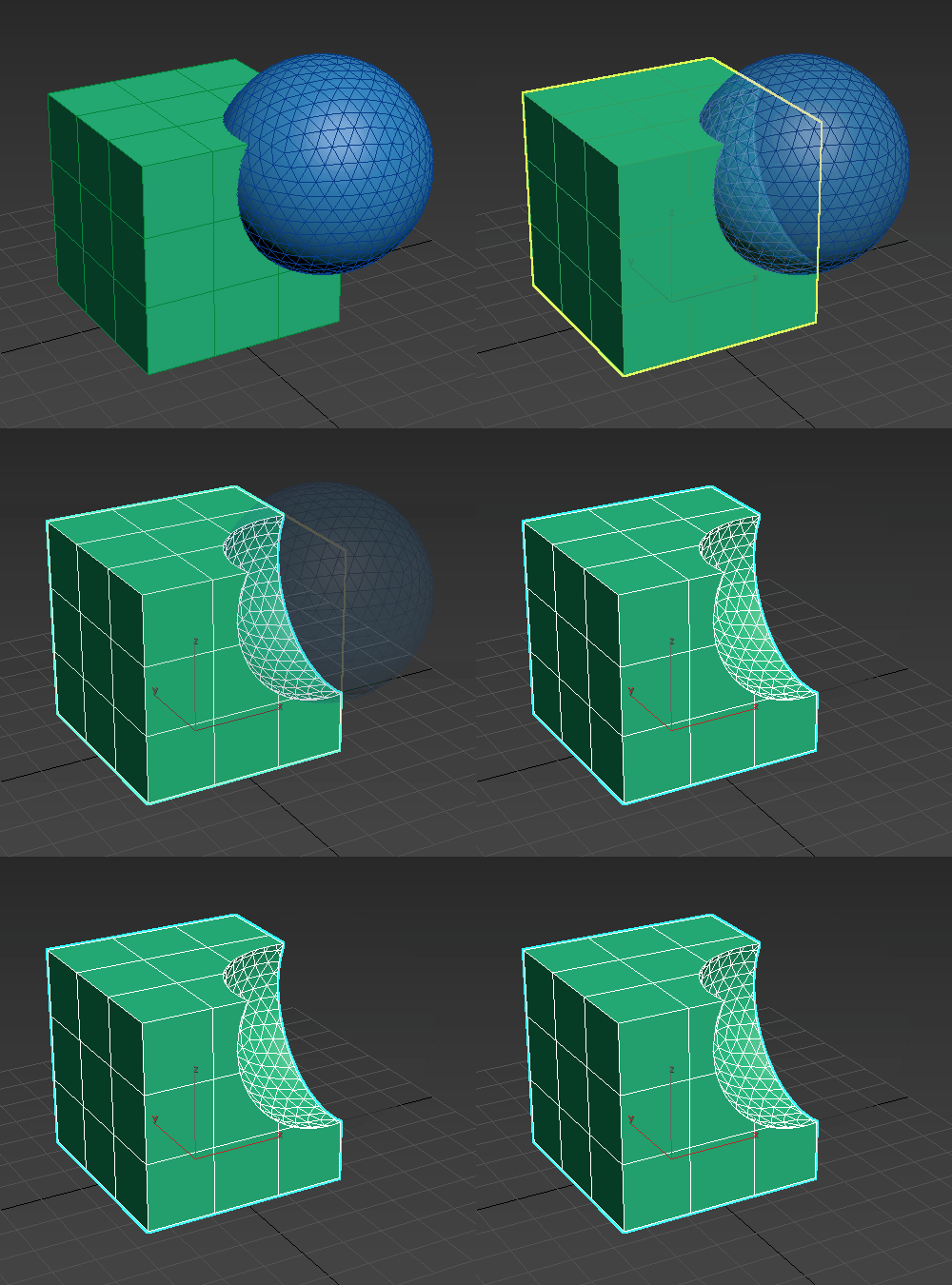
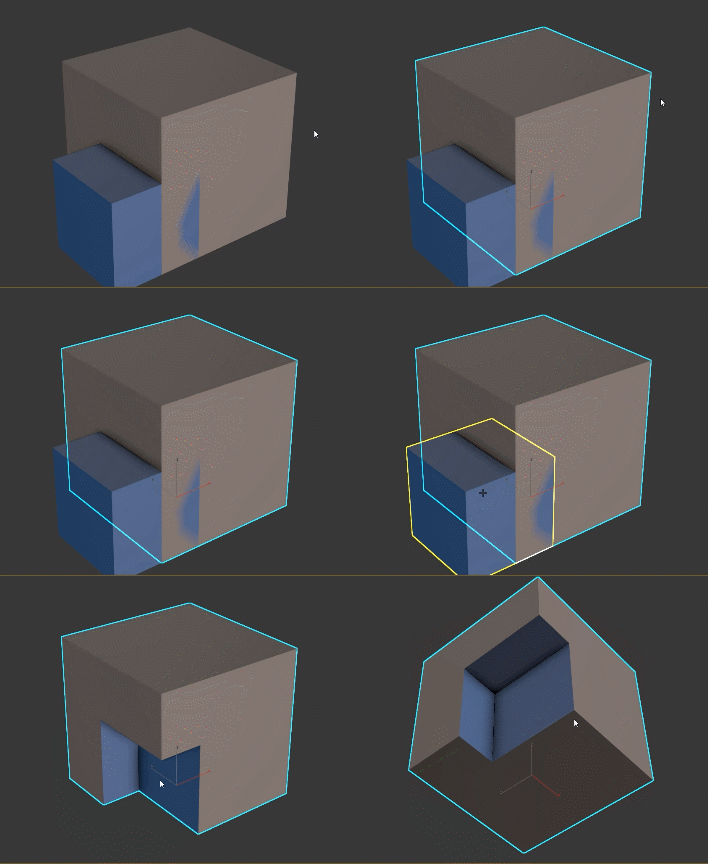
Split 
Inserts new edges on the base object along the intersection of the operand(s).
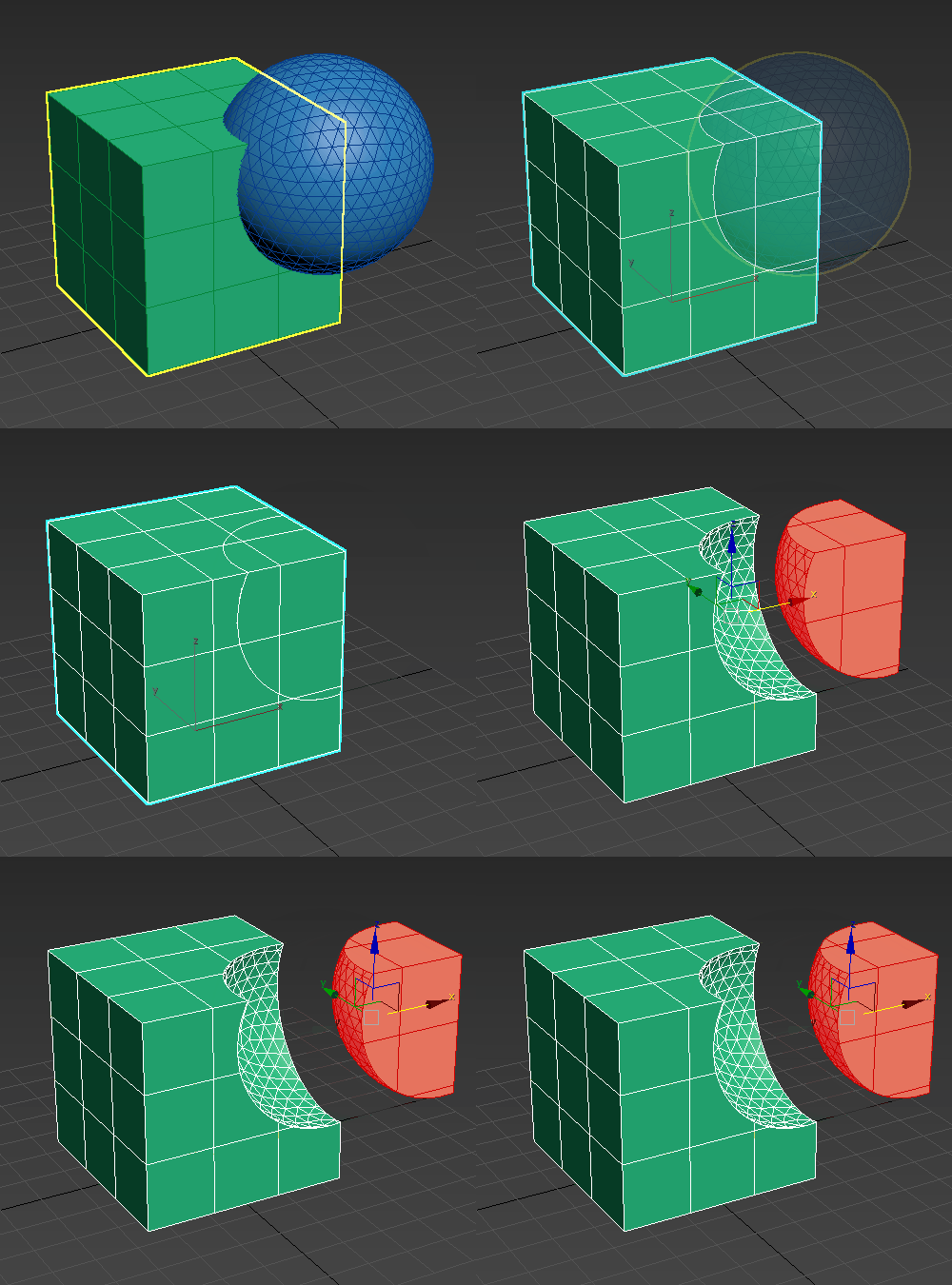
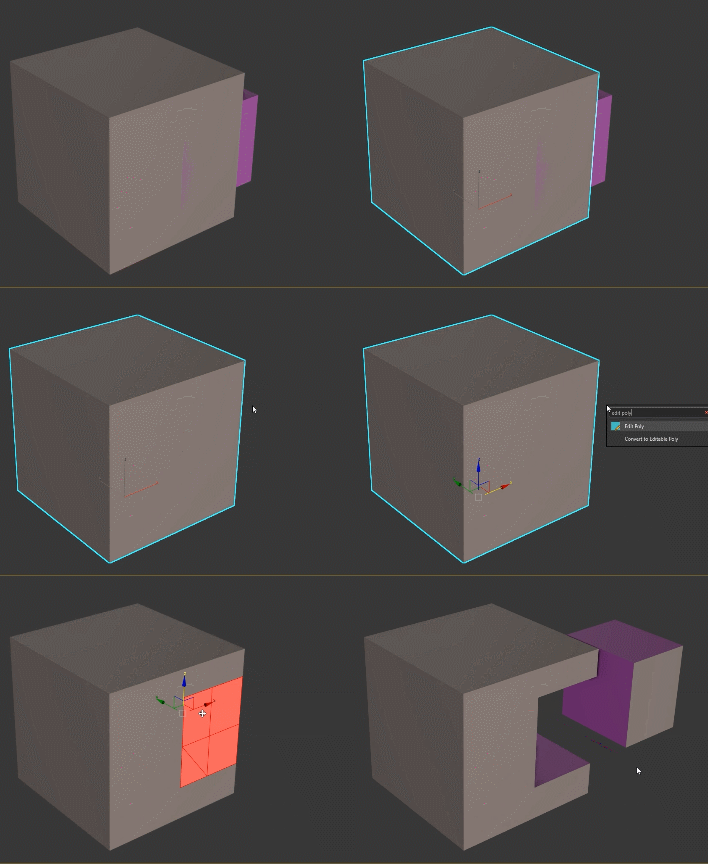
Merge 
Intersects and combines two meshes without removing any of the original polygons. New edges are created where the objects intersect. This can be useful for cases in which you need to selectively remove parts of the mesh. Operands with Merge applied are outlined in purple when displayed in the viewport
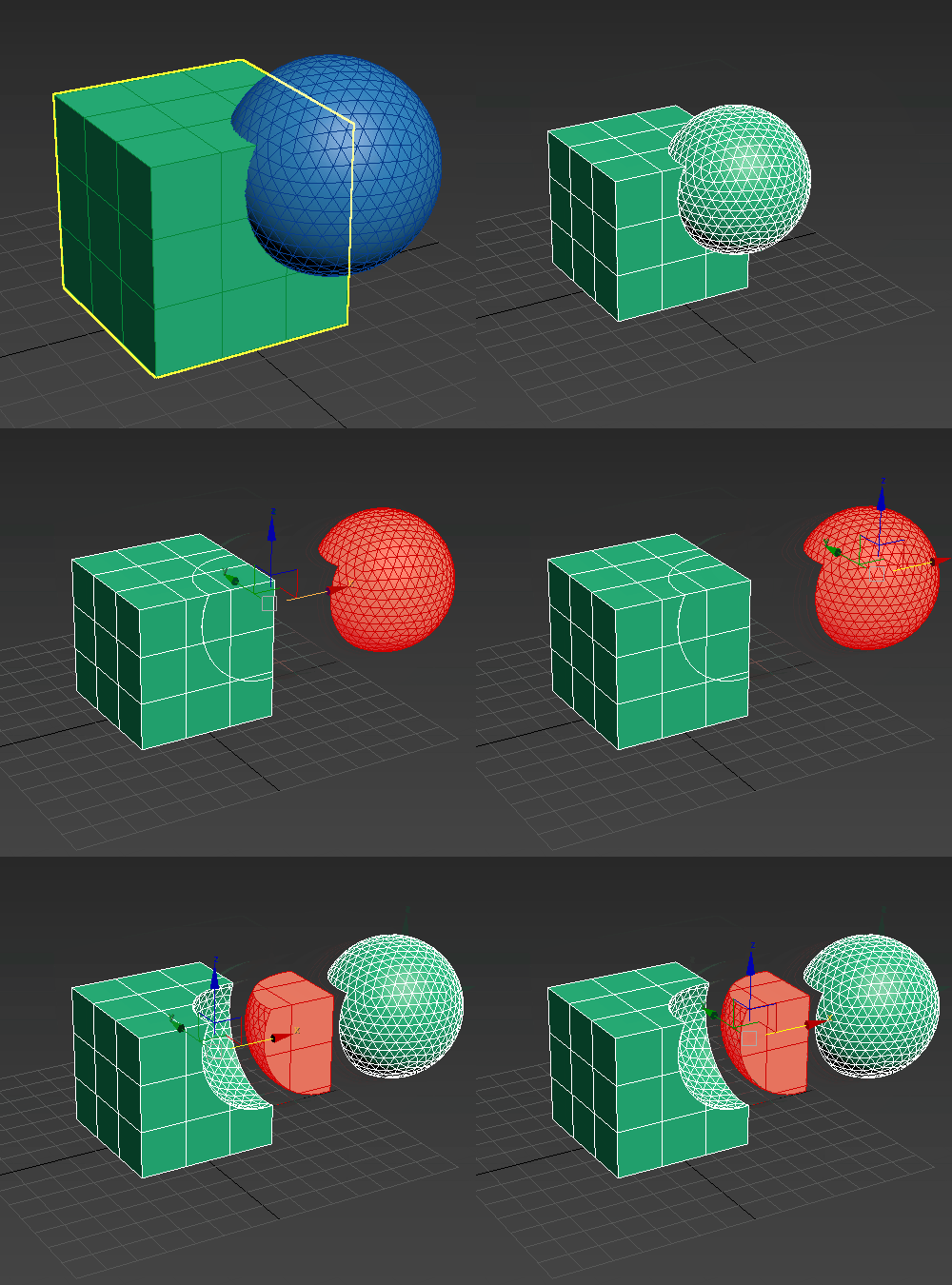
Attach 
Combines multiple objects into one without affecting their topology; they remain essentially separate elements of the compound object. Operands with Attach applied are outlined in orange when displayed in the viewport.
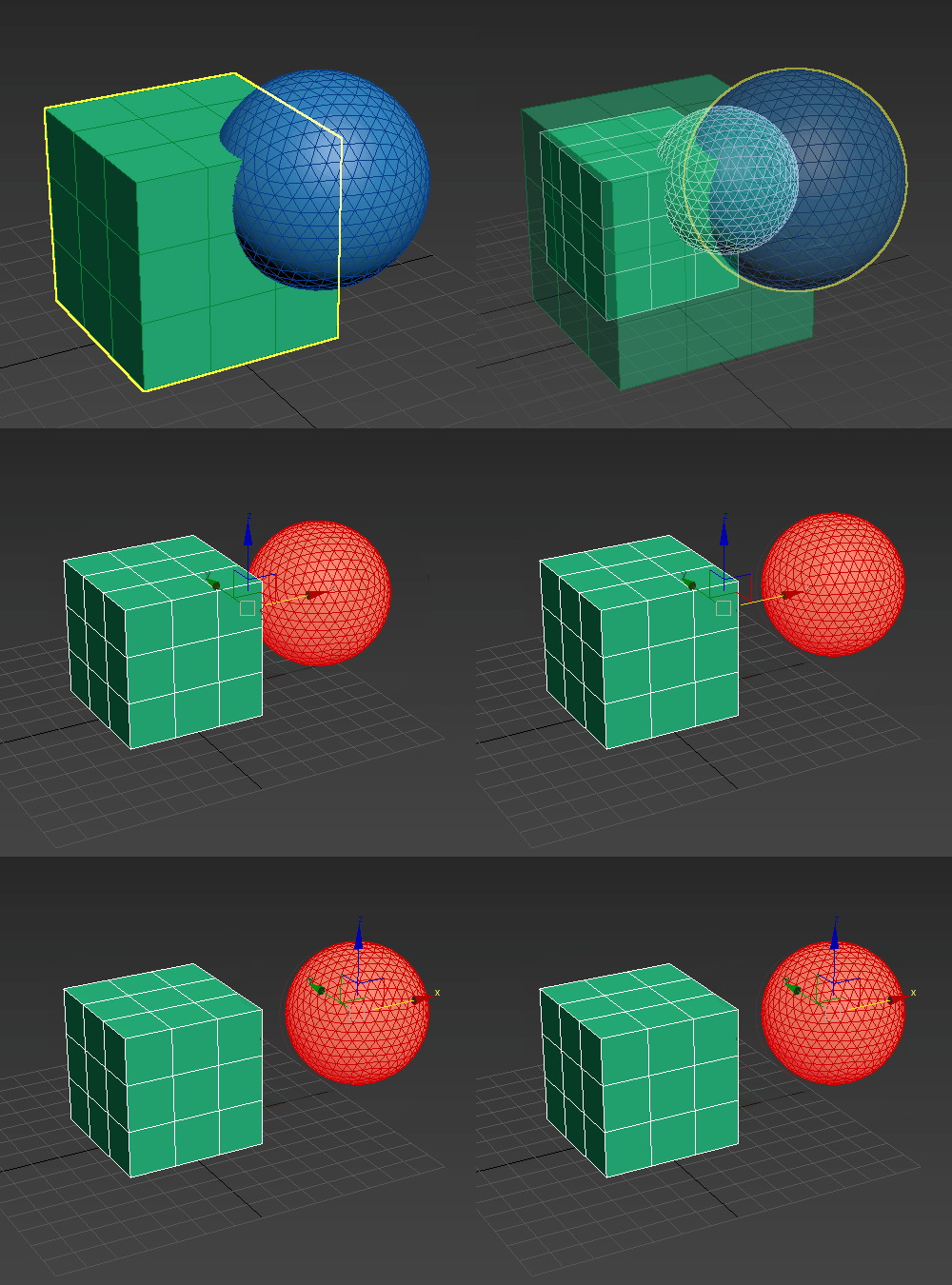
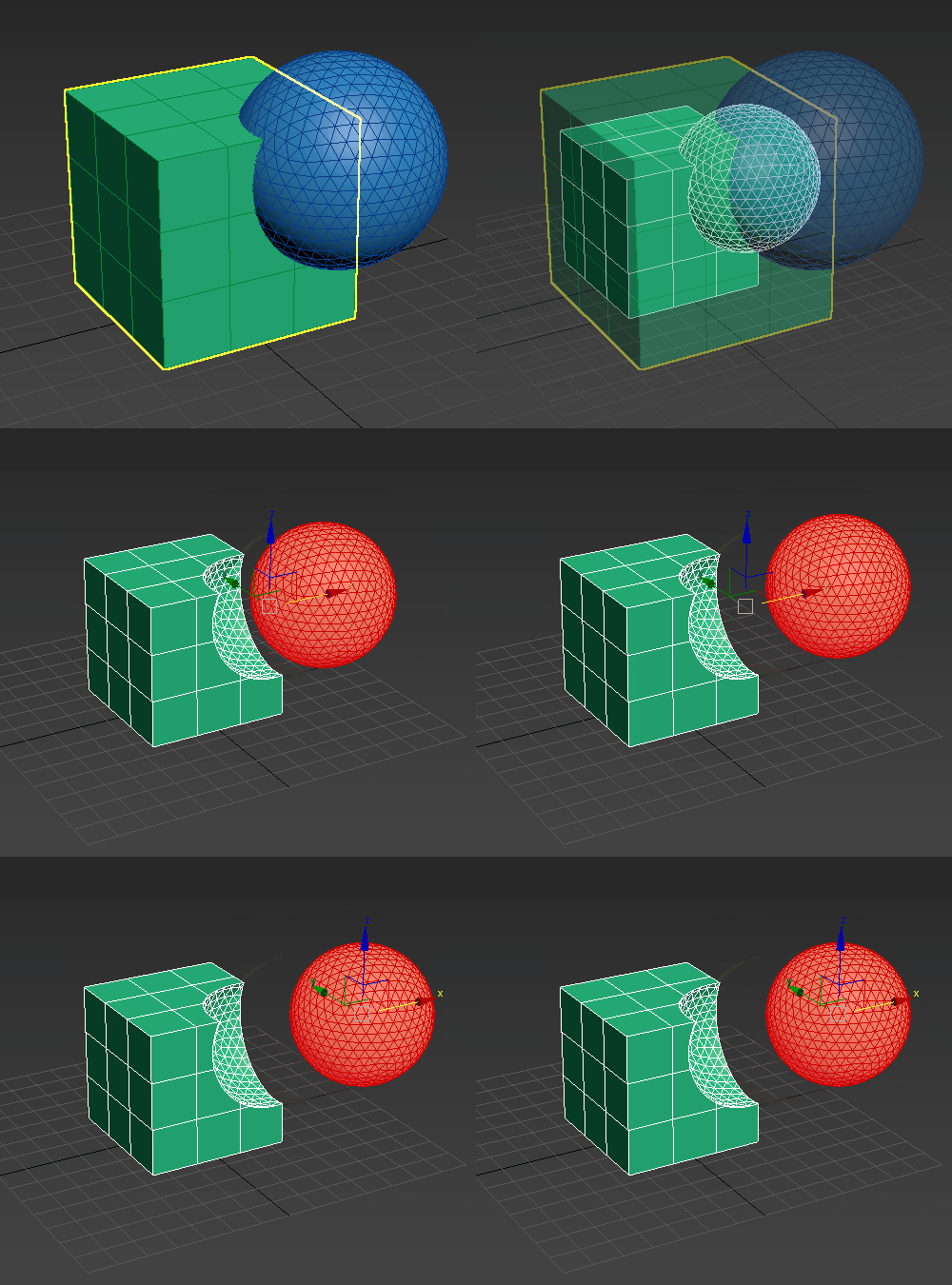
Insert 
Subtracts the bounding shape of Operand B (the newly added operand) from Operand A (the current result), leaving the shape of Operand B unaffected by the operation. Operands with Insert applied are outlined in red when displayed in the viewport.
Insert treats the first operand as a liquid volume, so that if there is a hole in the inserted operand or some other way for the 'liquid' to enter its volume, it does.
Use Live Reference
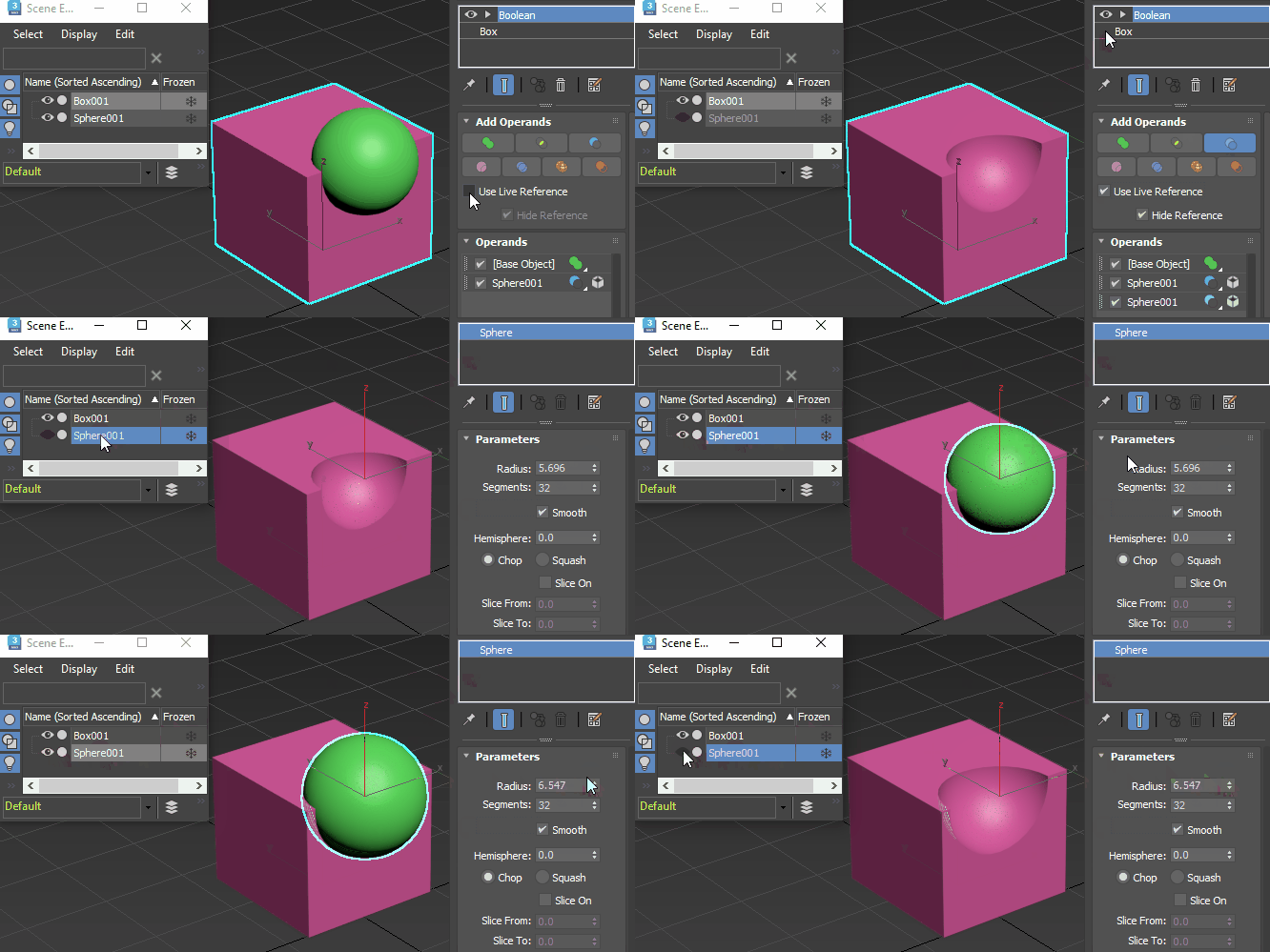
When off (default), incorporates the operand's geometry and transforms into the Boolean modifier. In other words, the operand is captured. As a result, the operand is hidden in the scene and is removed from the Scene Explorer. The operand is only accessible from the modifier stack. When captured operands are added to the Operands list, a captured icon  is displayed next to the operand name.
When on, operands are treated as live references. In this scenario, the operand's referenced geometry is hidden in the scene, but it is still accessible in the Scene Explorer, allowing for more direct manipulation of the object.
If you have a complex boolean with many operands, using live references may clutter the Scene Explorer. Additionally, when live references are included in your scene, each time the boolean recalculates it needs to evaluate every live reference, potentially slowing down your scene's performance. However, live references may be advantageous in a procedural animation context, where you need to animate particular operands.
In the following example, Use Live Reference is enabled before adding the operand Sphere001, which is subtracted from Box001. Sphere001 is still accessible in the Scene Explorer after it's added to the Operand list.
Hide Reference
Automatically hides operands in the Viewport when they are added to the operand list. This option is on by default.