Boolean Modifier Operands Rollout
 Modify panel > Make a selection > Modifier List > Object-Space Modifiers > Boolean > Operands rollout
- Default menu: Make a selection > Modifiers menu > Parametric Deformers > Boolean > Operands rollout
The Boolean modifier's Operands rollout provides controls to edit and organize your boolean operands.
Interface
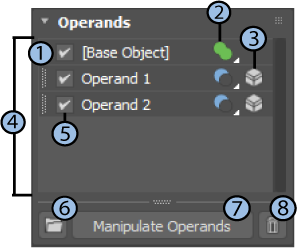
1 - Base Object
The base object is at the top of the operand list and is named [Base Object]. You can drag this operand to a different location in the operand list.
2 - Boolean operation
Changes the boolean operation for the selected operand.
3 - Captured operand (  )
)
Indicates the boolean operand is captured as part of the Boolean modifier.
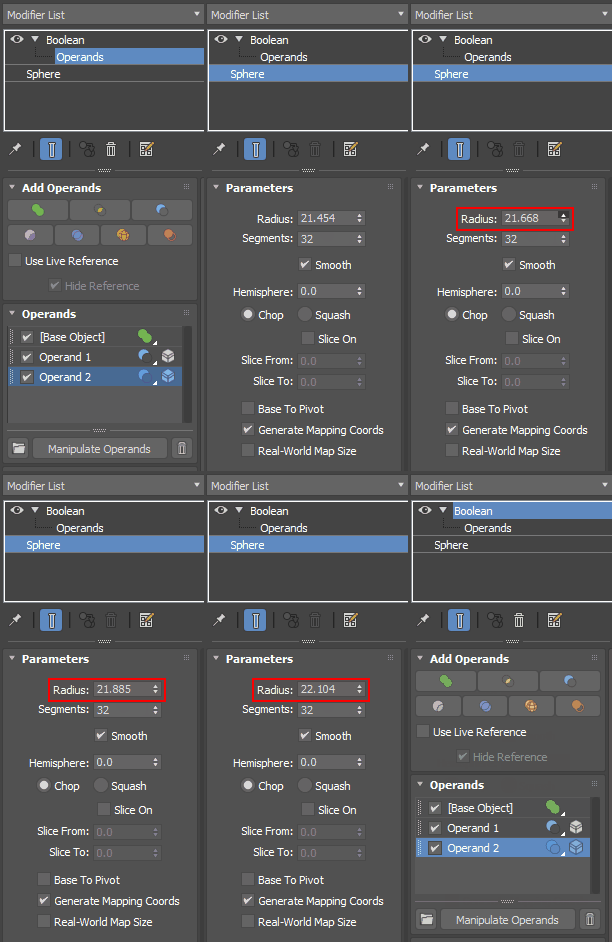
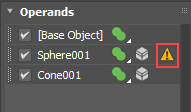
Captured operands appear in Operands list and are denoted by the captured icon . In the following example, Operand 2 is a sphere. Clicking the sphere in the Modifier stack gives you the ability to adjust the sphere's radius and then return to the Boolean modifier. For more information on captured operands and live references, see the Use Live Reference parameter in the Boolean Modifier Add Operands Rollout.
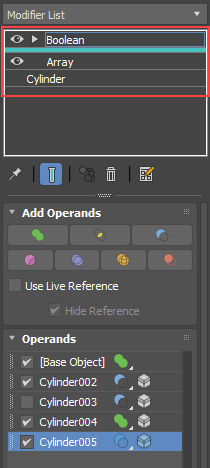
Selecting a captured operand from the Operands list causes it to appear in the Modifier stack, where a line separates the Boolean modifier's base object from the selected operand. When multiple modifiers are applied to an operand, this line helps to visually denote your selection. The line is grey when the captured operand or its modifiers are instanced, otherwise the line is teal.
4 - Operands list
Operands that are added to the boolean operation are displayed in the list.
You can use a group of objects with the boolean modifier. All objects in the group are added to the list in a self-contained folder. In the following example, a group of three spheres named <Group 1> was added to the boolean at the same time. They are nested in a new folder of the same name:
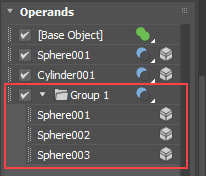
You can select an operand or shift-select multiple operands and drag them to a new position in the Operands list, including in a folder. When operands are reordered, the boolean recalculates operands using the new order.
Right-click an operand to access the operand menu with the following options:
Extract Operand: Removes the selected operand from the operation.
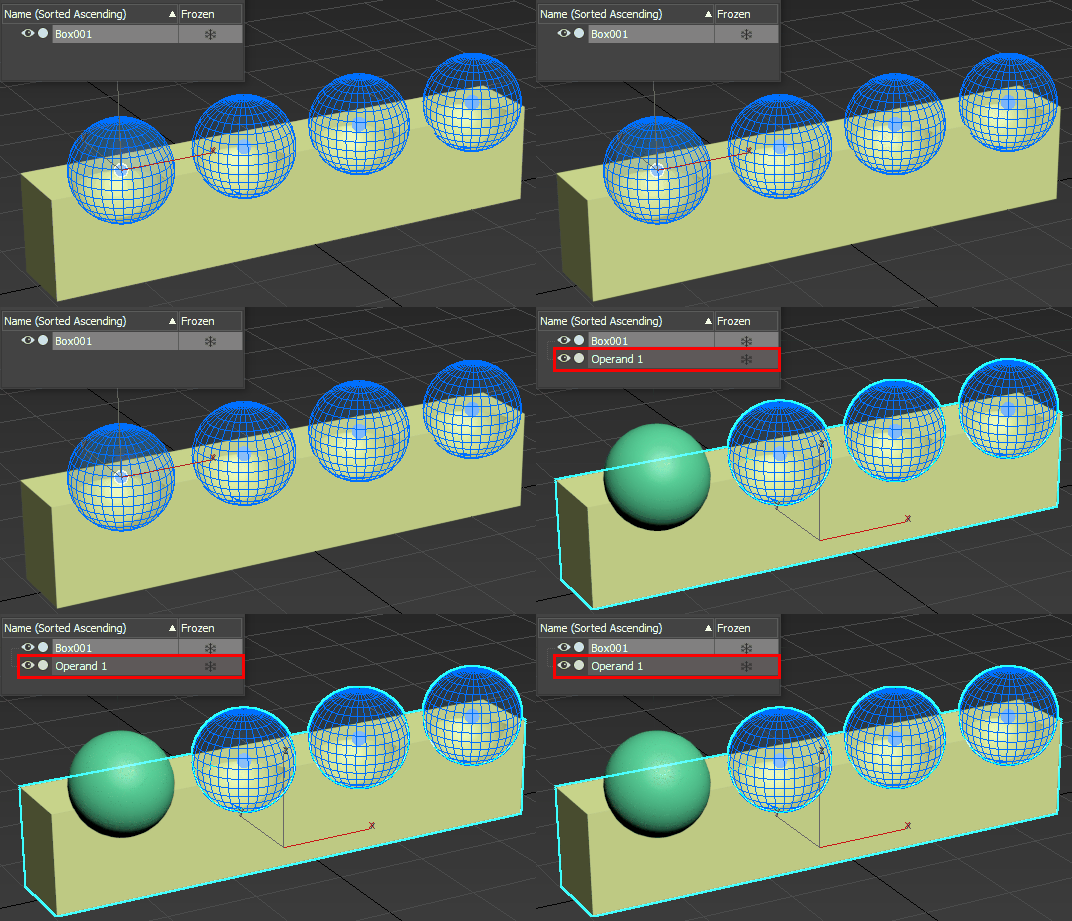
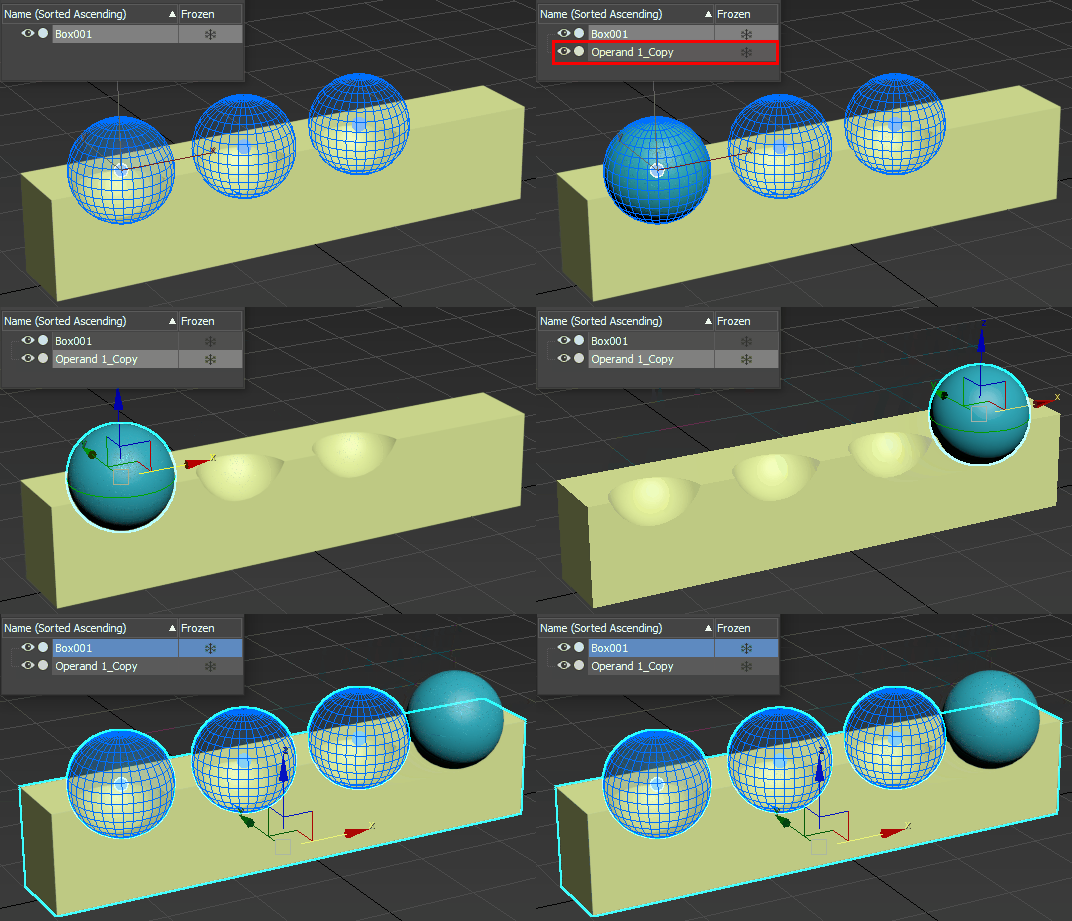
Extract Operand Copy: Creates a copy of the selected operand, removing it from the operation.
Rename Operand: Opens the Rename Operand window, letting you enter a new Operand Name.
Align Pivot: Aligns the selected operand's pivot to the base object.
Select Object: When Capture Operands is turned off in the Options Rollout, clicking this option selects the operand's reference object.
Cut: Removes the operand from the scene and copies it to the clipboard.
Paste: Pastes a cut boolean into a location in a different operand list.
Paste to new Boolean Modifier: Pastes a cut operand into another boolean modifier.
Create Object from Result: Creates a new object based on the boolean result. In the following example, although there are four operands, the new object is based on the result of the selected operand(s).
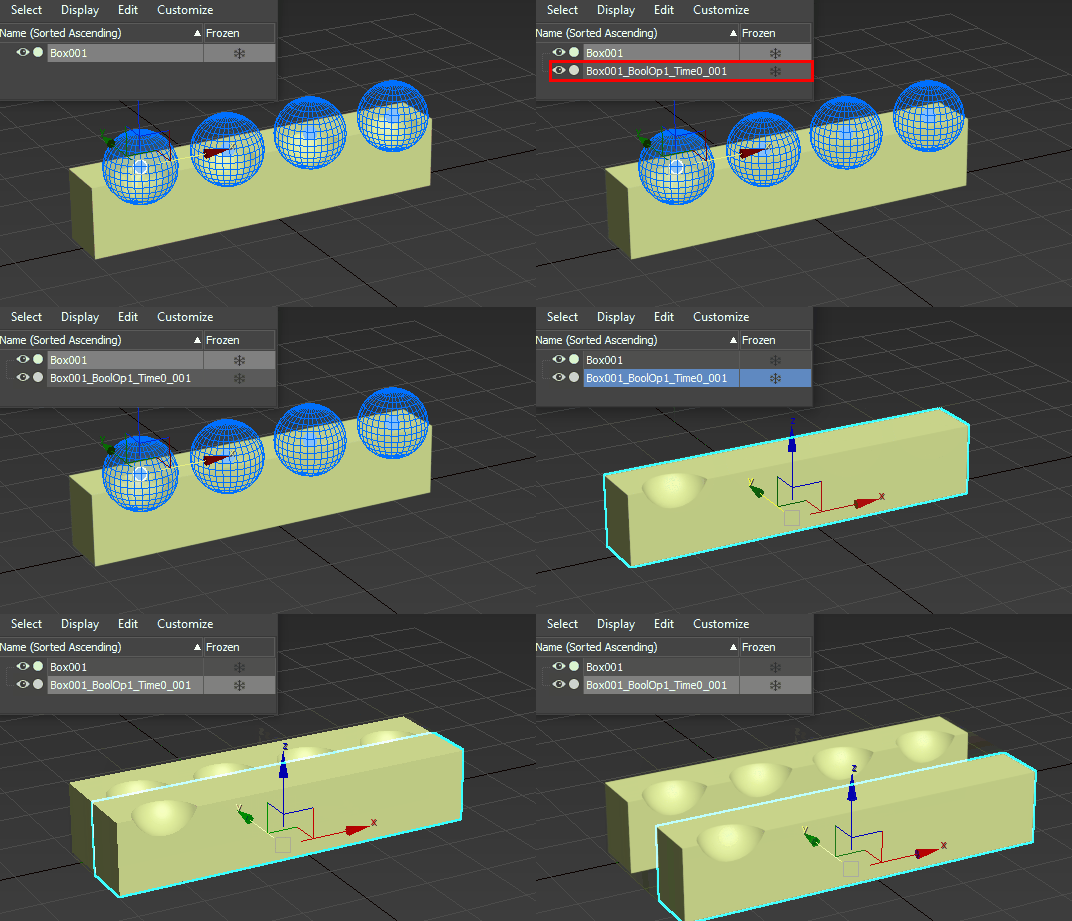
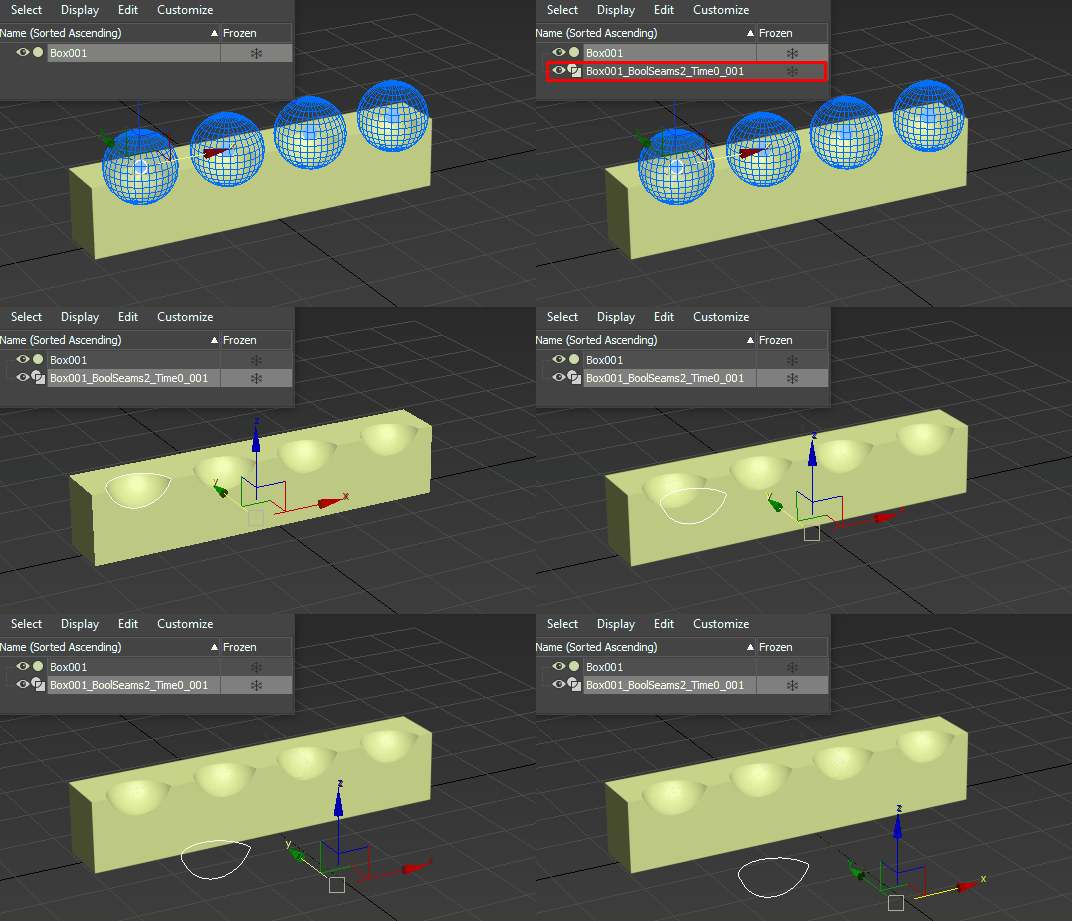
Create shape from seam: Creates a new shape form the seam of the selected operand. In the following example, the shape is based on the intersection of the selected operand and the base object.
5 - Disable/Enable Operand
Toggles operand visibility. When unchecked, the operand is not visible in the viewport. When you add a new operand, its visibility is enabled by default.
6 - Create a folder
Creates a folder in the operand list. Any operand(s) that is selected when the folder is created is automatically added to the folder.
7 - Manipulate Operands button
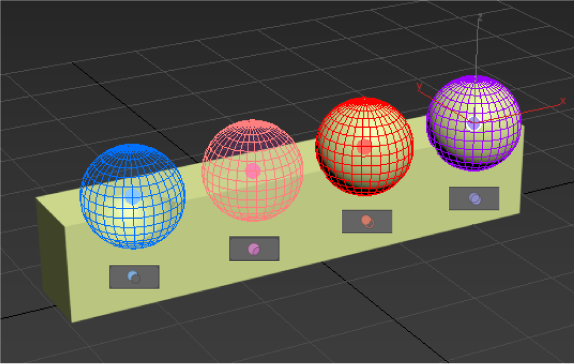
Activates boolean manipulators on each operand. Each manipulator is a circle that is color-coded. The manipulators let you quickly select a particular operand without using the rollouts.
The color of the operand's wireframe and manipulator changes depending on the type of boolean operation that is performed. In the following example, each operand is assigned a different operation to illustrate this feature: Subtract  , Split
  , Insert
  , and Merge
  .
.
8 - Delete operands
Deletes the selected operand(s) and/or folder(s) from the operand list.