Conform Modifier Rollout
 Modify panel > Make a selection > Modifier List > Object-Space Modifiers > Conform > Conform rollout
- Default menu: Make a selection > Modifiers menu > Parametric Deformers > Conform > Conform rollout
The Conform modifier's rollout provides parameters to select the projection method and set additional controls.
Interface
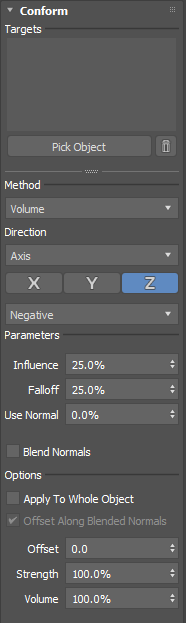
Targets
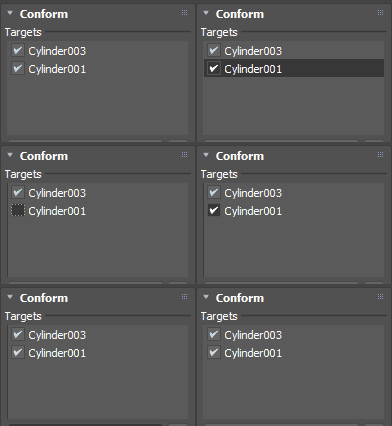
The Targets list includes objects that the conform object uses as targets. When objects are added, they are automatically enabled and the conform object moves onto its surface. To disable a target object's visibility in the scene, turn off the check box next to its name.
Pick Object
Click this button to pick a target object from the viewport or Scene Explorer. The object is automatically added to the Targets list. You can continue adding target objects until you click Pick Object again to exit pick mode.
Delete Target (  )
)
Select a target object from the Targets list and click to delete it.
Method
Lets you select a projection method, which determines the way conform object vertices are projected onto the target object(s). #### Volume
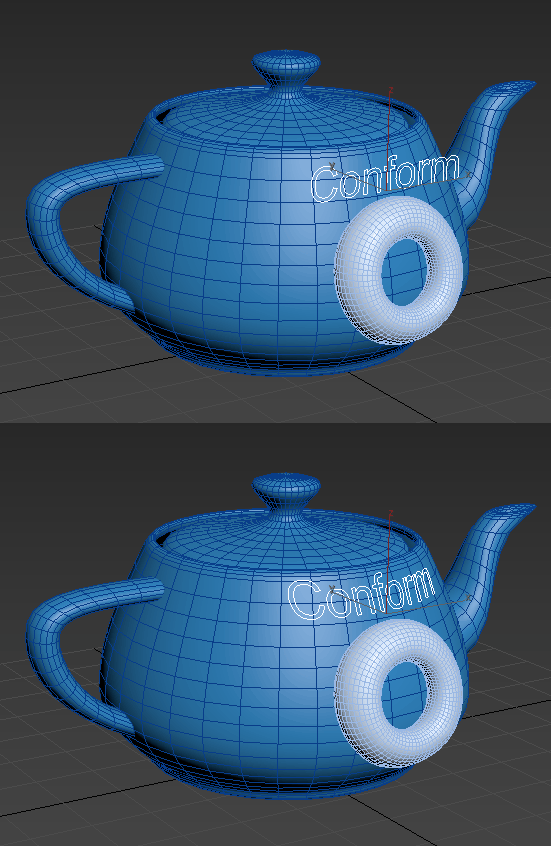
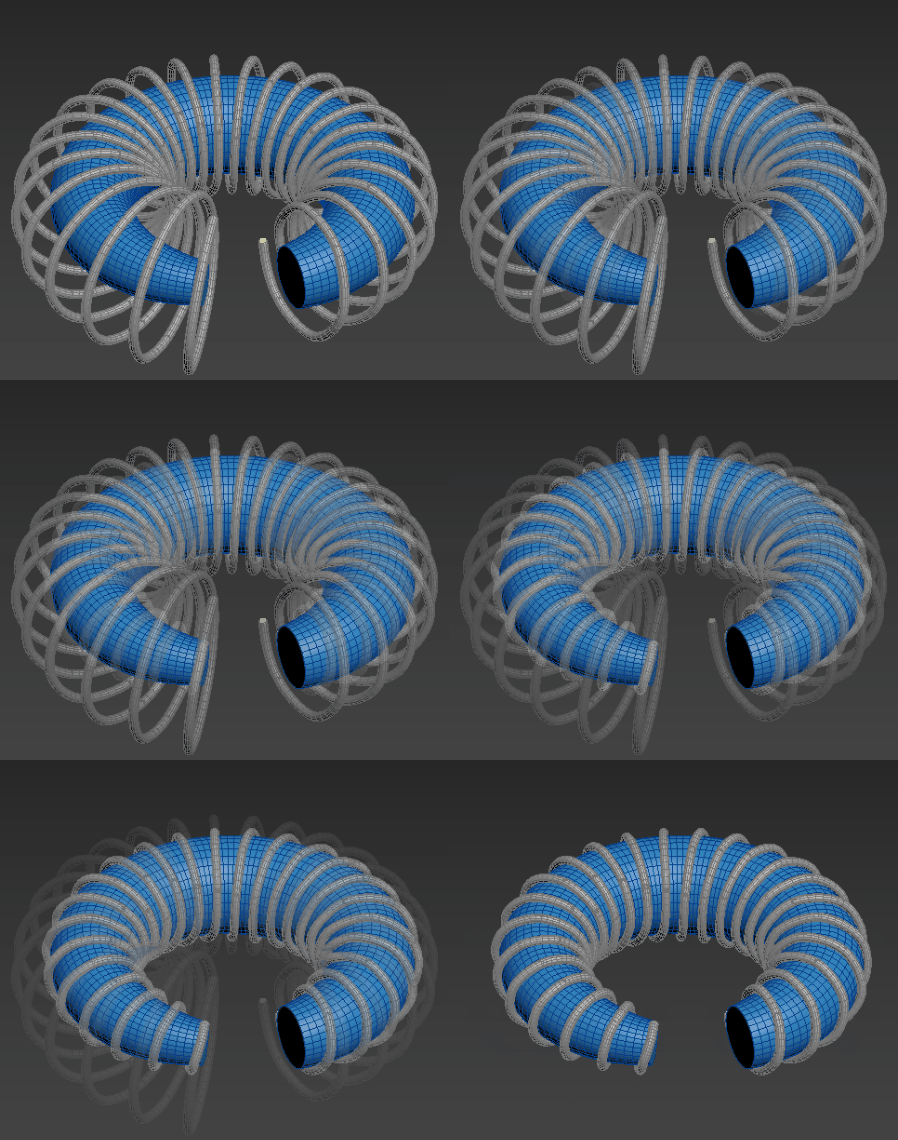
Lets you preserve the conform object's shape after it is projected onto the target mesh(es). The conform object is first projected based on its pivot location, and then vertices are projected onto the target surface. The following example illustrates how both splines and meshes can conform to a surface. For a detailed step-by-step workflow example, see Conform objects to a surface using the Conform modifier.
Shrink Wrap
Shrink Wrap projects all the vertices in the conform object onto the target mesh(es).
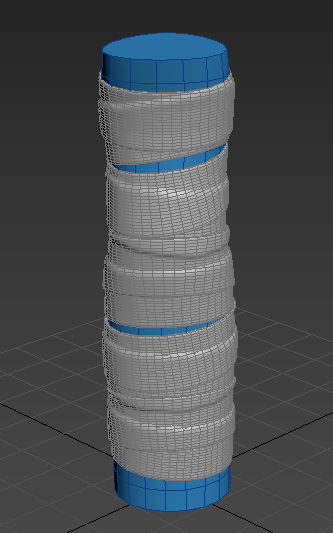
The following example also uses the Shrink Wrap projection method to create a wooden handle with fabric bands. For more details and a step-by-step workflow example, see Create a handle with bands using the Conform modifier.
Direction
Lets you select the projection direction, which determines the direction the pivot and vertices are projected. #### Axis
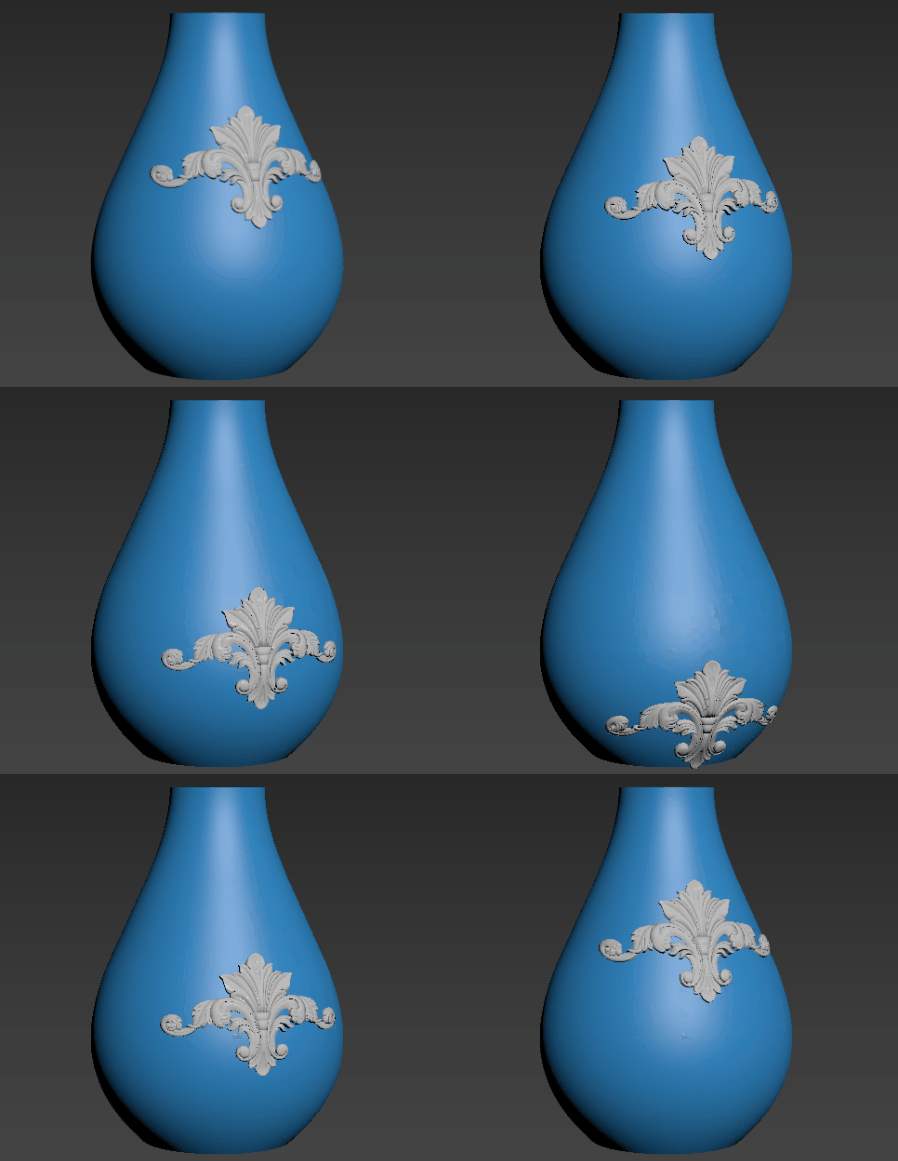
Uses the local X, Y, or Z axis of the conform object as the direction of projection. Click the X, Y, or Z buttons to select an axis. In the following example, the Y axis is selected, projecting the decal (the conform object) onto the side of the vase (the target object).
Target Direction
Uses the normal direction of the closest point on the target object to determine the projection direction.
Helper Direction
Projects the vertices of the conformed object toward the origin of the helper object. Click Pick Look at Helper to select an object in your scene as the direction of projection.
Vertex Normal
Uses the direction of the vertex normals on the target object to determine the projection direction. You can select from the following options to set the direction of the normals: Negative, Positive, Closest.
This option is only available if the Shrink Wrap method is selected.
Closest Point
Snaps each point in the conform object to the closest point on the target surface.
This option is only available if the Shrink Wrap method is selected.
Influence
Sets the percentage of the conform object that is deformed along the selected Axis Direction (local X, Y, or Z axis) to match the target surface.
In the following example, the deformation starts at the bottom of the object because the Axis Direction is set to Z. As a result, the default Influence value of 25% deforms the bottom quarter of the conform object. The following additional parameters are also set:
Falloff: 0%
Conform Modifier Advanced rollout > Selection Output > Selection
This parameter lets you see a visual representation of the Influence on the conform object.
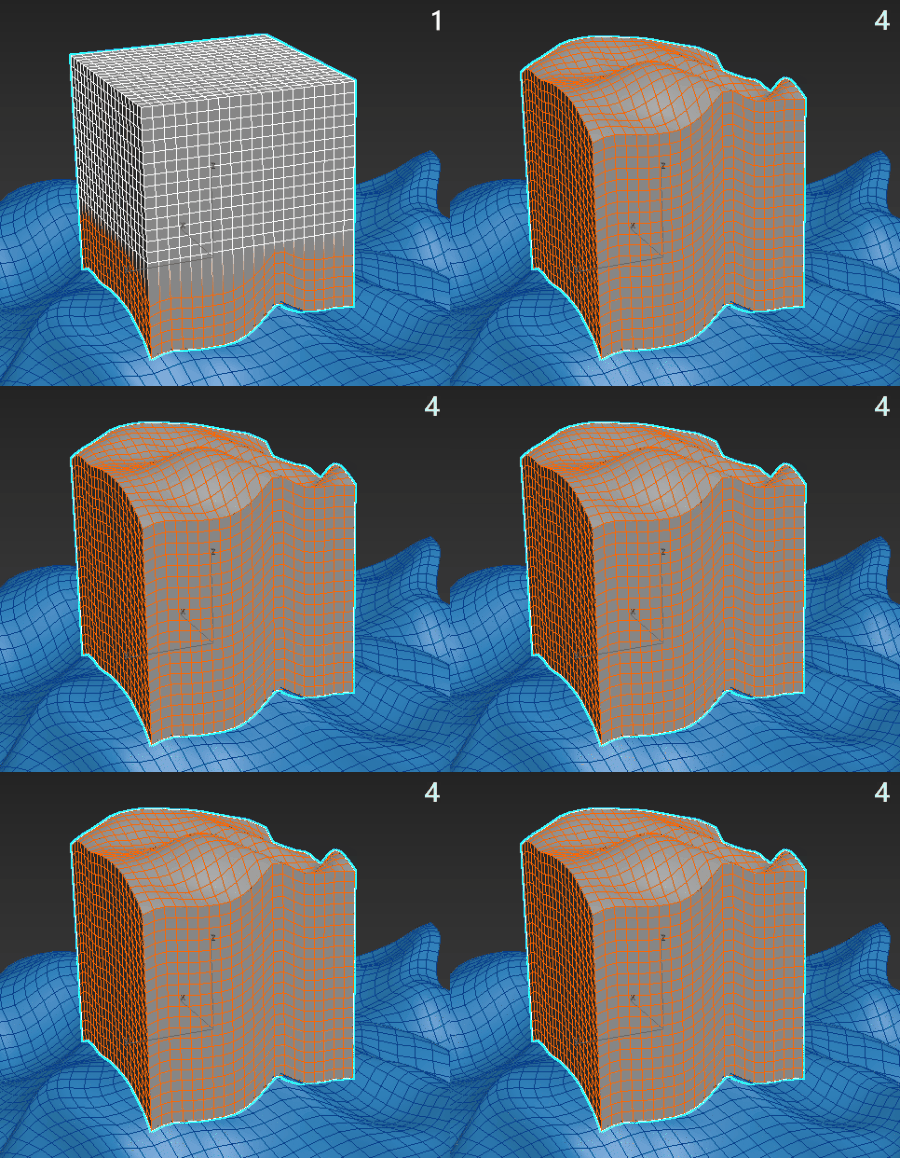
1. Influence = 25%; 2. Influence = 50%; 3. Influence = 75%; 4. Influence = 100%
This option is only available if the Volume method is selected.
Falloff
Produces a falloff area outside of the deformation area set by the Influence parameter. The intensity of the deformation gradually decreases across the conform object's falloff area, which can produce smooth transitions. Falloff is represented by a color gradient, in which the colors of the vertices vary depending on the amount of influence the falloff has over them. In the following example, the falloff area is colored orange (most influence), green, and blue (least influence).
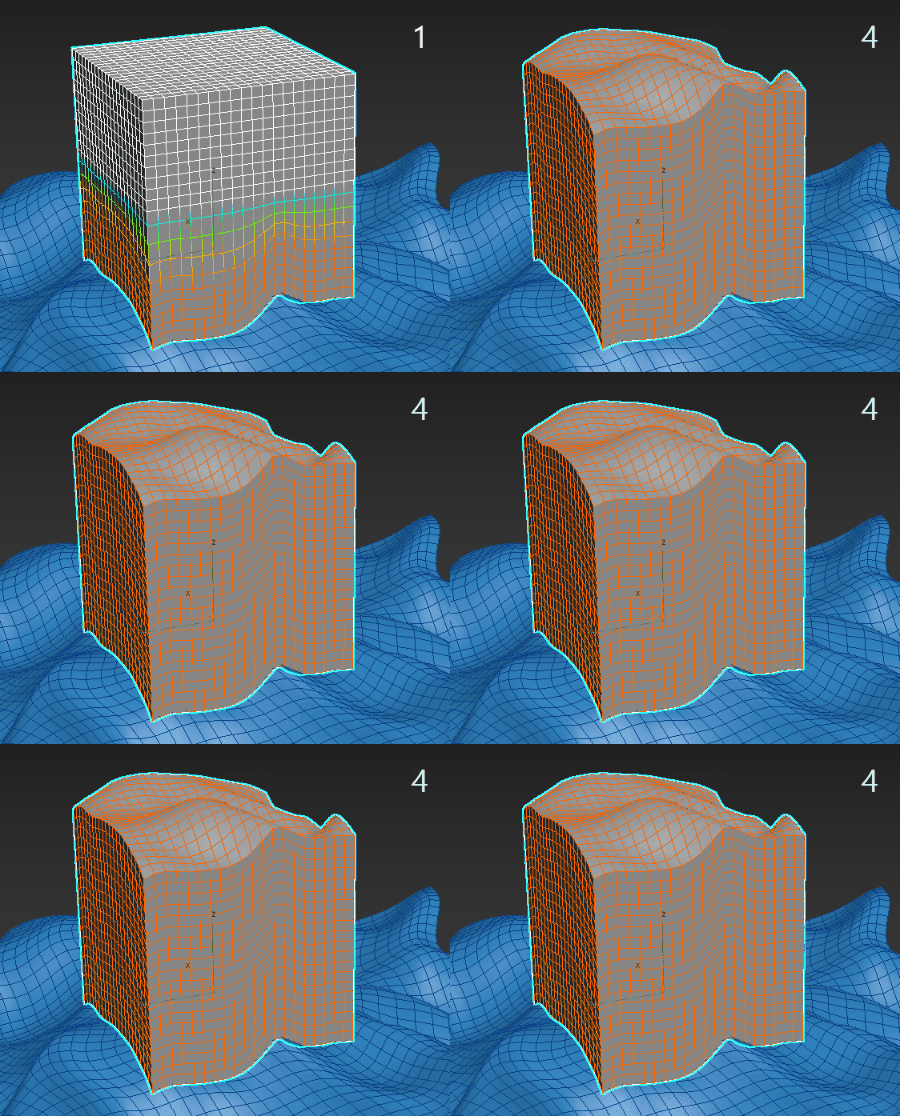
1. Influence = 25% and Falloff = 25%; 2. Influence = 50% and Falloff = 25%; 3. Influence = 75% and Falloff = 25%; 4. Influence = 100% and Falloff = 25%
- When the Influence parameter and the Falloff parameter are both set to 0.0%, the conform object is projected onto the target surface without any deformation. In this scenario, the conform object is simply constrained to the target surface.
Use Normal
Specifies the blend amount of the target object's surface normal that is used when the conform object's vertices are positioned relative to the target surface.
Distance
When using the Shrink Wrap projection method, you have the option to enable the distance parameters to control the shrink wrapped object's distance and falloff.
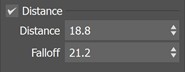
When turned on, the values defined in Distance and Falloff will be used to help find "hits" on the target object(s), providing additional control at how the conform affects the mesh.
Blend Normals
This parameter is based on the Influence and Falloff values, with the affected vertices adopting either the target object's surface normal or the normal derived from the Use Normal value (from the pivot projection).
This option is only available if the Volume method is selected.
Apply To Whole Object
Applies the conform to all vertices regardless of the stack selection.
Offset Along Blended Normals
Uses the Blended Normals parameter to determine the offset direction.
Offset
Moves the conform object relative to the target surface along the projection normal.
Strength
Sets the strength of the conform relative to the conform object's position.
Volume
Sets the volume of the conform object:
- 0%: projects all vertices to the target surface.
- 100: the conform object retains its full volume.