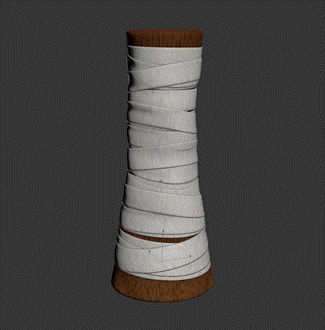
Create a handle with bands using the Conform modifier
The following workflow describes how to create a wooden handle with fabric bands. It highlights how you can use the Conform modifier's Shrink Wrap projection method.
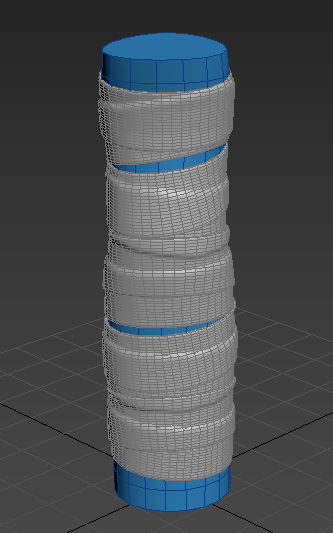
Create the target object
In this example, a cylinder is the target object, and represents the wooden handle.
Create a cylinder (Cylinder001).
In the Parameters rollout, set the following parameters:
- Radius: 10.0
- Height: 80.0
- Height Segments: 20
Select the Move tool.
Select the Transform Type-in ( Edit > Transform Type-in) and set Absolute:World X, Y, and Z values to 0.0.
This positions the cylinder at the origin.
In the Modify Panel, select Noise from the Modifier List.
Set the following values in the Parameters rollout:
- Scale: 30.0
- Strength (X): 10.0
- Strength (Y): 10.0
Setting these parameters gives the cylinder an organic shape.
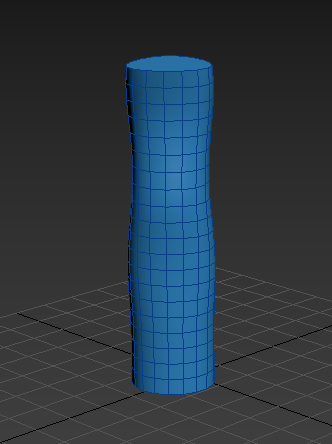
Create the conform object
In this example, a set of bands conform to the wooden handle.
Create another cylinder (Cylinder002) with the following parameters:
- Radius: 15.0
- Height: 10.0
- Height Segments: 20
- Sides: 50
Select the Move Tool.
Select the Transform Type-in ( Edit > Transform Type-in) and set Absolute: World X, Y, and Z values to 0.0.
This positions the cylinder at the origin.
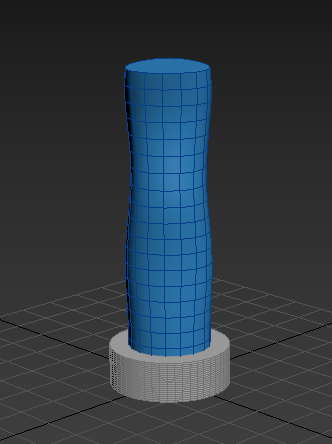
Select Cylinder002.
In the Modify Panel, select Edit Poly from the Modifier List.
Ensure the Edit Poly modifier is selected in the Modifier stack.
In the Modifier stack, select Polygon sub-object mode.
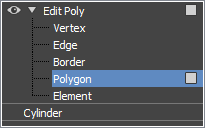
Delete the top and the bottom faces of Cylinder002.
The remaining polygons create a band that surrounds the handle (Cylinder001).
In the Modifier stack, select Cylinder.
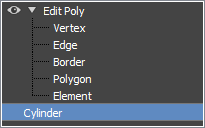
Move the band along the Z axis, so it is no longer at the base of the cylinder.
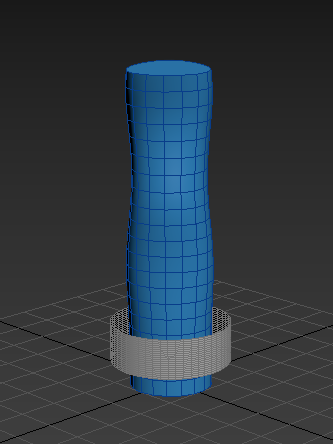
Create additional bands using the Array modifier
Select Cylinder002.
In the Modify Panel, select Array from the Modifier List.
In the Array Modifier Distribution rollout, set the following values:
- Count X: 0
- Count Z: 5
- Offset (Z): 1.4
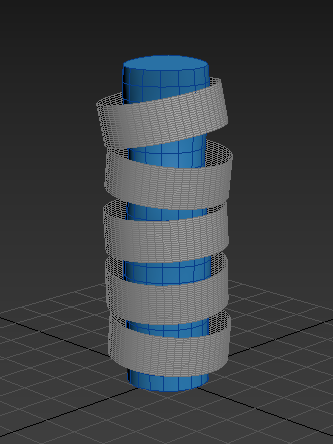
Five bands are equally distributed along Cylinder001.
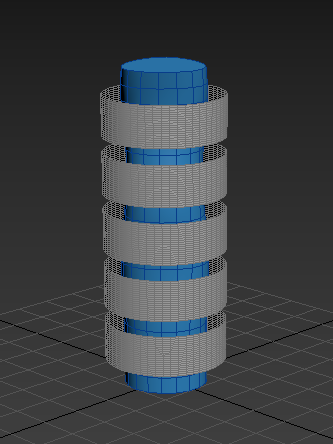
In the Array Modifier Randomization rollout, set the following values:
- Rotation > X: 10.0
- Rotation > Y: 10.0
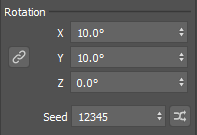
The bands are now arranged randomly along the cylinder.
Add a Conform modifier to shrinkwrap the bands
In the viewport, select Cylinder002.
In the Modify Panel, select Conform from the Modifier List.
In the Conform Modifier rollout, set the following values:
Method: Shrink Wrap
Pick Object: Select Cylinder001 to add it to the Targets list.
The bands conform to the shape of the handle (Cylinder001).
Now, let's add a Shell Modifier to the bands to add some thickness
Click Pick Object again to exit pick mode.
Ensure Cylinder002 is selected.
In the Modify Panel, select Shell from the Modifier List.
In the Parameters rollout, set Outer Amount to 0.5.
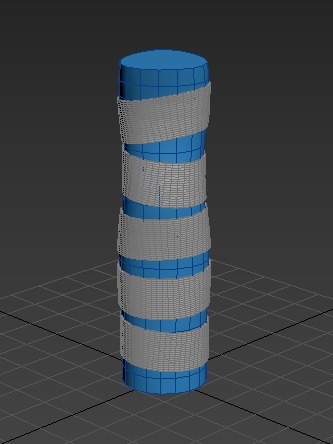
Now, let's add a Meshsmooth modifier to the bands to add softness to the edges.
In the Modify Panel, select Meshsmooth from the Modifier List.
Clone the bands and create additional details
Select Cylinder002.
Select the Move tool.
While holding Shift, move the bands vertically to create a clone.
Cylinder003 is created, which also conforms to the handles. However, it simply overlaps the first set of bands, without conforming to its shape.
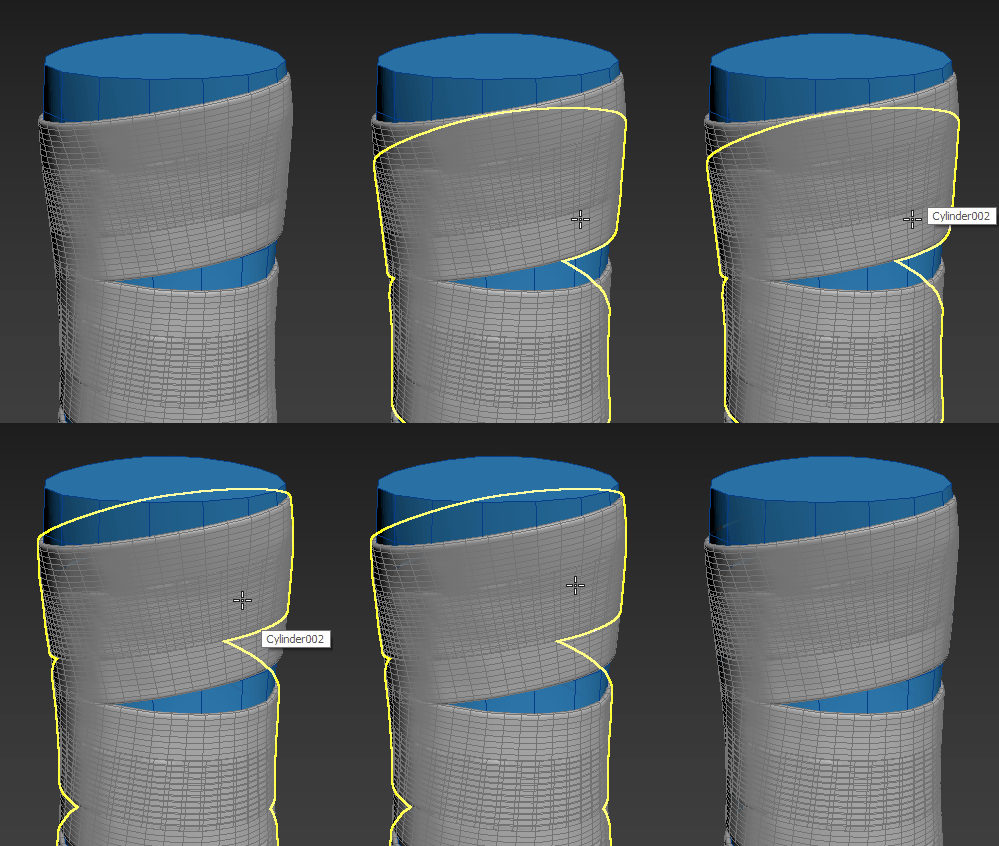
Let's adjust use the Conform modifier parameters to fix this problem.
Select Cylinder003.
In the Modifier stack, select the existing Conform modifier.
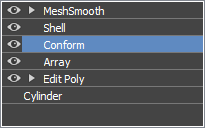
In the Conform Modifier rollout, click Pick Object.
Select the first set of bands (Cylinder002).
Cylinder002 is added to the Targets list.
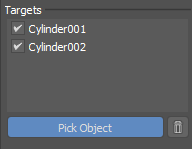
Click Pick Object again to exit pick mode.
Now, the second set of bands (Cylinder003) conforms to the handle (Cylinder001) and the first set of bands (Cylinder002), creating a more realistic appearance.
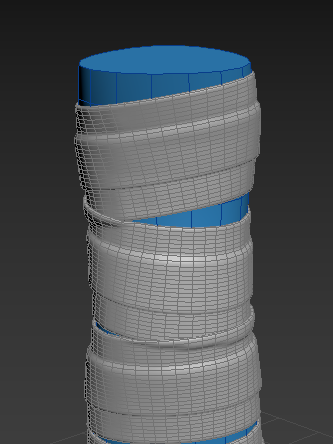
Let's add more realism to the second set of bands by adjusting the existing Array modifier parameters.
In the Modifier stack, select the Array modifier.
In the Array Modifier Randomization rollout, click
 in the Rotation section to randomize the Seed value.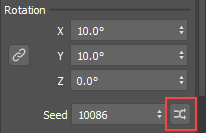
The second set of bands now appears more unique.
Make additional changes
You can continue to add layers of bands by repeating the steps listed in the " Clone the band and create additional details " section above. The more bands you add the more layered the result.