A manifest contains a collection of items which will be associated with the InfoWorks network to be simulated in ICMLive. In order to specify how the live system will operate (frequency of simulations, state saving etc.).
Creating a Manifest
To create a manifest:
- Create a new manifest object in the Live group Tutorial created here.
- Keep its default name and open it.
- On the
Setup tab:
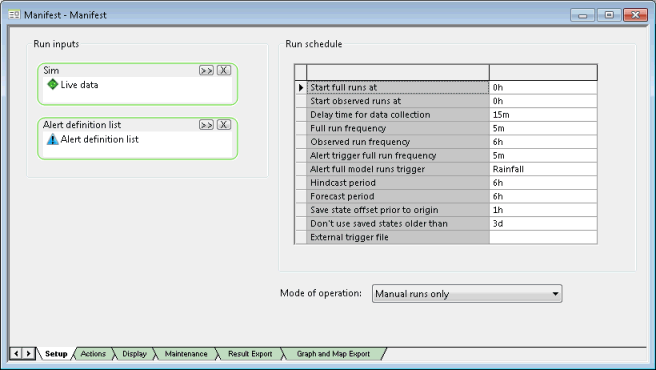
- Drag and drop the simulation that was last carried out onto the Sim droptarget (Live Data simulation of the Test TSDB - with rain gauges, Nowcast, Nimrod RADAR data and boundary conditions at outfall run).
- Drag and drop the ADL created here onto the Alert definition list droptarget.
- In the
Run schedule section:
- Change Full run frequency to 5m, which means that the live system will carry out a full hydraulic simulation every 5 minutes. This is much more frequent than would be used in a real system, but means that we can see the system running operationally without having to wait for too long.
- Set Alert full model runs trigger to be Rainfall.
- Set the
Alert trigger full run frequency to be
5m. This means that if any of the observed runs have an alert with a category of Rainfall, full runs will start every five minutes.
- On the
Display tab:
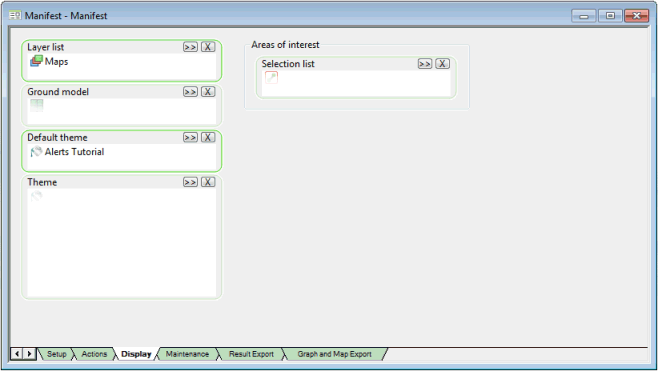
- Drop the Alerts Tutorial theme that was created in a previous step into the Default theme droptarget.
- Drop the Maps layer list that was saved here into the Layer list droptarget. Other themes that have been created can also be included in the Theme box.
- For large models, the user may wish to have a number of different areas of interest (Area of interest section), which are simply network polygons. In the absence of any areas of interest, such as in this tutorial, the software will assume one default large area of interest for the whole model.
- On the
Maintenance tab:
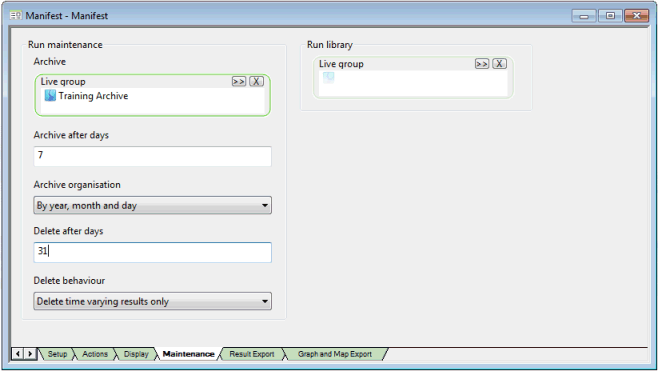
- We need to specify a location for archiving older simulations. The location is simply another Live group in the database. Create a new Live group in the Explorer tree, call it Training Archive, and drop it into the Archive droptarget.
- Change the deleting of results to be 31 days (Delete after days field).
- Validate the manifest. There should be no errors (red icon) reported in the Output Window. Close it.
Deploying a manifest
The final stage in setting up the live system from within InfoWorks ICM is to deploy the manifest.
The Manifest Deployment object packages up the information stored in the separate manifests and sends it to the ICMLive Server. This act of deploying the manifest(s) is the point at which the system becomes live. The live system can then be viewed in the Operator Client:
- Create a new manifest deployment object the Live group Tutorial.
- Open the manifest deployment.
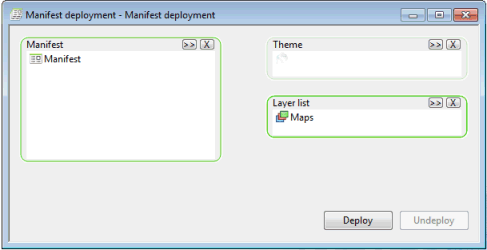
- Drop the manifest created earlier in the Manifest droptarget.
- Drop the
Maps layer list in the
Layer list droptarget. Leave the
Theme droptarget empty. The theme and layer lists defined here are those that will be seen in the Overview page of the Operator Client interface. This is the first view seen when the
ICMLive Operator Client software is launched.
- Click
Deploy. Clicking this button also initiates the
validation of the manifest deployment object. No errors should be found.
- If a Remote result Roots must be set error is thrown, set the remote root (ideally to a network location).
- A warning will be displayed in the Output Window if no GeoExplorer theme has been specified in the Theme droptarget.
- Close the Manifest Deployment object.
- Close InfoWorks ICM.
Before ICMLive Operator Client can be used to generate runs, the ICMLive Server must be started. It must be pointing to the database.