The Task Sequence editor allows you to edit a task sequence that you can run in the network and control.
The Task Sequence editor is displayed when you open a Task Sequence object from the Task Sequence Group in the explorer tree.
The editor allows you to create a sequence of tasks related to import and update, geometry and connectivity, demand allocation, export, scripts and SQL, and validation. These tasks can be edited, moved up or down, and deleted.
You can insert a task by clicking the Insert Task button, or by dragging a supported object from the explorer tree.
Clicking a task in the editor allows you to modify the parameters for each task according to your requirements.
Clicking the Run all or Run selected button will run the tasks in sequence to the network/control. Alternatively, dragging the Task Sequence object onto a network will apply the tasks in sequence to the network/control.
After running the task sequence, an amalgamated log from each step is shown.
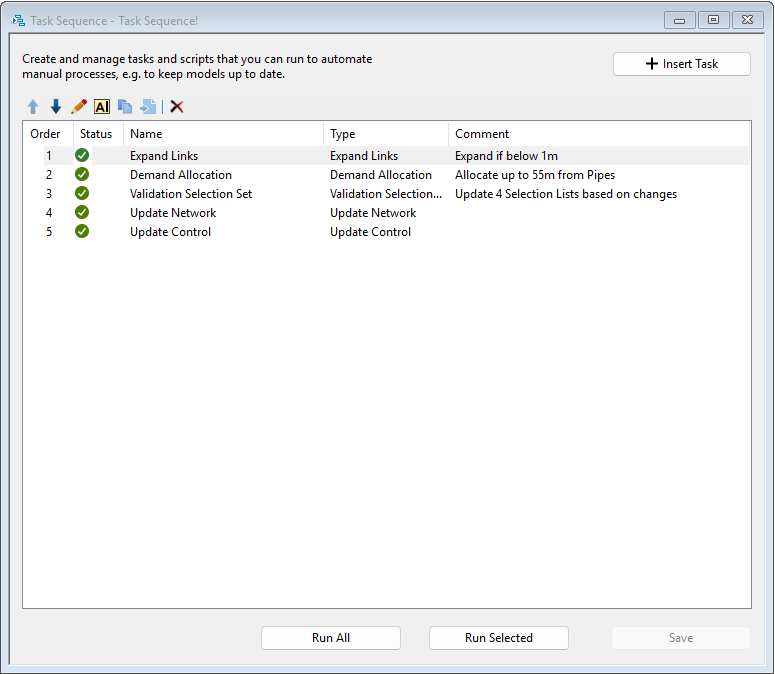
| Item | Description |
|---|---|
| Order | Displays the order for which the task sequence will run. |
| Status | Displays the status of a task. A task may have this status:
|
| Name | Displays the name of the task. |
| Type | Displays the type of object. |
| Comment | Displays the comment you have added for the particular task.
Note: If the comment field is already filled, it will not be overwritten by a pre-filled comment.
|
| Insert Task | Opens the Insert Task Into Sequence dialog, which allows you to add various tasks in the task sequence. |
| Move Up/Move Down | Allows you to move the order of the task sequence, either up or down. |
| Edit | Opens the Edit task dialog. Allows you to edit the specific task. |
| Rename | Modifies the name and comment for a task. |
| Duplicate | Duplicates a task in the sequence. |
| Set a Source |
Opens the Set a Source dialog. Allows you to set a source for import and export tasks. You can select multiple tasks and set the source for all of them all at once. This option is disabled when no import or export task is selected. |
| Delete | Deletes a task in the sequence. |
| Run All | Runs all tasks in sequence.
Note: A network must be open to run this option.
|
| Run Selected | Runs the selected tasks in sequence.
Note: You can select a number of task by holding the Ctrl button and clicking tasks that you want to run.
Note: A network must be open to run this option.
|
| Save | Saves the changes. |
Using the Task Sequence editor to add and run tasks
To use the task sequence editor to add and run tasks:
- Create and/or open a Task Sequence object from the Task Sequence Group in the explorer tree.
- In the Task Sequence editor, insert tasks by clicking the Insert Task button or by dragging a supported object from the explorer tree.
- Click each task in the Task Sequence editor to modify the parameters according to your requirements.
- Use the various options in the editor to manage the tasks in the sequence.
- Click the Run All or Run Selected button to run the tasks in sequence to the network/control. Alternatively, dragging the Task Sequence object onto a network will apply the tasks in sequence to the network/control.
- After running the task sequence, an amalgamated log from each step is shown.