The Insert Task Into Sequence dialog allows you to select various tasks and insert them in the Task Sequence editor. You can also search a task by typing in the Search tasks box.
This dialog is displayed when you click the Insert Task button in the Task Sequence editor.
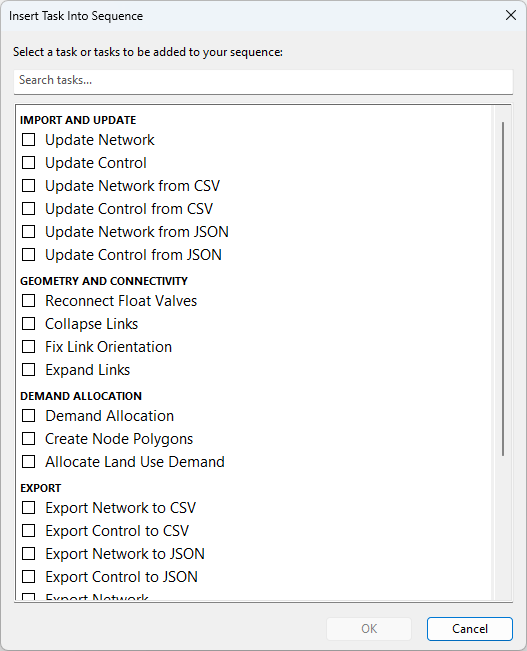
| Category | Task | Description |
|---|---|---|
|
Import and Update |
Update Network Update Control |
Updates the network/control. Clicking the Update Network/Control task in the Task Sequence editor opens the Open Data Import Center dialog, which allows you to set the parameters for the task. |
|
Update Network from CSV Update Control from CSV |
Updates the network/control from a CSV file. Clicking the Update Network/Control from CSV task in the Task Sequence editor opens the Import / Update From CSV Data dialog, which allows you to set the parameters for the task. |
|
|
Update Network from JSON Update Control from JSON |
Updates the network/control from a JSON file. Clicking the Update Network/Control from JSON task in the Task Sequence editor opens the Import / Update From JSON dialog, which allows you to set the parameters for the task. |
|
|
Geometry and Connectivity |
Reconnect float valves |
Connects float valves to a reservoir directly, and removes any unnecessary pipe.
Note: You will get a validation error if float valves are not connected to a reservoir.
|
|
Collapse links |
Allows you to collapse links - place the end points to the middle of the link. This option is applicable to valves, non-return valves, meters, and pump stations. It is not applicable to float valves and pipes. |
|
|
Fix link orientation |
Fixes the link orientation to the correct direction. Clicking the Fix link orientation task in the Task Sequence editor opens the Fix link orientation dialog, which allows you to specify the upstream and downstream asset ID where the orientation for pump stations, valves, non-return-valves, and meters will be reversed to the correct direction, if required. |
|
|
Expand Links |
Expands the geometry of links with length below a specified value. Clicking the Expand Links task in the Task Sequence editor opens the Expand Short Links dialog, which allows you to set the parameters for the task. |
|
|
Demand Allocation |
Demand Allocation |
Assigns demands to nodes in the network. Clicking the Demand Allocation task in the Task Sequence editor opens the Demand Allocation dialog, which allows you to set the parameters for the task. |
|
Create Node Polygons |
Creates node polygon boundaries within selected polygons. Clicking the Create Node Polygons task in the Task Sequence editor opens the Create Node Polygons dialog, which allows set the polygon and node selection list for the task. It also provides an option to update existing node polygons. |
|
|
Allocate Land Use Demand |
Carry out automatic allocation of Land Use demands to the network. Clicking the Allocate Land Use Demand task in the Task Sequence editor opens the Allocate Land Use Demand to Nodes dialog, which allows you to set the parameters for the task. |
|
|
Export |
Export Network to CSV Export Control to CSV |
Exports the network/control to a CSV file. Clicking the Export Network/Control to CSV task in the Task Sequence editor opens the Export to CSV dialog, which allows you to set the parameters for the export. |
|
Export Network to JSON Export Control to JSON |
Exports the network/control to a JSON file. Clicking the Export Network/Control to JSON task in the Task Sequence editor opens the Export to JSON dialog, which allows you to set the parameters for the export. |
|
|
Export Network Export Control |
Exports the network/control. Clicking the Export Network/Control task in the Task Sequence editor opens the Open Data Export Center dialog, which allows you to set the parameters for the export. |
|
|
Script and SQL |
SQL Query Ruby Script |
Adds an SQL Query or Ruby Script task in the sequence. Clicking the SQL Query or Ruby Script task will open the Edit task dialog, which will allow you to set the options for the task. |
|
Inference |
Adds a task for inferring missing data values in the network. Clicking the Inference task in the Task Sequence editor opens the Edit Inference Task dialog, which allows you to select the Inference object and Ground Model (optional). |
|
|
Validation |
Validation Selection Set |
Creates selection lists with changes that have been made to the network/control. Clicking the Validation Selection Set task in the Task Sequence editor opens the Create Selection Set dialog, which allow you to set the options for the task. |