Specifies the preferences that determine where downloaded installation files are saved and how Autodesk Home connects to the Internet.
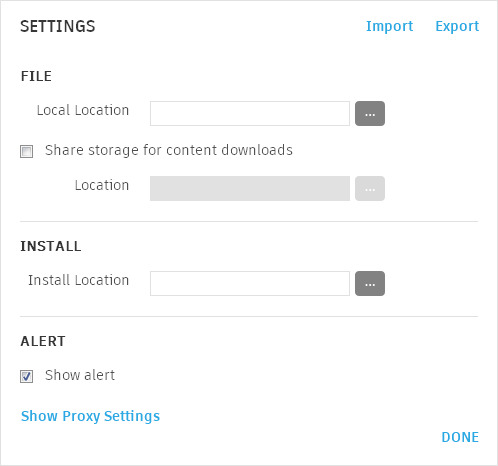
- Export
- Saves your current settings to a configuration (*.ini) file.
Tip: Once you set up one computer correctly, you can quickly set up other computers by importing settings from a configuration file.
- Import
- Overwrites the current settings with the settings saved in a configuration (*.ini) file.
Note: Import only *.ini files created by Autodesk Home's Export operation.
- Local Location
- Specifies the folder where Autodesk Home saves downloaded installation files to.
- Share Storage for Content Downloads
- Specifies that Autodesk Home saves downloaded installation files to a shared location on the network. If this option is selected, installation files are downloaded once to the shared location, not to each computer on the network.
- Location
- Specifies the shared folder that Autodesk Home downloads installation files to. Use the Universal Naming Convention (UNC) format (\\servername\sharename\path\) to specify the path to the shared folder.
- Install Location
- Specifies the parent folder under which
Autodesk Home installs Autodesk products.
Note: This setting is currently not in use.
- Show Alert
- Displays a notification in the system tray and within Autodesk Home, when conditions requiring your attention is discovered. For example, when updates are available.
- Show Proxy Settings
- Displays the advanced options that specify the proxy settings for connecting to the Internet to download installation files.
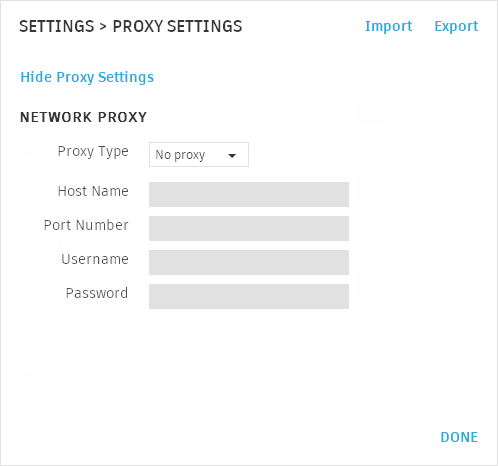
- Proxy Type
- Specifies whether a proxy must be used, and if so, what settings to use. The available options are:
- No proxy - Do not use a proxy when connecting to the Internet.
- Auto Detect - Attempt to automatically detect the host name and port settings.
- System Proxy - Use the settings specified in the Windows Control Panel.
- Manual Proxy - Use the settings specified below.
- Host Name
- Specifies the address of the proxy server. Use the Uniform Resource Locator (URL) format (for example, http://servername) or an Internet Protocol (IP) address (for example, 192.168.0.1) for the address. Typically, your network administrator provides you with the proxy server address.
- Port Number
- Specifies the port number used to communicate with the proxy server. The proxy server address is typically provided by your network administrator. Typically, your network administrator provides you with the port number.
- Username
- Specifies the user name to use with authenticated proxies. You do not need to provide this information if your proxy server is configured to use your domain credentials. Typically, your network administrator will inform you if you must use a username and password.
- Password
- Specifies the password to use for the specified user name.