Access the Bill of Materials
If you're using Fusion for education, this feature will work differently for you. Scroll down to Access the Bill of Materials (Fusion for education) to find out how.
Make sure you are viewing a design that has been saved at least once.
Go to the Design workspace.
Do one of the following.
In the Assemble group, click Bill of Materials.

Or, in the Fusion Manage tab (for Fusion Manage subscribers only), click BOM.

The Bill of Materials opens.
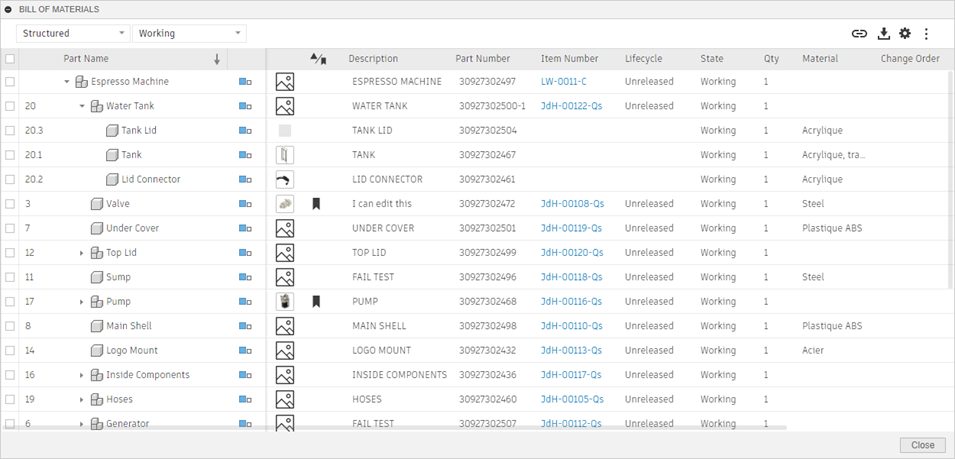
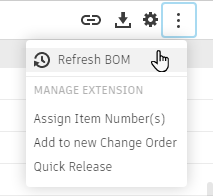
Optional: Should data in the Bill of Materials seem to be out of date (for example due to updates done to a referenced component), click More
 > Refresh BOM
  .
.
Each time you save your design, the Bill of Materials is updated with the latest changes. You can work on your design with the Bill of Materials dialog open.
Access the Bill of Materials (Fusion for education)
Make sure you are viewing a design that has been saved at least once.
Go to the Design workspace.
Do one of the following.
In the Assemble group, click Bill of Materials, or;
In the Fusion Manage tab (for Fusion Manage subscribers only), click BOM.
The Bill of Materials opens.
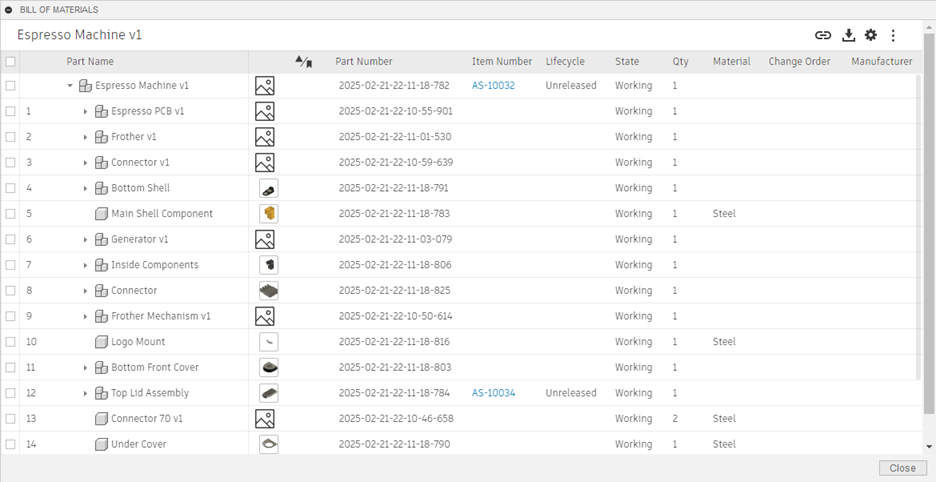
Optional: In the Bill of Materials dialog, click the Part Name column header to sort alphabetically.
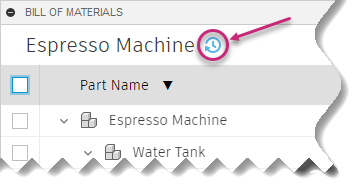
Optional: Should data in the Bill of Materials seem to be out of date (for example due to updates done to a referenced component), click Refresh
 .
.
Each time you save your design, the Bill of Materials is updated with the latest changes. You can work on your design with the Bill of Materials dialog open.