Compare BOM to model
Note: This content doesn't apply if you're using Fusion for education.
While viewing a bill of materials (BOM), you can use Compare to Model to highlight differences between the BOM and its corresponding design. For example, with shared part number groups, the BOM always shows the primary model, even if the the design is using a secondary model.
These differences are always indicated by colors at the start of each affected row.
Tip: Place the pointer over the colors to see what the difference from the design is.
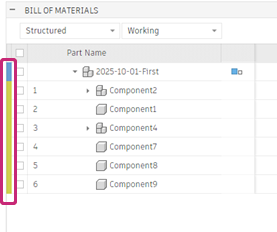
Compare to Model overlays these colors across the length of the rows.
Turn on Compare to Model
In the Bill of Materials dialog, make sure you are viewing the Working BOM in Structured layout.
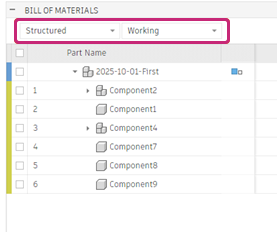
At the top right of the Bill of Materials dialog, click More
 > Compare to Model.
This overlays colors on rows that contain information that differs from the design:
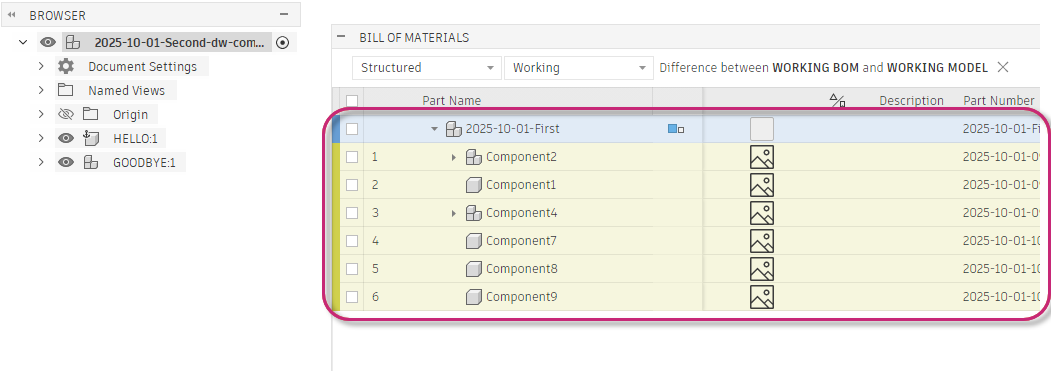
In this example, these highlights are shown:
 Light blue (top row): This is the primary model (
2025-10-01-First) of a shared part number group. It’s highlighted because the design is using a secondary model (2025-10-01-Second-dw-compare) of that group. (The Bill of Materials dialog always shows the primary model, even if the design is using a secondary model.) Light olive (remaining rows): These components are children of the primary model. They are not in the design because the secondary model used by the design does not include them.
Turn off Compare to Model
- At the top of the Bill of Materials, click Close (X) beside Difference between Working BOM and Working Model.