Library panel
The Library panel lists all nodes and graphs available in the current session, organized by package and category folder. Toggle it with Ctrl+B (Windows) / Command+B (macOS).
Public packages
The Public packages section lists the four packages that Fusion provides: Base, Design, Manufacture, and System. Each package shows its version number, for example Base (1.0.0).
Click a package name to expand it and reveal its category folders. The Base package, for example, includes categories such as Graphs, Constant, Error, List, Logic, Math, Text, and Utility.
For a description of each package and its purpose, see Packages.
User packages
The User packages section lists packages you have created or imported. They appear and behave the same as public packages.
Click More  next to User packages to open the More menu.
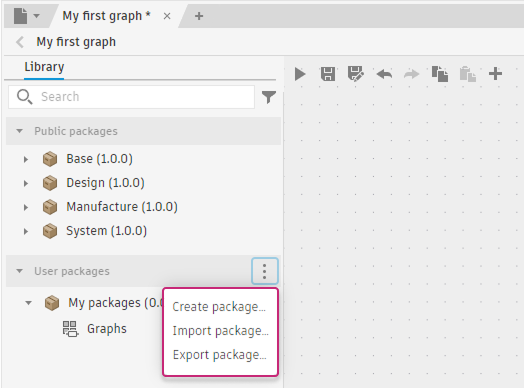
- Create package: Creates a new empty user package. See Create a user package.
- Import package: Imports a package from a
.package.zipfile. See Import a package. - Export package: Exports one of your user packages to a file. See Export a package.
To manage an individual package, right-click its name in the list. The menu offers Export and Delete.
Working with graphs in a user package
Graphs stored in a user package appear as items inside the package in the Library. They behave differently from nodes:
- Left-click a graph to insert it as a reusable subgraph node into the currently open graph. This is the same as dragging a reusable subgraph onto the canvas.
- Right-click a graph to open its context menu.
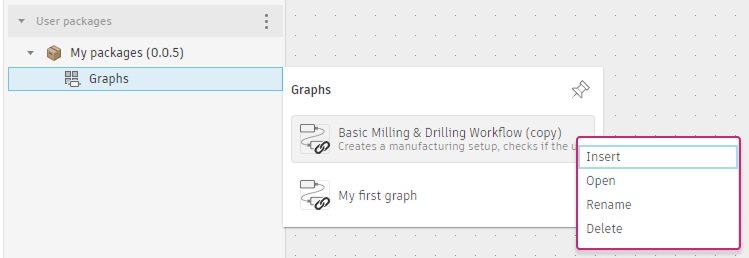
- Open: Opens the graph in the editor. This is an alternative to using the File menu
 .
. - Rename: Renames the graph file.
- Delete: Deletes the graph from the package permanently.
Browsing and inserting nodes
Click a category name to open a floating panel to the right of the Library listing all nodes in that category. Each node shows its name and a brief description. Place the pointer over a node to see its full description in a tooltip. Click a node to insert it on the canvas.
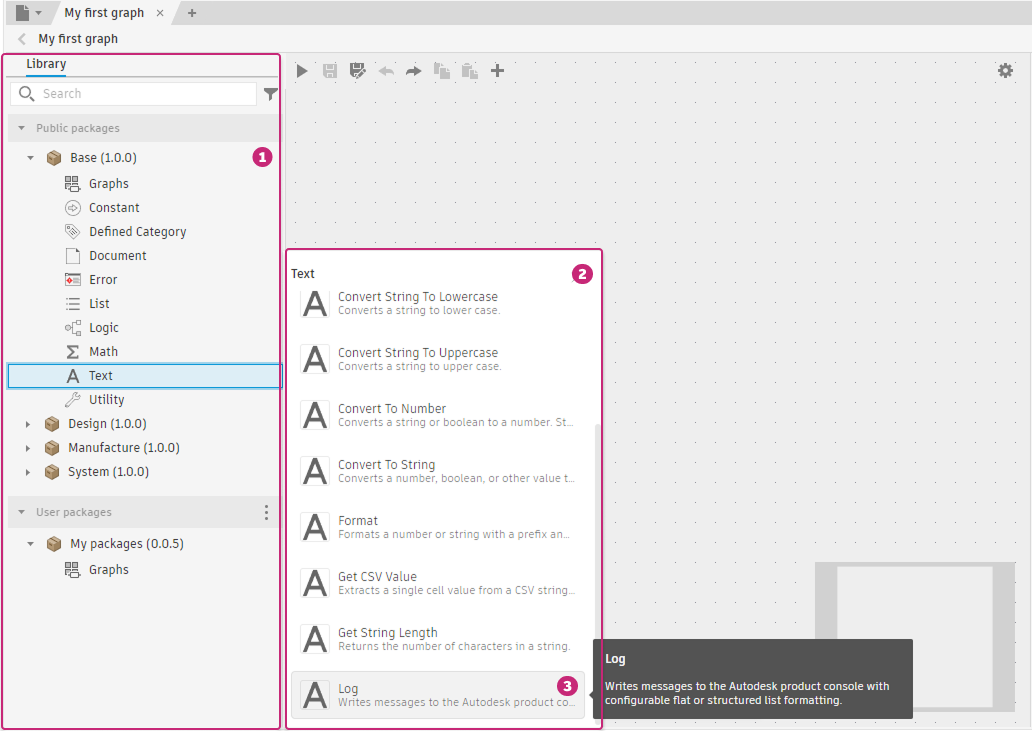
- Library panel: The Base package is expanded, showing its category folders. The Text category is selected.
- Category panel: Lists all nodes in the selected category. Click a node to insert it on the canvas.
- Tooltip: Place the pointer over any node to see its full description.
The category panel closes when you click elsewhere. To keep it open while you work, click Pin  in the panel's top-right corner. To release the panel, click Unpin
  .
.
Searching for nodes
Use the Search box at the top of the Library panel to filter by node or graph name, type, package, category path, or description. The list updates as you type. When a result matches on description text, the description appears as a subtitle below the node name with the matched text highlighted.
Click Filter  to the right of the search box to open the Filter panel. The Filter panel lets you narrow results by:
- Type: Show only Graphs, only Nodes, or both
- Category: Select one or more categories (such as BRep, Component, or CAM Parameter) to limit results to those areas
Active filters apply on top of any text you have typed in the search box. Deselect individual checkboxes or close the filter panel to remove filters.
Add node dialog
Click Add node  on the toolbar, or press Space on the canvas, to open the Add node dialog.
The dialog lists:
- Blank subgraphs: Expands to show Standard subgraph, For-Each subgraph, and While subgraph
- One entry per loaded package (Base, Design, Manufacture, System, and any user packages), each expandable by category
Type in the Search box to find nodes across all packages at once, matching on name, type, package, category, or description. Results are grouped by category. When a result matches on description, the matched text is highlighted in the result row. Place the pointer over a result to see its full description.
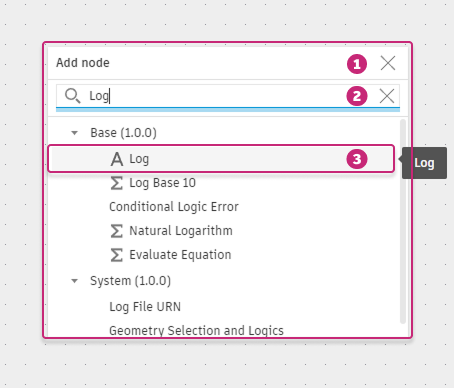
Click a node to insert it on the canvas near the center of the current viewport.
Both the Library and the dialog apply version pinning: when the active graph's package already depends on another package, the version locked by that dependency is shown rather than the latest.