Use Maya Creative's powerful and versatile animation tools to bring your 3D creations to life using industry-standard techniques.
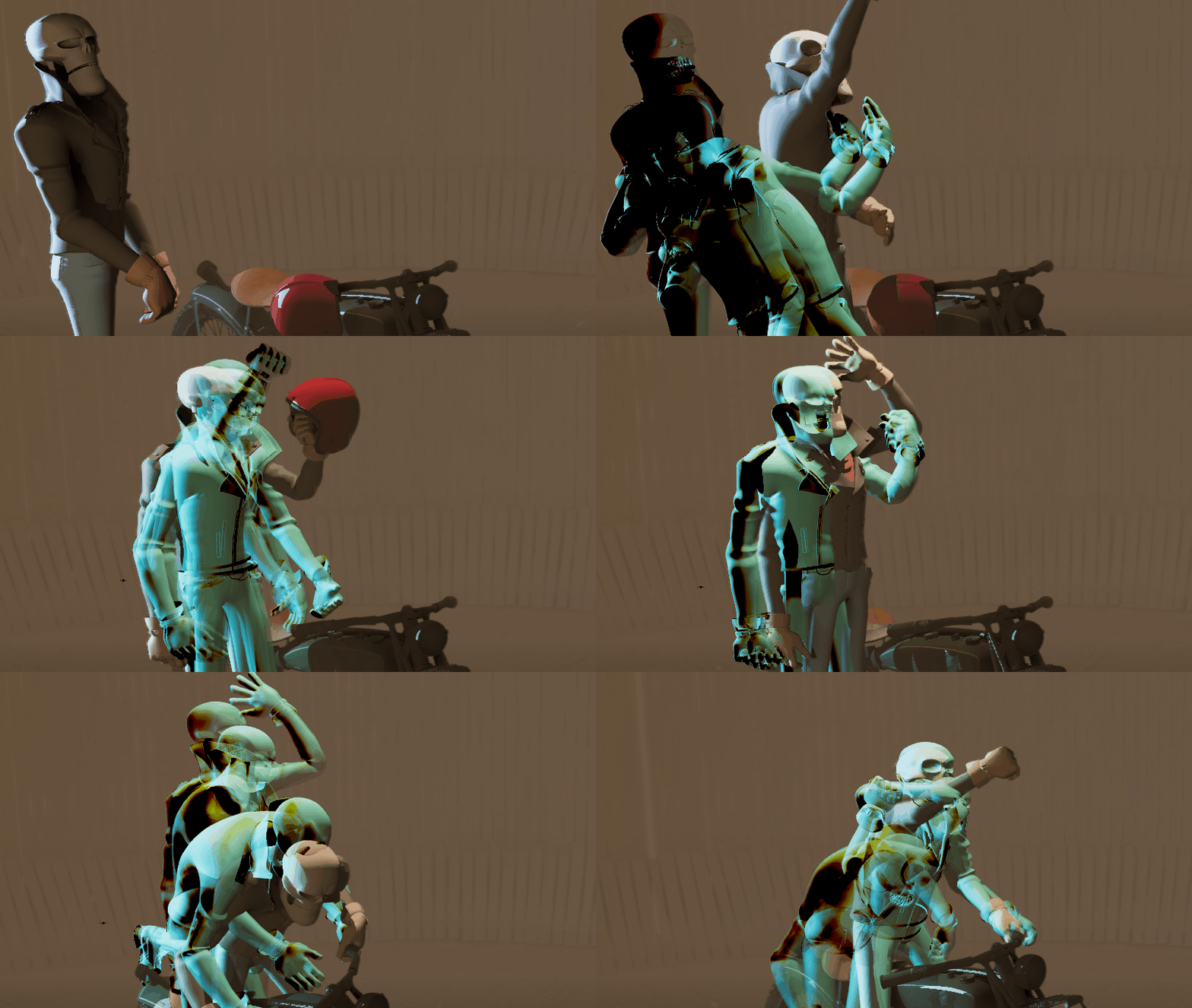
Use the Ghosting Editor to preview frames before and after animation
Maya Creative animation provides you with the powerful tools you need to bring the characters and objects in your scenes to life. These tools give you the freedom to animate any attribute of an object and the control you need to successfully transform joints and bones, IK handles, and models over time.
Start with the Animation Basics section for information on the various animation techniques in Maya Creative, how to use the different types of animation, and how to preview, playback, and save your animations.
Key animation workflows
Maya supports multiple animation approaches depending on your needs:
- Keyframe animation Set keys on object attributes to define motion over time. Use the Graph Editor to refine animation curves and timing.
- Nonlinear animation (i.e. Time Editor) Combine, retime, and layer animation clips non-destructively.
- Animation layers Add, override, or blend animation on separate layers for greater control.
- Motion capture Import and edit captured performance data for realistic character motion.
- Path animation Attach objects to curves to control motion along a path.
- Deformation and simulation-based animation Animate through rigs, deformers, and dynamic simulations.
- MotionMaker (procedural locomotion) Generate character motion such as walking, running, or jumping using AI-assisted procedural animation. MotionMaker lets you define movement paths and behaviors, then automatically produces animation that can be further edited and refined.
- Animation in Context (AiC) Animate characters directly within a scene context, allowing interactions with environments, props, and other characters while maintaining spatial and timing relationships.
- Sequencer (shot-based animation and layout) Organize animation into shots and sequences for cinematic workflows. The Sequencer lets you manage timing, camera cuts, and shot transitions, making it easier to structure scenes and preview edits.
Once animation is created, you can refine it using tools such as:
- Graph Editor for adjusting animation curves
- Dope Sheet for timing and key management
- Ghosting Editor to visualize motion arcs and spacing
- Time Editor for clip-based editing and reuse
These tools help you polish motion, adjust timing, and iterate efficiently.
The Animation interactive tutorial in Application Home
You can also try the
Animation interactive tutorial in
Application Home
 or watch the
Intro to animation in Maya explainer on the Maya YouTube channel.
or watch the
Intro to animation in Maya explainer on the Maya YouTube channel.
Related Material
- Animation Basics
- Keyframe Animation
- Nonlinear Animation in Maya
- Time Editor
- Graph Editor
- Dope Sheet
- Ghosting Editor
- Path Animation
- Motion Capture Animation
- Geometry Caching
- Animation Layers
- Animation File Formats
- Animation Reference
- MotionMaker
- Animate in Context
- Sequencer
Flow Studio and Maya You can import animation data from external sources such as Flow Studio to use in your Maya scenes. This can be useful when working with motion capture or generated animation that you want to edit and refine using Maya animation tools.