View managed items
Use the Managed Items tab to see which items are associated with a workflow item and view their lifecycle state. To access the Managed Items tab:
Open a workflow item in a revisioning workspace.
Click the Managed Items tab.
Note: Your administrator may have renamed this tab (for example, to Affected Items or Workflow Items).
Sort items
If a workflow includes many managed items, you can sort the table by column to quickly find specific items.
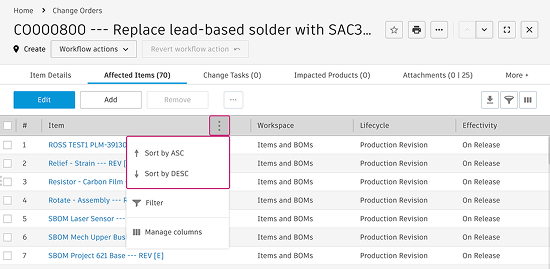
- Hover over the column header you want to sort by.
- Click the More menu
 in the column header.
 - Select Sort by ASC to sort in ascending order, or Sort by DESC to sort in descending order.
Filter items
If a workflow includes many managed items, you can filter the table to show only items that match specific column values.
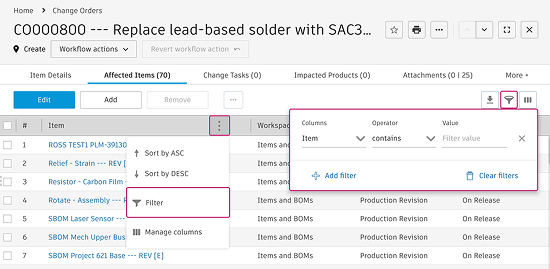
Hover over the column header you want to filter by.
Click the More menu
in the column header.Select Filter.
The filter flyout opens.
Enter the value you want to filter by..
(Optional) Click Add filter in the flyout to add additional filtering criteria.
The table updates automatically to show matching results. You can also use the filter icon in the top-right corner to refine and browse all items.
Manage table columns
You can control which columns appear in the table view.
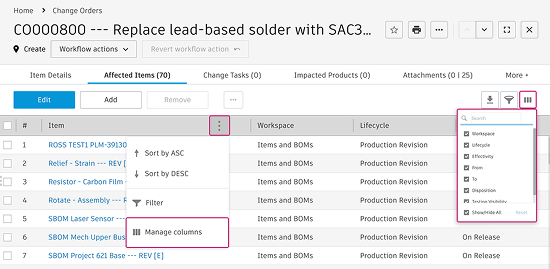
- Click the Manage Columns icon in the top-right corner of the managed items table.
- Clear the checkbox for any columns you want to hide. Use the search field to find columns if needed.
- (Optional) To hide all additional columns, uncheck Show/Hide All.
You can also use the columns icon in the top-right corner to manage column visibility.