Add manually scheduled tasks
- Click the Project Management tab.
- From the Add + menu, select Add Manual Entry.
- In the new row added to the project management table, enter the enter the task details.
- To delete a row, select the check box for that row and click Remove.
Enter scheduling data in the table
- In the project management table, scroll to the right if the table is not in full view.
- Enter a start date and end date for the task. The duration of the task is calculated automatically. You can also enter a start date and then enter a duration to calculate the end date.
- If required, click Predecessor and then select the task that is required to finish before this task can begin.
- In the Progress field, enter the percent complete for the task.
The Gantt chart updates to reflect the scheduling information.
Enter scheduling data in the Gantt chart
You can edit the schedule directly in the Gantt chart.
Drag either handle on the taks to adjust the start or end date for the task.

Drag the slider to indicate the percent complete for the task.
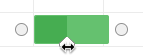
Drag a connector from the end date of one task to the start date of another to create a dependency between tasks.
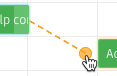
Drag the task itself to move the task on the schedule while retaining the duration. Dependent task move with the parent task.
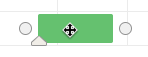
Click on a dependency link to remove the dependency.