
Manage Folder Permissions
Folder permissions can be used to control access to files and the actions that members can take with the files.
See Project Member Folder Permission Levels for a full list of the specific actions supported by each permission level.
Subfolders automatically inherit the permission level of the parent folder however, they can be changed later. If changed, subfolder permissions must either match, or have a greater permission level of the parent folder.
Permission Required to Manage Folder Permissions
You need Manage permission to add or update member permissions to allow for actions such as downloading, uploading, or editing files, and publishing markups. Project administrators have Manage permissions to all folders.
How to Add or Update Permission for a Folder
Click the More menu
 of the relevant folder in the folder tree.
 Click Permissions settings.

This opens the Permissions panel.
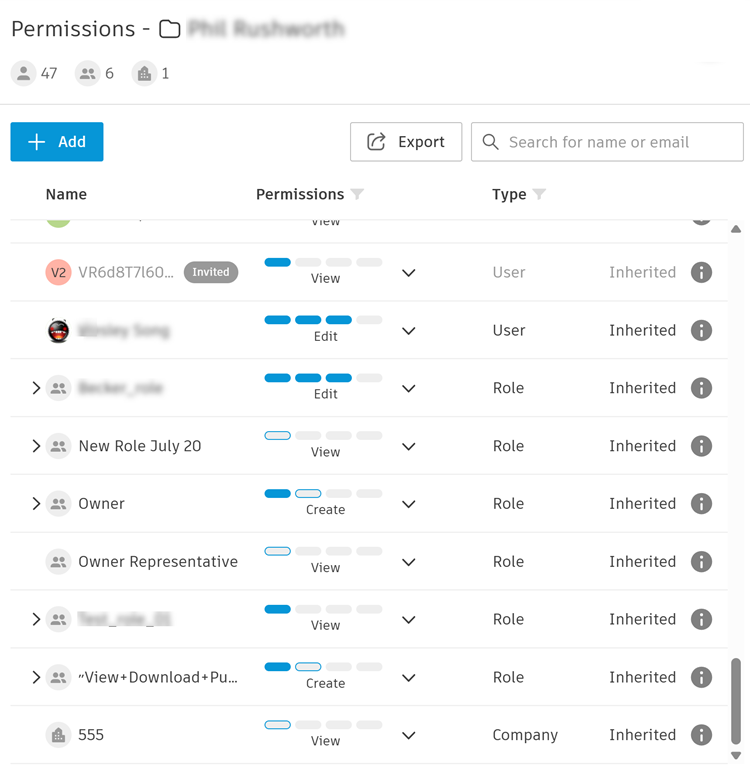
The following columns:
- Name:
Click Add.

In the Add field, enter either the names, email addresses, roles, or companies which the permission levels will apply to. You can also assign the same permission level to all project members by entering Everyone in the field.

In the Permissions field, select the desired level.
 Note: See Project Member Folder Permission Levels for a full list of the specific actions supported by each permission level.
Click Add.