
Create Smart Controls
Project administrators can create smart controls. You need to turn on the Smart controls setting before the Smart controls tab appears in the Files tool.
Before You Begin
- Check that you have project administrator permissions.
- If you want to use custom attributes in conditions, check that the ones you want to use exist in your project. If not, see Create, Edit, and Delete Custom Attributes to learn how to create custom attributes.
Create a Smart Control
You can create up to 250 smart controls per project.
Click the Files tool.
Click the Smart controls tab.
Click Create smart control. This displays in different places depending on whether any smart controls already exist.
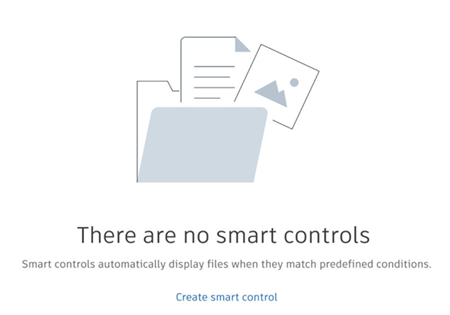
If no smart controls exist yet, click Create smart control in the empty state.
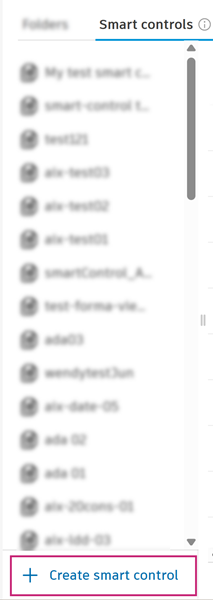
If smart controls already exist, click Create smart control at the foot of the list of smart controls.
This opens the Create smart control dialog.
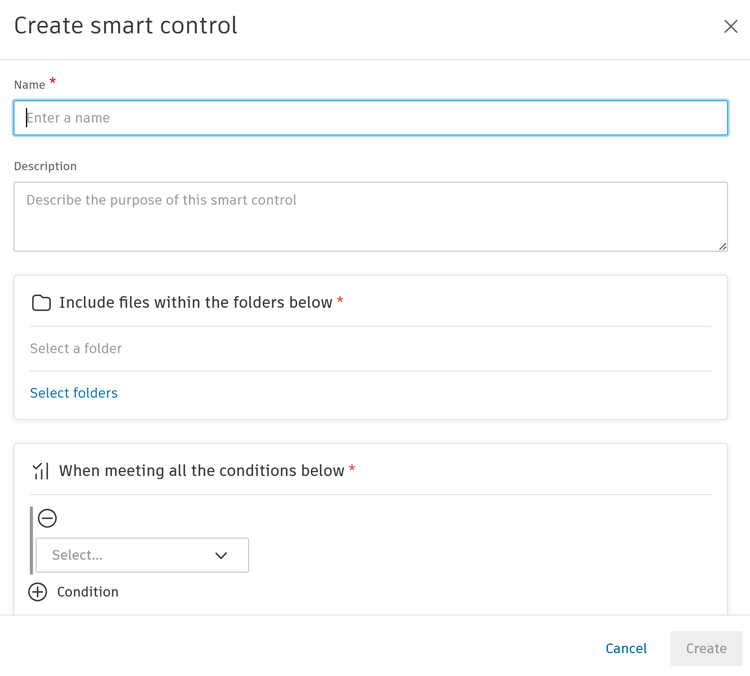
Complete the following details:
Field Description Name Enter a name for the smart control. This is required and must meet the smart control name limitations. Description Enter an optional description. Select folders Click to choose the folder scope. You can select up to 200 parent folders, then click Select to confirm. When you select a parent folder, its subfolders are included automatically and can't be deselected individually.
Note: Deleted folders are automatically removed from the smart control criteria. If a subfolder is moved to a different parent folder that is included in a different smart control, the subfolder is included in that smart control's scope.Conditions You can add a maximum of three conditions.
1. Click + Condition to add a condition made up of an attribute, an operator, and a value.
2. Choose an attribute from either the Review status system attribute, or a custom attribute.
3. Choose an operator
4. Enter or select a value.
Note: Conditions use AND logic. For example, Status is S4 AND Discipline is Architectural.Click Create.
A message confirms whether the smart control container was created successfully. While Forma Data Management checks file versions against your conditions, you can click View smart control details and permissions to open the smart control's details and set permissions while the checking continues or later.
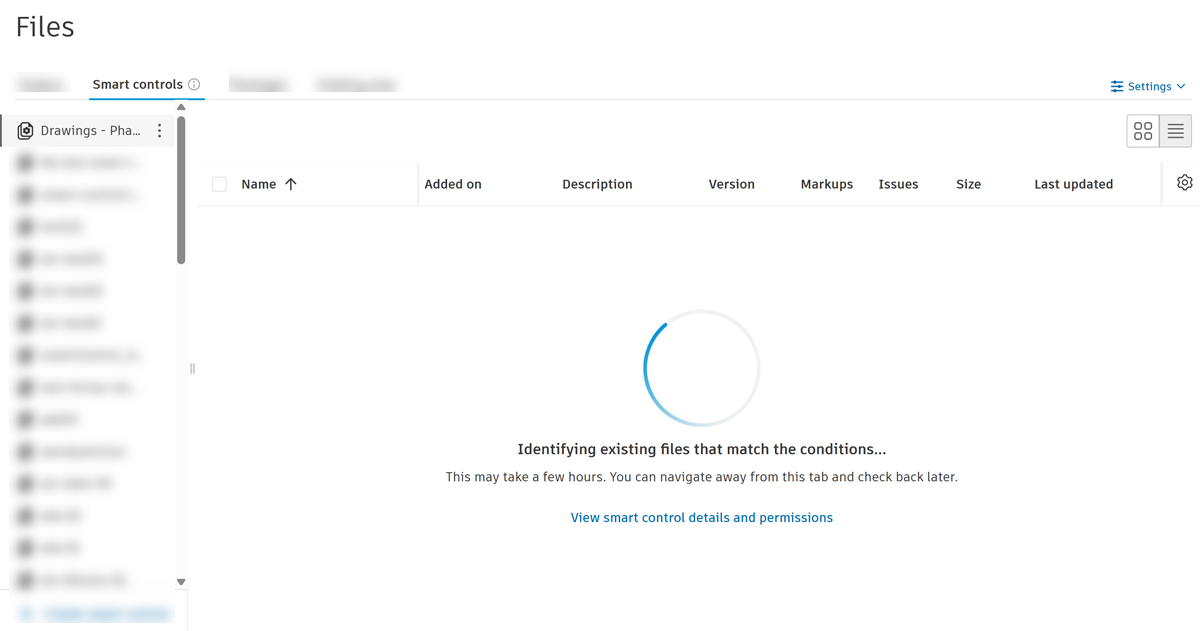
Once the initial query finishes, files that match your conditions display in the smart control. If no files match the conditions, you can click View smart control details and permissions to open the smart control's details and click Edit to edit the smart control conditions.