
Smart Controls Permissions
Smart control permissions are separate from folder permissions. You can use smart controls alongside your existing folder permissions or on their own.
A member's permission for a file version depends on where they access it:
- In a folder, their folder permission applies.
- In a smart control, their smart control permission applies.
This means a smart control can give a member higher access to a file version than they have through folder permissions.
Project administrators grant permissions so members can view and access a smart control. Once granted, members can open and view the matching file versions even if they don't have the relevant folder permission.
- Access Smart Control Permissions
- Add Smart Control Permissions
- Change Member Permissions
- Remove Member Permissions
Access Smart Control Permissions
Project administrators can access smart control permissions in a few ways:
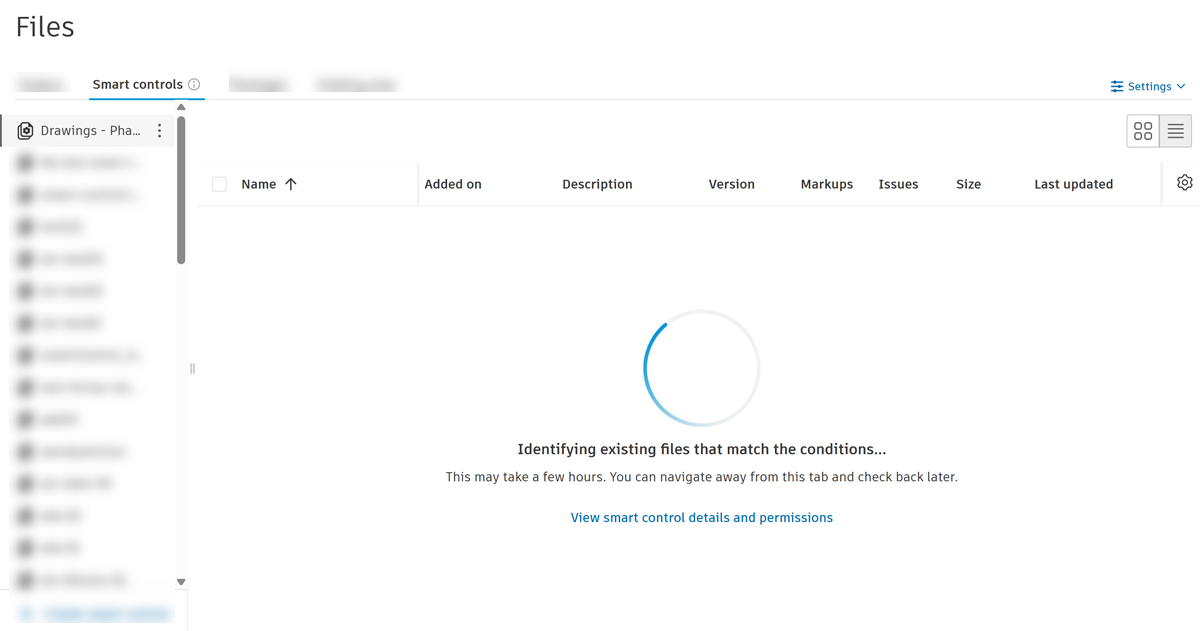
While files are being indexed, or when no files match the smart control's conditions, click View smart control details and permissions, then click the Permissions tab.
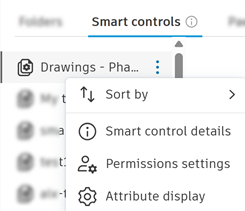
Select a smart control from the list, click the More menu
 , then select Permission settings.
Add Smart Control Permissions
You can add up to 400 permission types, including users, roles, companies, and everyone.
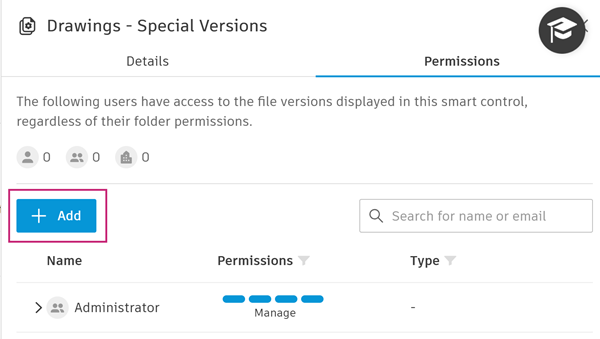
In the Permissions tab:
Click Add.
Select from:
Option Description Individual users The selected member gets the permission. Roles Every member in the role gets the permission. Companies Every member in the company gets the permission. Everyone Every project member gets the permission. Choose the permission level:
Permission level Supported actions View Open and view files in the smart control, view version history, submit for review View + Download Everything in View, plus download source files Create + Publish Everything in View + Download, plus publish markups Note: A member with Create + Publish folder permission for a file version can still publish markups in the viewer, even from a smart control where they only have View or View + Download permission. The markup publishing setting for non-current file versions still applies.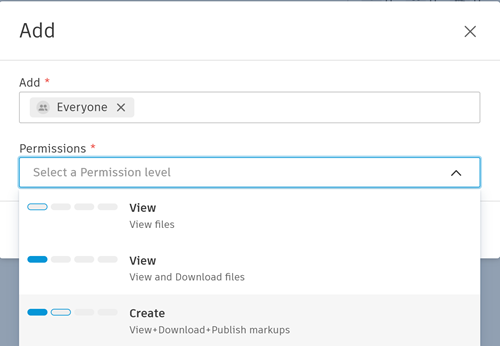
Click Add to confirm.
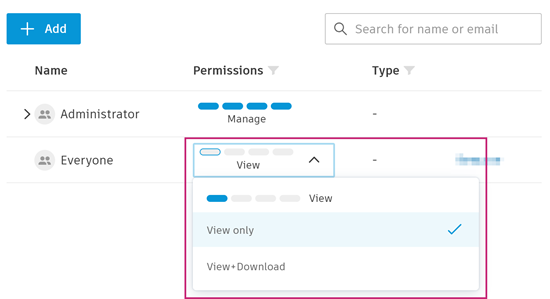
Change Member Permissions
In the Permissions tab, locate the member, role, company, or everyone.
Click the permission drop-down next to the name.
Select the new permission level.
Remove Member Permissions
Removing a permission only affects access granted through that permission type. It doesn't affect access granted through other types.
| Permission type removed | Access removed for | Access retained through |
|---|---|---|
| User | That user | Role, company, or project administrator |
| Role | Members of that role | User, company, or project administrator |
| Company | Members of that company | User, role, or project administrator |
| Everyone | Members with the Everyone permission type | User, role, company, or project administrator |
In the Permissions tab, locate the member, role, company, or everyone.
Click Remove in their row.
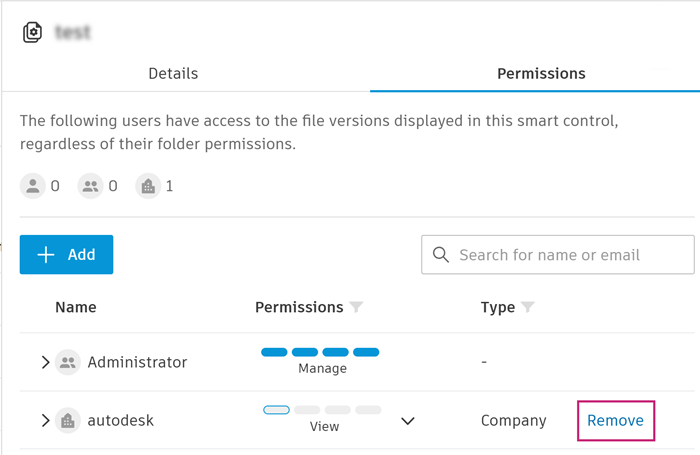
Click Remove in the confirmation dialog.