
Upload Files or Folders
You can use the Files tool to upload supported files or a whole folder of files to a target folder. When you upload a folder, its files and subfolders are added to the target folder while preserving the folder structure.
You can then manage files and take actions subject to your folder permissions. An uploaded file will version up if it has the same name and file extension as an existing file in the folder.
- Permission Required to Upload Files or Folders
- General Upload Limits
- Upload Options
- Upload Dialog
- Other Considerations
Permission Required to Upload Files or Folders
Create + Upload folder permission or above to upload files.
Edit folder permission or above to upload a folder of files.
General Upload Limits
| Limit | Details |
|---|---|
| Supported file types | Only files supported by the Files tool can be uploaded. See the Supported Files help topic for more information. |
| Processing after upload | Files uploaded as part of a folder, and most files uploaded using Desktop Connector, are uploaded but not automatically processed for viewing. Members can process those files on demand. See the Process for Viewing help topic for more details on the upload and processing checks, processing errors, and processing files on demand. |
| File name length | Some files may not successfully process for viewing during the upload process if the file name exceeds 200 characters. |
| Single folder upload | You can only select one folder to upload at a time . |
| Select files or folder | You can't select a mix of files and folders to upload at a time. |
| Folder upload size | - Maximum 1,000 files * Maximum 100 folders (including subfolders) - Maximum 10 subfolder levels - Maximum 25 total subfolder levels including the target folder. For larger uploads, use the [Bulk Upload Tool] |
| Total number of items | Maximum 20,000 items in the upload + target folder together. Including: - Direct subfolders - Direct files - Files in the holding area - Deleted items (direct files and direct subfolders) |
| Naming standards or required attributes | You can't upload a folder to a folder that has a naming standard or required attributes applied. |
Upload Options
You can add either files, or one folder at a time to a target folder. Review the General Upload Limits before you start.
To begin, click the relevant target folder from the folder tree. There are a few options to upload files or a folder.
Drag and drop
You can drag one folder or one or more files from your computer into the selected folder's file list.
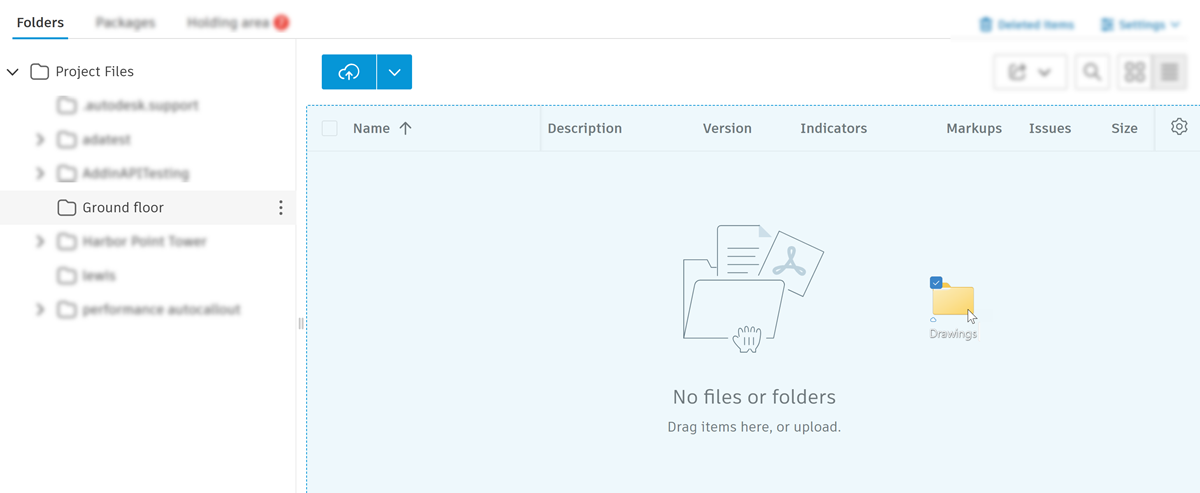
Although you can only add one folder at a time, you can drag them quickly one after another to add them to the upload queue. When you add files or folders, you can track the upload progress in the Upload dialog and add more files and folders as necessary. See Upload Dialog for more information.
Drag and drop also lets you add empty folders, or a parent folder with a mix of empty subfolders and the structure will be created in the target folder.
Upload menu option
There are also a couple of menu options where you can access the upload workflow:
Click Upload above the file list.

Click the More menu
 of the relevant folder in the folder tree, hover Upload and click Upload files or folders.
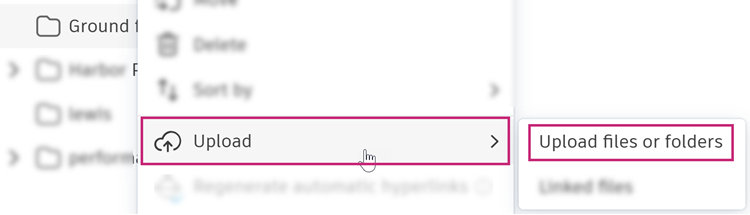
When you choose one of these options, this opens the Upload dialog where you can add files or a folder and track upload progress.
Upload Dialog
The Upload dialog opens whichever upload method you choose and lets you add files or a folder and shows the progress of the files and folders you've added.
Add Files or a folder
If you haven't already used drag and drop in the file list, you can drag files or a folder into the dropzone and repeat as necessary subject to the limitations.
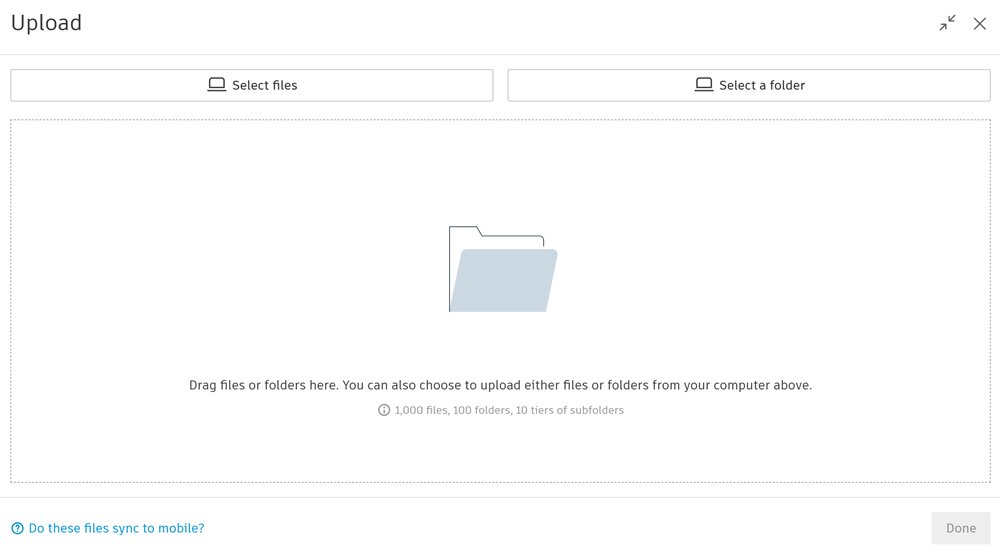
Drag and drop also lets you add empty folders, or a parent folder with a mix of empty subfolders and the structure will be created in the target folder. As soon as you've added files or a folder to the upload session, you can add more files or another folder and repeat.
You can also add files or a folder from your computer using the Select files or Select a folder options. However, you can't upload a single empty folder and if you add a folder structure with a mix of empty folders, the empty folders will only be created to the depth of the last folder which contains a file.
Track upload progress
As soon as you've added files or folders, the upload progress and any errors are listed. Folders are created first and are subject to a precheck which runs to check limits and naming conflicts. If the check finds no issues, the folders are created and the file uploads start automatically. If the precheck finds any issues, the upload doesn't start until the issues are resolved. You can resolve issues in the Upload dialog by removing problem files or folders, or remove the entire upload and fix issues locally before uploading again. Use this table to fix the most common issues.
Folder upload precheck limits
| Limit | What to do |
|---|---|
| Maximum limit of 1,000 files per uploaded folder. Maximum limit of 100 folders per uploaded folder. Maximum limit of 10 subfolder levels per uploaded folder. |
Remove items from the folder by clicking X next to the item in the Upload dialog, or upload it again in smaller parts. For larger uploads, use the Bulk Upload Tool. |
| Maximum limit of 20,000 items (files and folders) in total (includes items in the upload + target folder together) | Remove items from the folder by clicking X next to the item in the Upload dialog, or upload again to a different target folder. |
| Maximum limit of 25 subfolder levels including the target folder. | Remove subfolder levels from the folder by clicking X next to the subfolder in the Upload dialog, or try to upload again and choose a target folder higher in the folder tree, or try again and upload a folder with fewer subfolder levels.. |
| Folder name already exists. | Rename the folder on your computer, or choose another target folder and try again. You can't merge folders. |
| Folder name can't exceed 255 characters. Folder name can't contain special characters < > : " / \ | ? * ` Folder name can't contain reserved name. Folder names can't end with a period. |
Rename the folder on your computer, and then try again. |
| This file format is not supported for upload. | Unsupported file formats won't upload, however the other files in the folder will still upload. See Supported Files. |
Once the issues are fixed in the Upload dialog, click Proceed to try again.
If any items fail, click Retry all to try them again. Click Show errors only to list just the failed items.
When the folder upload finishes, click View to open the parent folder.
You can click Done to minimize the panel. If you close this panel, the remaining files will continue to upload.
Note: Files in an uploaded folder aren't processed for viewing automatically. See Process for Viewing to process files on demand.
Files and folder upload statuses
The status of your file and folder uploads are detailed in the Upload status column.
Folder statuses
| Status | Meaning |
|---|---|
| Queued | Waiting to start. |
| Initializing | The folder is undergoing the precheck. |
| Creating folder | Precheck has passed and folders are being created before files are uploaded. |
| Uploading — # of # files | Folder progress shown as the number of files uploading in the folder. |
| Upload complete | All folders created and files uploaded successfully. |
| Upload failed | Folder-level failure. Members can retry. |
File statuses
| Status | Meaning / tooltip |
|---|---|
| Uploading — #% | File upload progress shown as a %. |
| Initializing | The uploaded folder containing the file is undergoing the precheck. |
| Upload complete | File uploaded to the folder. |
| Upload failed | File-level failure. Members can retry. |
Other Considerations
Members who subscribe to the folder will receive a notification when the file is uploaded.
Uploading a folder doesn't maintain references between files. Hidden and system files, such as thumbs.db, are excluded.
To upload Revit (RVT) and AutoCAD (DWG) reference files and maintain their references, see the Upload Linked Files help topic.