
View and Manage Smart Controls
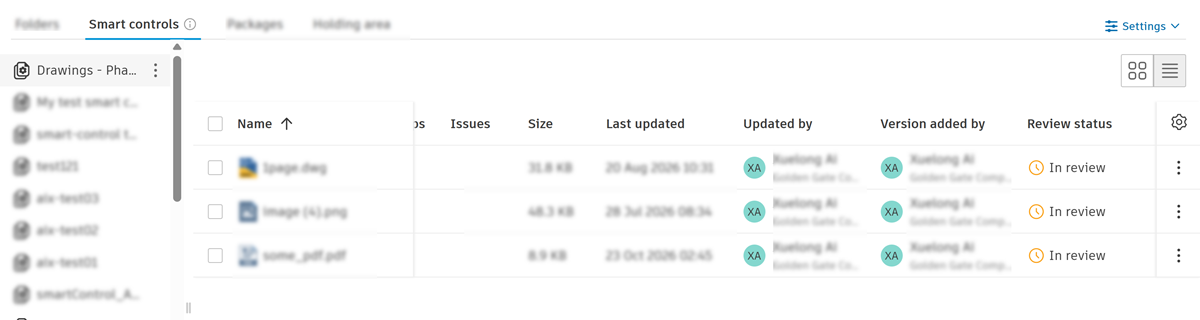
After you create a smart control, it's added to the list in the Smart controls tab. If files match the conditions, they will display in the smart control.
Project administrators can see all smart controls, but project members only see the ones where they've been granted permission.
Sort Smart Controls
Smart controls display in a flat list, sorted by Name (A-Z) by default.
To change the sort order:
Select a smart control.
Click the More menu
 .
Hover over Sort by.
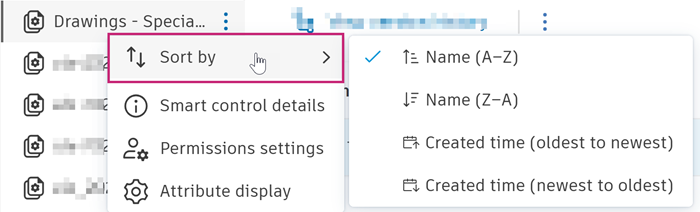
Click one of these options:
- Name (A-Z)
- Name (Z-A)
- Created time (oldest to newest)
- Created time (newest to oldest)
Smart Control Details
Smart control details show what makes up a smart control and let project administrators edit it. Access smart control details in one of these ways:
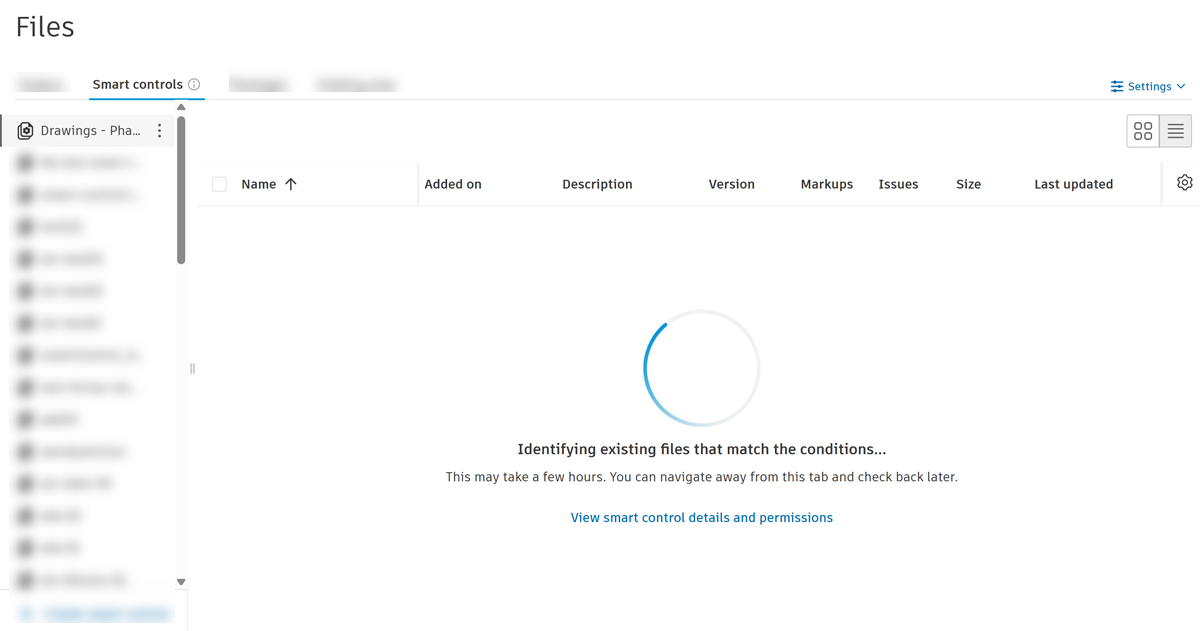
While files are being indexed, or when no files match the smart control's conditions, click View smart control details and permissions.
Select a smart control from the list, click the More menu
, then select Smart control details.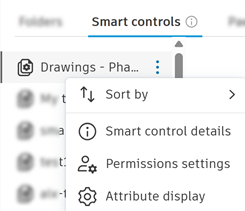
Either method opens a panel with the Details tab open.
View smart control details
Smart control details let project administrators view:
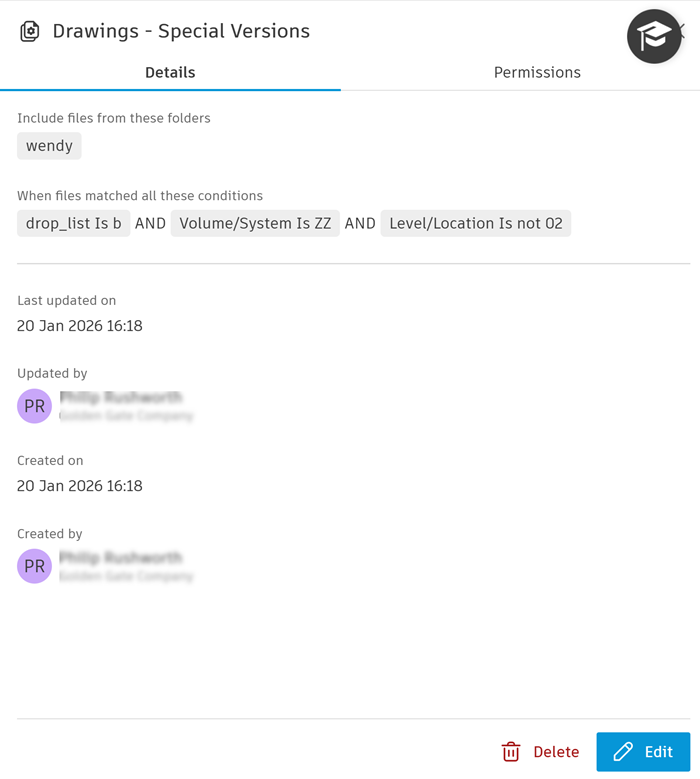
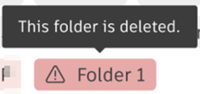
The selected folders. Hover a folder to see its full path. A folder highlighted in red is deleted.
The conditions
Last updated on
Updated by
Created on
Created by
From this panel, you can also edit or delete the smart control, or open the Permissions tab to manage member permissions.
Edit a Smart Control
Click Edit.
This opens the same dialog used to create the smart control, with its current details.
Edit any of the following:
- Name
- Description
- Selected folders. A folder highlighted in red is deleted. Click the X next to a folder name to remove it.
- Conditions
Click Save.
Note: Edit and Delete are disabled while the smart control updates. When the update finishes, matching files are added and non-matching files are removed automatically.
Delete a Smart Control
Click Delete in the Details tab.
Click Delete in the confirmation dialog.
Note: You can't restore a deleted smart control. Its files aren't deleted, but they're no longer accessible through that smart control.