
Forma and Fusion - Permissions
- Overview
- Read-only files in File Explorer
- Forma - permission levels
- Fusion - permission levels
- When permissions change
- If a file appears read-only unexpectedly
Overview
Permissions are set and managed in Autodesk Forma or Autodesk Fusion on the web — not in Desktop Connector. Desktop Connector reads the permissions applied to each folder on the web and reflects them in your local workspace automatically.
Files in folders where you do not have edit access are marked Read-only in File Explorer. This lets authoring applications (such as Revit, AutoCAD, or Civil 3D) warn you before you make changes that cannot be uploaded.
Contact your project administrator if you require higher permissions.
Read-only files in File Explorer
When you have view-only access to a folder, Desktop Connector marks the files in that folder as Read-only locally. The following permission levels result in read-only files:
| Connector | Permission / Role |
|---|---|
| Autodesk Forma | View only |
| Autodesk Forma | View + Download |
| Autodesk Forma | View + Download + Publish markups |
| Autodesk Fusion | Viewer |
| Autodesk Fusion | Reader |
When a file is read-only, your authoring application (such as Revit, AutoCAD, or Civil 3D) may warn you when you open or attempt to edit it. Any changes you save locally cannot be uploaded to the cloud until your permissions are updated.
Forma - permission levels
| Main Category | Forma web | BIM 360 Docs web | Actions in Desktop Connector |
|---|---|---|---|
| View | View only | View only | You can view the folder and which files it contains. You can't view the contents of a file. You can't create, move, edit, or delete a file or folder. Files are marked Read-only in File Explorer. |
| View | View + Download | View + Download | You can view the folder and its files and copy them to a local folder outside the connector. You can't create, move, edit, or delete a file or folder. Files are marked Read-only in File Explorer. |
| -- | -- | Upload only* | Not supported |
| View | View + Download + Publish markups | -- | Same as View + Download permission. Files are marked Read-only in File Explorer. |
| Create | View + Download + Publish markups + Upload | View + Download + Upload | Files You can view and create new files. You can upload new versions of existing files, which replaces the file content. You can copy a file to or from this folder to or from a local folder. Folders You can view or rename a folder. You can copy a folder to a local folder. You can't delete a folder. You can't edit file metadata. |
| Edit | View + Download + Publish markups + Upload + Edit | View + Download + Upload + Edit | Everything in Create, plus: You can move, rename, or delete a file or folder. You can edit file metadata. |
| Manage | Full administrative controls | Folder Control | Full permission to complete all supported file and folder actions. |
The Upload Only BIM 360 permission is not supported in Desktop Connector. Members with Upload Only permission need to access BIM 360 Docs on web to complete this action.
For the full list of Autodesk Forma permission levels, see Project Member Folder Permission Levels in the Autodesk Forma help.
Fusion - permission levels
| Permission level | Actions in Desktop Connector |
|---|---|
| Viewer | You can browse folders and see file metadata. You can't open or view file contents. You can't create, move, rename, upload, or delete a file or folder. Files are marked Read-only in File Explorer. |
| Reader | You can browse folders, view file metadata, and open or read file contents. You can't create, move, rename, upload, or delete a file or folder. Files are marked Read-only in File Explorer. |
| Editor | You can create, modify, rename, move, and delete files and folders. You can upload new versions of existing files. |
| Manager | Same as Editor |
| Folder Admin | Same as Editor |
For the full list of Autodesk Fusion permission levels, see Permissions reference in the Autodesk Fusion help.
When permissions change
When folder permissions change on the web, Desktop Connector detects the change and shows an Updating permissions for [project name] message on the home screen while it applies the update. You do not need to restart Desktop Connector, remove and re-add the project, or sign out and back in.
Permissions are applied when you first add a project and again after each permission change on the web — typically within:
- About 30 seconds for active projects
- About 5 minutes for non-active projects
- About 12 minutes for machines in an idle state
What you'll see on the home screen
While your permissions are updating, the job moves through these states on the home screen:
Queued: The permission update is waiting to run.
Home screen dialog may show "Permission change found for [project name]. Your changes will be applied shortly."
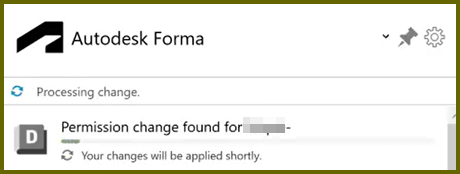
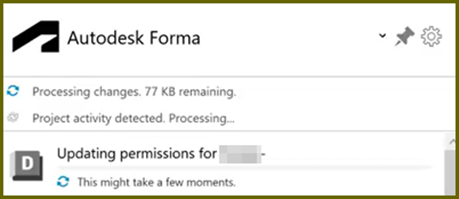
Updating: Desktop Connector is applying your new permissions.
Home screen dialog may show "Updating permissions for [project name]. This might take a few moments."
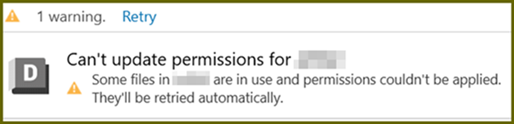
Update failed: Desktop Connector couldn't apply the update on this attempt. The job stays in the queue and retries automatically — see When permission updates fail below.
Home screen dialog may show "Can't update permissions for [project name]. Some files in [project name] are in use and permissions couldn't be applied. The job will retry automatically."
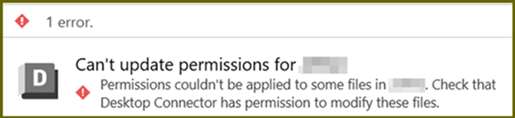
When the update completes:
- Files in folders where you now have edit access have the Read-only flag removed automatically.
- Files in folders where your access has been reduced are marked Read-only.
- Folders you no longer have access to are removed from your local workspace.
If your access to a folder is removed while you have unsynced local changes, those changes will show as failed jobs in the Home Screen. For more details, see Folder Permission Changes.
When permission updates fail
If you see a failed permission update job on the home screen, no action is required. This job only updates the Read-only flag on your local files to match your current permissions on the web — it does not change, move, or delete any file content. If an update fails on the first attempt, Desktop Connector automatically retries it on the same schedule described above.
If the job is still showing as failed after several retries:
- Open the home screen and use the menu to retry the update manually.
- Confirm your permission level for the affected project in Autodesk Forma or Autodesk Fusion on the web. See Forma - permission levels or Fusion - permission levels.
- If the problem continues, contact your project administrator or Autodesk Support.
If a file appears read-only unexpectedly
If a file is marked Read-only in File Explorer and you believe you should be able to edit it:
- Open Autodesk Forma or Autodesk Fusion on the web and navigate to the folder containing the file.
- Check your permission level for that folder. See Read-only files in File Explorer for the list of permission levels that result in read-only files.
- If your permission level looks correct but the file is still read-only locally, a permission update may still be in progress. Wait a few minutes and check again — Desktop Connector updates automatically without any action on your part.
- If the issue persists after the update window has passed, use the menu on the Desktop Connector home screen to retry the permission update manually.
- If you need your permission level changed, contact your project administrator.
Desktop Connector does not show a separate alert when your local read-only state is out of sync with the cloud. Instead, it resolves the difference automatically as part of the permission update job. If you notice a discrepancy, the update is most likely still in progress.
Locked files
A file can also be marked Read-only because it's locked, independently of your permission level. As with permission-based read-only files, Desktop Connector applies this automatically.
Because both permissions and locking can drive the Read-only flag, Desktop Connector combines the two to decide the local state of a file:
| Permission level | Locked | Result in File Explorer |
|---|---|---|
| View only / View + Download | No | Read-only |
| View only / View + Download | Yes | Read-only |
| Edit access | No | Not read-only |
| Edit access | Yes | Read-only |
In other words, a file is marked Read-only if you only have view or view + download access to its folder, or if the file is locked — whichever applies. If a file you expect to edit is read-only, check whether it's locked (in addition to checking your permission level in Read-only files in File Explorer).