
Study Tasks pane
The Study Tasks pane displays information about the active study.
The Study Tasks pane opens by default when you open a study
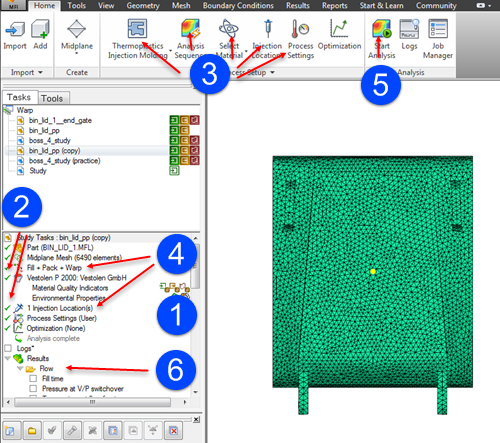
It is found on the left hand side of the model pane. It lists the tasks that are required prior to launching an analysis.
As you complete each task, a green tick is displayed next to that task.
Each task can be initiated either from the various ribbon tabs
or by right-clicking on the item in the Study Tasks pane.
For example, if you right-click on the
 Analysis Sequence, you can change the analysis sequence. Alternatively, you can perform the same task using the ribbon menu by clicking
  (Home tab > Molding Process Setup > Analysis Sequence).
When all tasks are complete, Analyze becomes active.
You can then launch the analysis by selecting the
 Analyze icon.
When the analysis has completed, the results are displayed in a folder in the Study Tasks pane.